Goal: To link your Google Merchant Center to your Google Ads account.
Ideal Outcome: You successfully link your Google Merchant Center to your Google Ads account.
Prerequisites or requirements: You will need a Google Merchant Center and a Google Ads account.
Why this is important: Linking up your Google Merchant Center account to Google Ads is advantageous for your business. You will be able to utilize retail-centric Google Ads campaign tools and the data-centric power of Merchant Center to improve your presence on the web.
Where this is done: In Google Merchant Center and Google Ads.
When this is done: Only once.
Who does this: The business owner/manager or the local/agency digital marketer.
Request link to Google Ads in Merchant Center
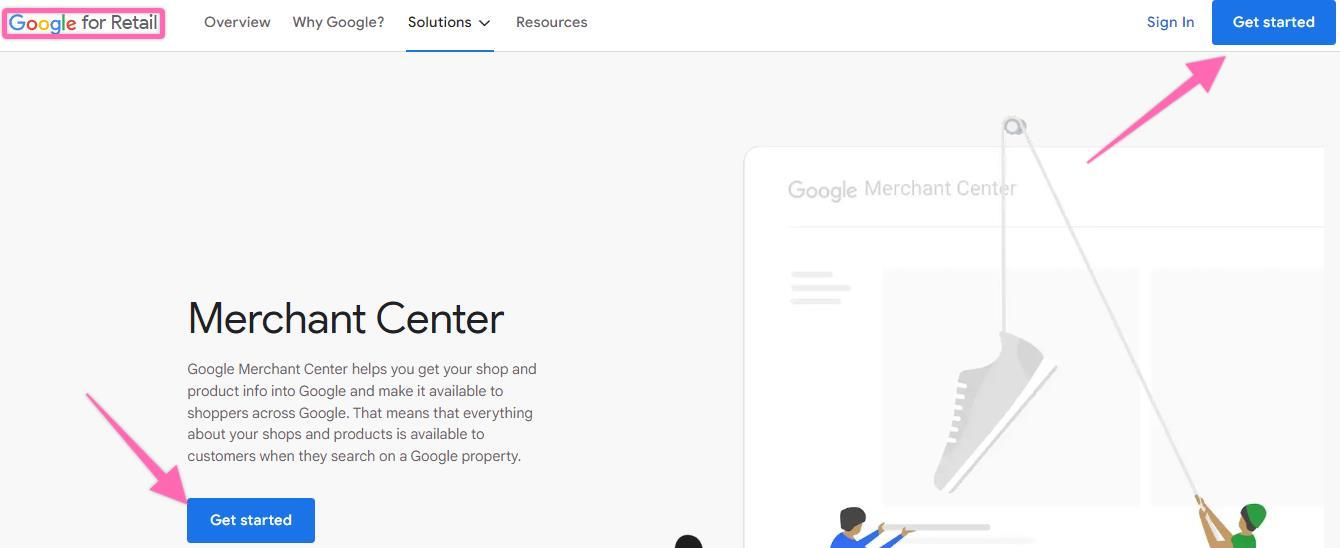
Go to Google Merchant Center here and click “Get started”.
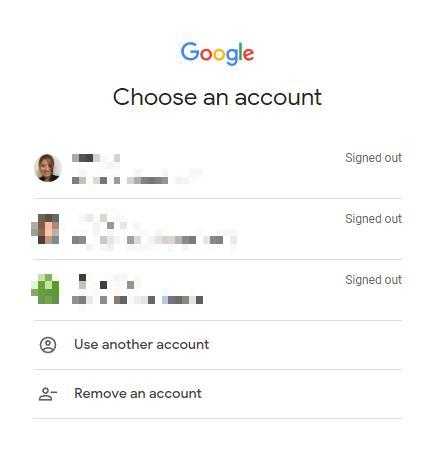
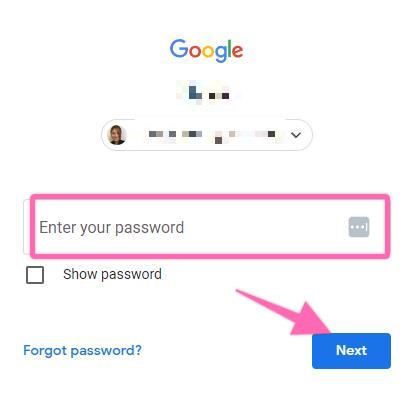
Choose a Gmail account and log in with your password. Click “Next”.
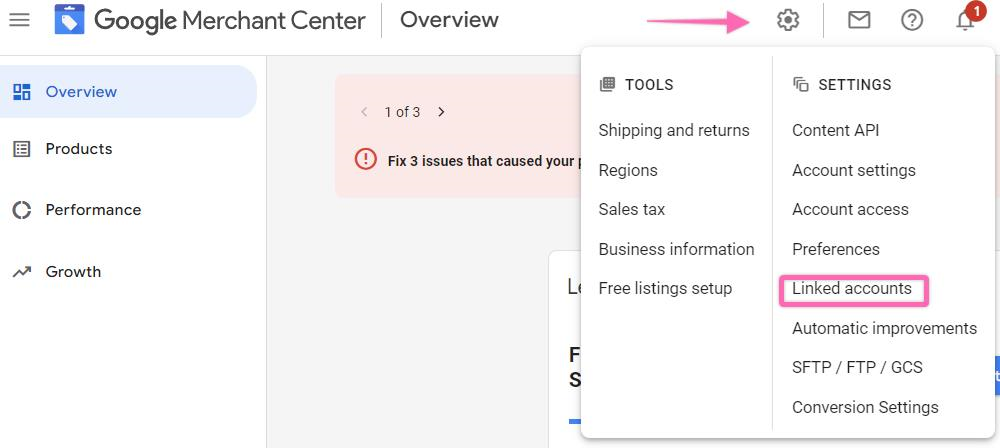
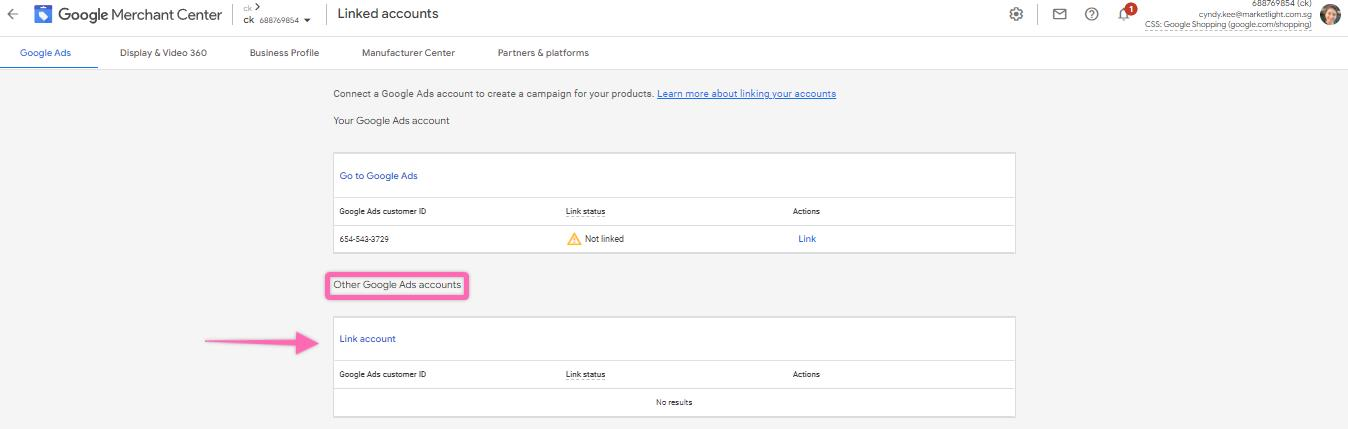
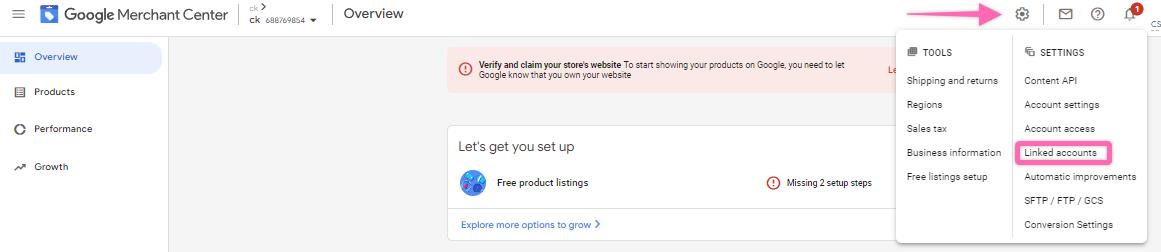
To link to your own Google Ads account, click the setting menu icon [Gear] and click “Linked accounts”.
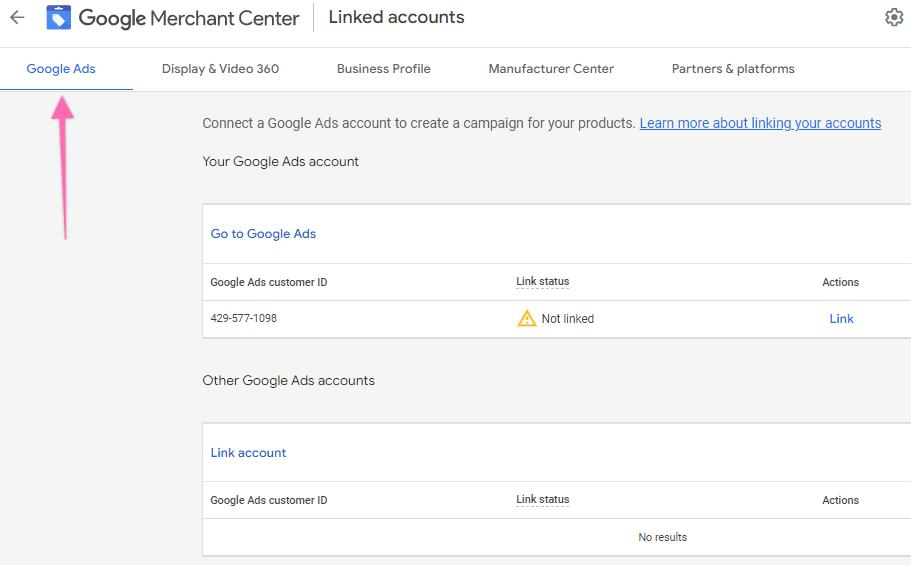
Select “Google Ads”.
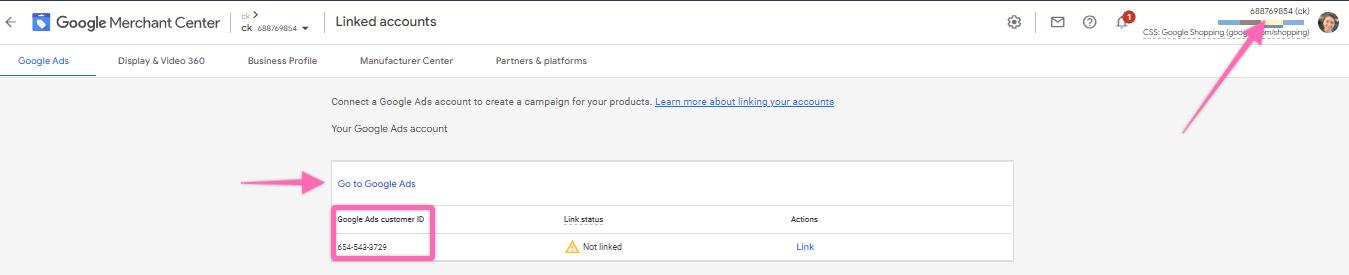
Under “Go to Google Ads”, you should be able to see your Google Ads customer ID (if you have used the same Gmail to set up both of the accounts).
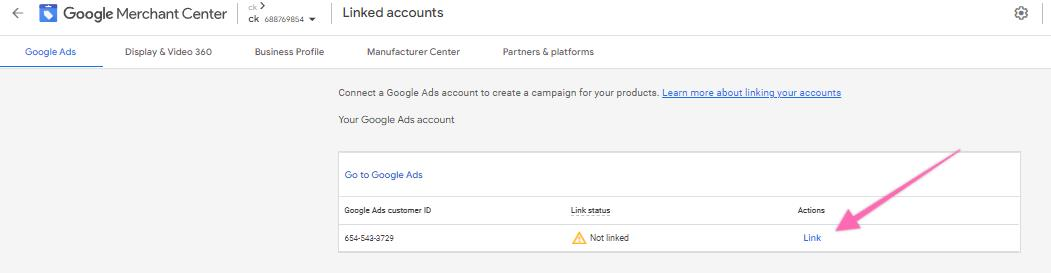
Click “Link” under "Actions".
To link to other Google Ads accounts, click “Link account” under “Other Google Ads accounts”.
A pop-up will appear. Enter the Google Ads customer ID of the account you want to link and click “Send link request”.
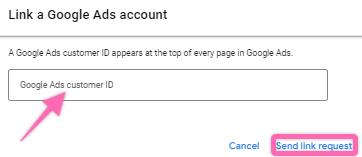
You can find the ID number next to the notification icon in Google Ads.

Approve request link in Google Ads
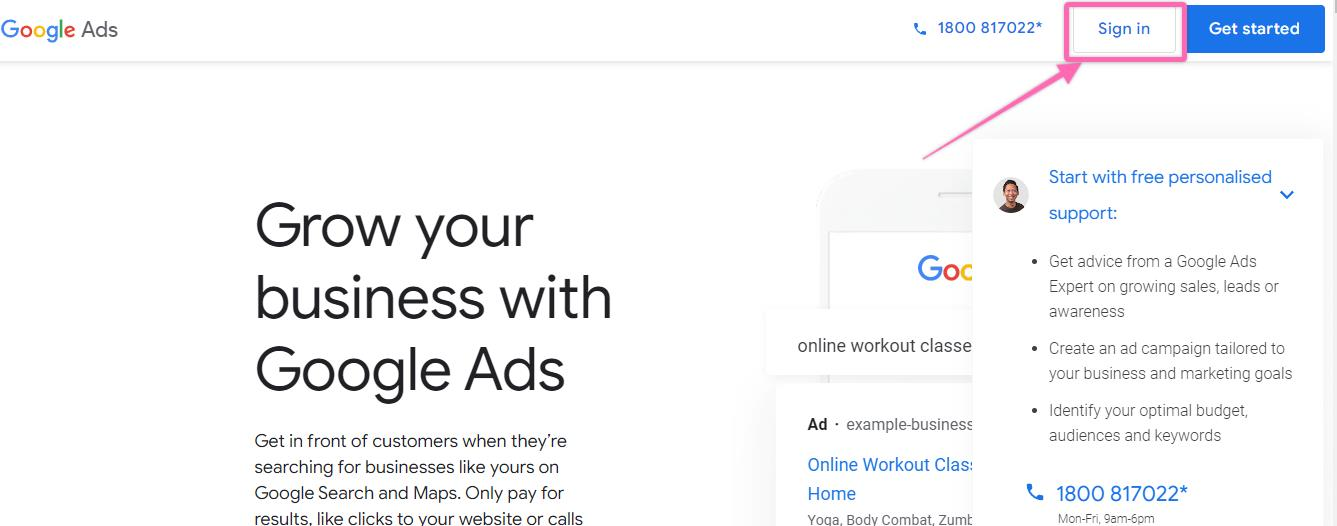
Sign in to your Google Ads account here. Click “Sign in”.
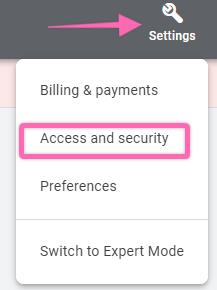
Click the [gear] icon or settings menu on the top bar and select “Access and security”.
Next, select the “Managers” tab.
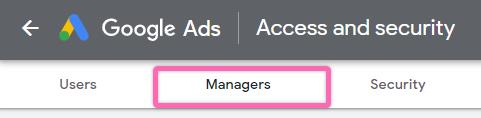
Under the “Link request” section, go to “Actions” and click “Accept”.

How to cancel a link request In Merchant Center
In your Merchant Center account, click the gear icon or settings menu on your top right corner, then click “Linked accounts”.
Next, cancel the request.
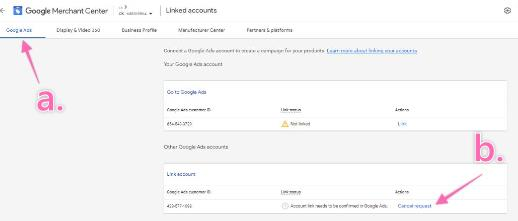
Go to the “Google Ads” tab.
Click “Cancel request” on your right.
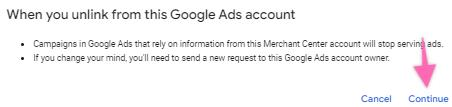
When prompted with a pop-up, click “Continue”.