Goal: Successfully track lead sign-ups in Google Analytics 4.
Ideal Outcome: Starts tracking leads sign up on the conversion report in Google Analytics 4.
Prerequisites or requirements: You need to have an existing Google Analytics 4 account.
Why this is important: Set up lead generation tracking on Google Analytics so you can track leads generated from your blog, landing page or any of your lead generation campaigns.
Where this is done: Google Analytics.
When this is done: After you’ve set up a lead generation page on your website.
Who does this: Marketing Manager, marketing consultant, or any person responsible for marketing strategy for your business.
Before you start
This SOP assumes that you have a thank-you page after a lead signs up. A Thank-You page is a page where the users are redirected after successfully signing up as a lead.
Set up a conversion event for each lead generated
Login to your Google Analytics account.
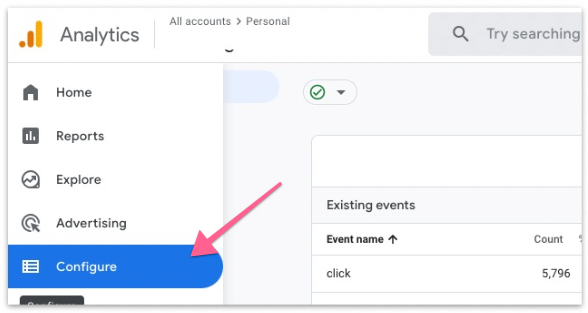
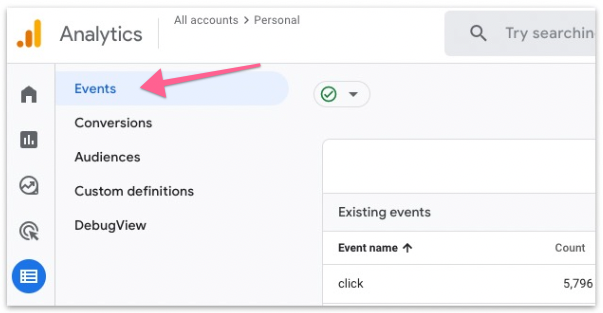
Head to the “Configure” tab and select “Events”.
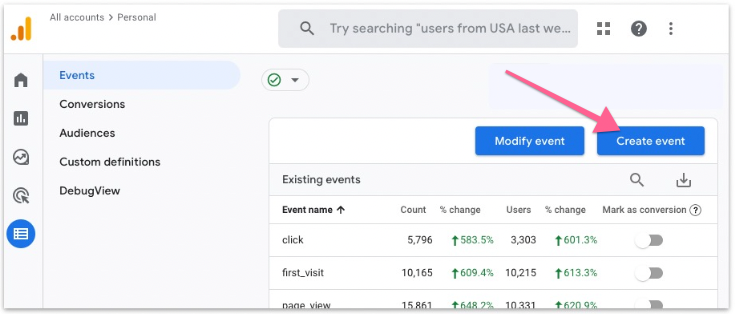
Click “Create event”
In the next screen, click “Create” to create a custom event.
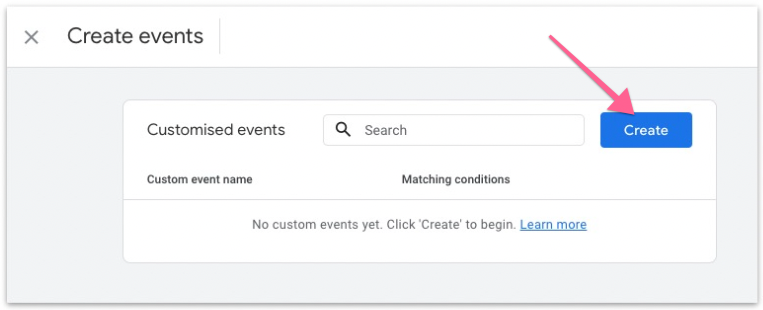
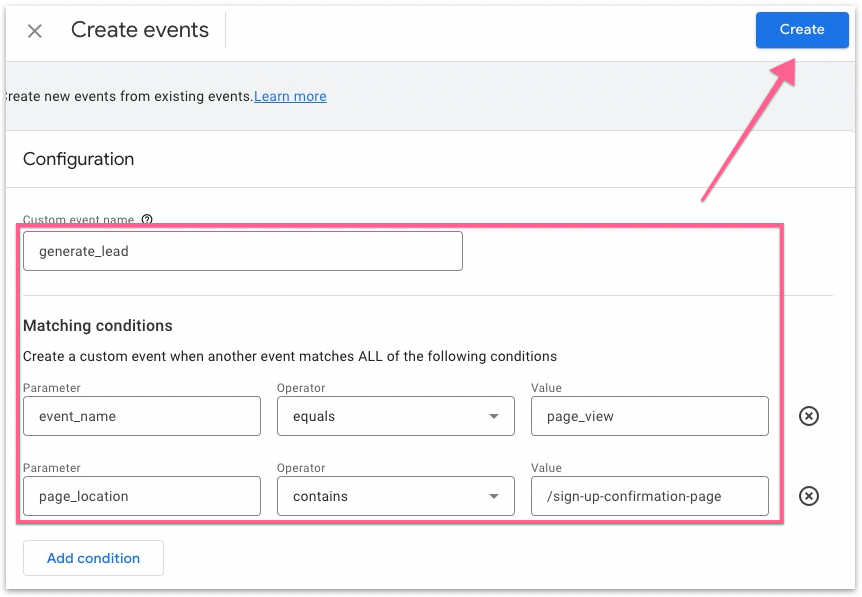
In the event configuration page, set the following details:
Custom event name — Use one of Google’s recommended event names for lead generation, in this case, it’s “generate_lead”.
Matching conditions:
Set event_name — equals — Page_view
Set page_location — contains — [URL of the thank-you page]
Once completed, click “Create”.
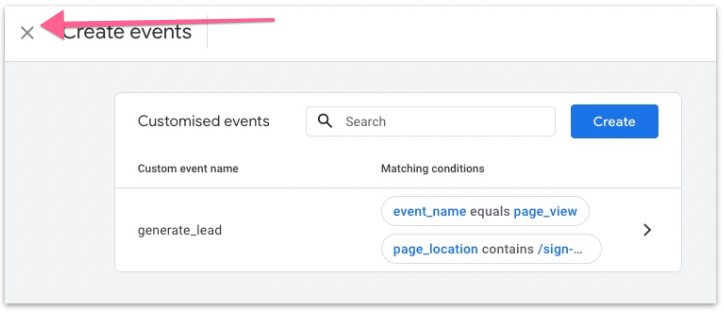
Click the “Cancel” button to head back to the events page.
Head to the “Conversion” tab and click “New conversion event”.
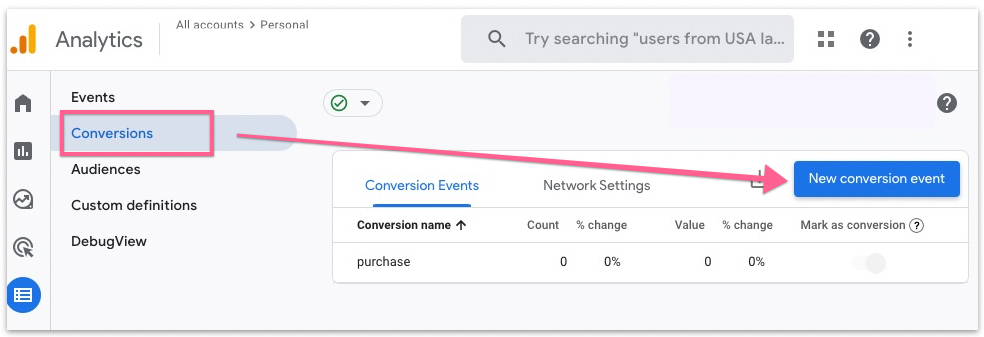
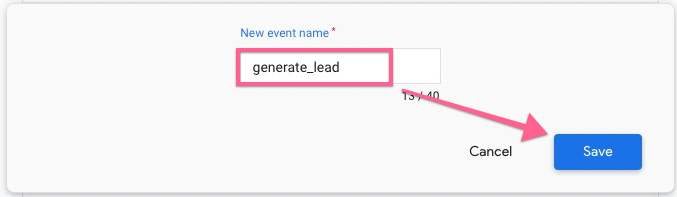
Set the new conversion the same (recommended) name that’s used in step 5. Then click “Save”.
Make sure the “generate_lead” event is marked as conversion so it will show up in the conversion report when it starts recording.
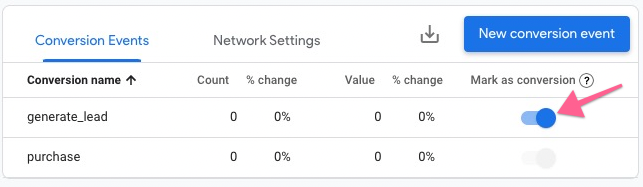
That’s it! You’ve now set up lead tracking in your Google Analytics 4 account.
Verify your setup inside Google Analytics
In order to verify in real-time if the lead tracking is working, we will utilize Google Analytics 4 DebugView. First, go ahead and install the GA Debugger Chrome Extension.
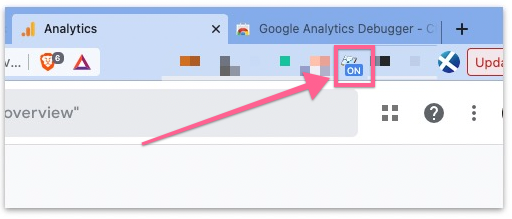
Once you’ve downloaded the extension, click on the plugin and make sure it is ON.
Next, log in to your Google Analytics account.
Head to the “Configure” tab and select “DebugView”.
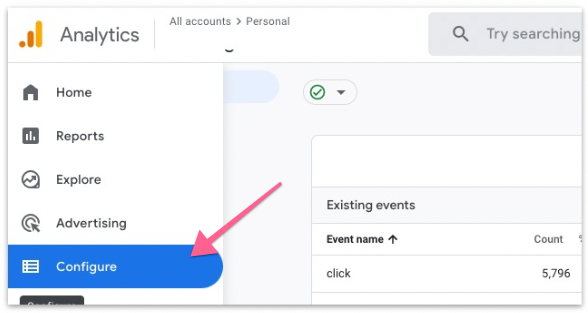
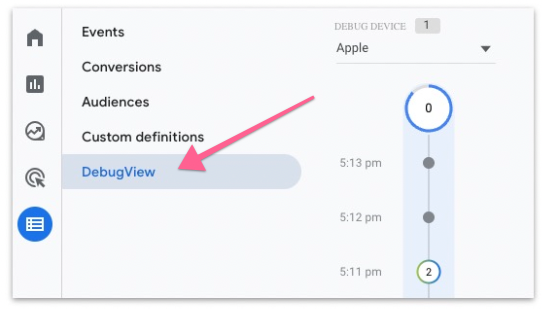
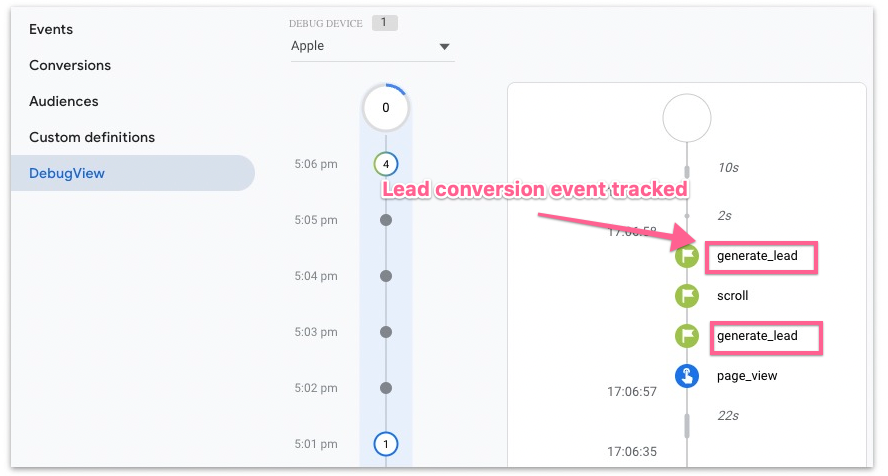
In DebugView, you will be able to see all the events tracked in real-time in Google Analytics 4.
Now we can begin to test the lead tracking event that we’ve set up. Head to your website’s sign-up page and perform the required action to trigger the lead conversion event (i.e. signing up as a lead).
If the lead tracking is successful, you should see the lead conversion event in DebugView.