
Goal: Successfully add Google Analytics 4 to Squarespace.
Ideal Outcome: Google Analytics 4 is properly added without any technical issues.
Prerequisites or requirements: You need to have an existing Google Analytics 4 account.
Why this is important: Google Analytics 4 is the next-generation analytics platform by Google (replacing the legacy platform Universal Analytics). It’s privacy-focused as well as better suited to track the customer journey across platforms and devices.
Where this is done: Google Analytics and Squarespace.
When this is done: In the early stage of marketing your business or a new product.
Who does this: Marketing Manager, marketing consultant, or any person responsible for marketing strategy for your business.
Get tracking ID from Google Analytics 4
Login to your Google Analytics account.
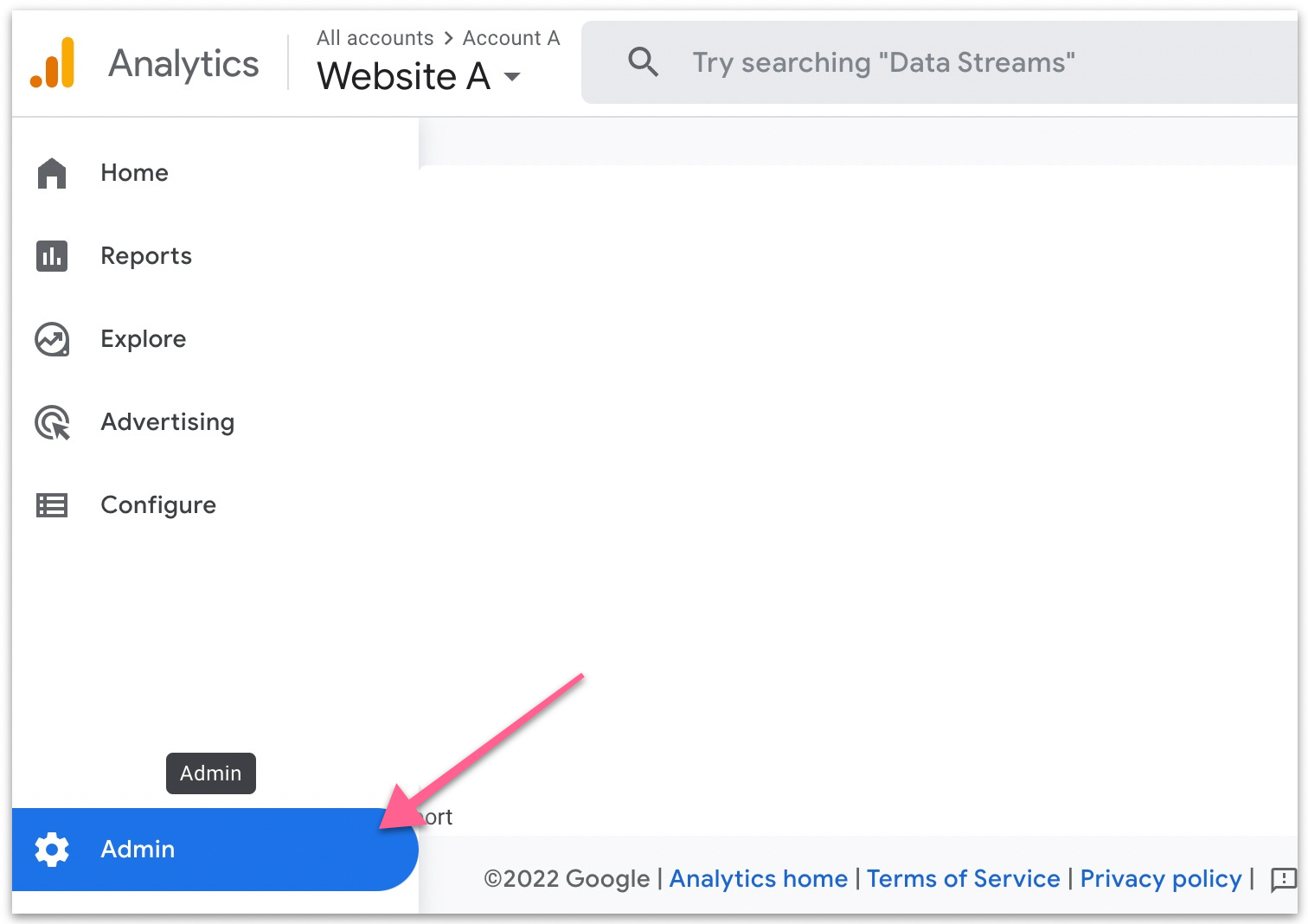
Click “Admin”.
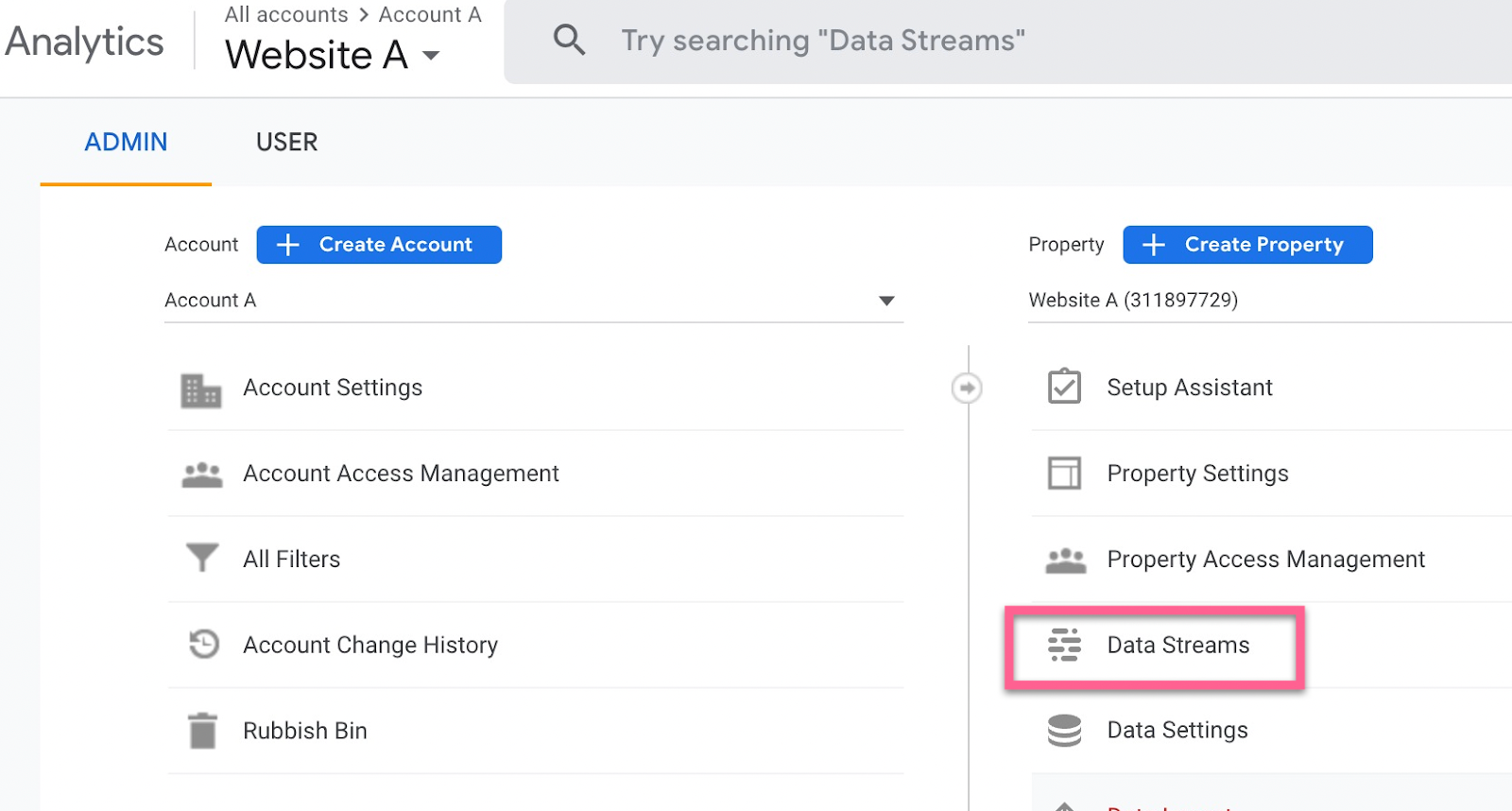
Make sure you’ve selected the correct property (website) and select “Data Streams”.
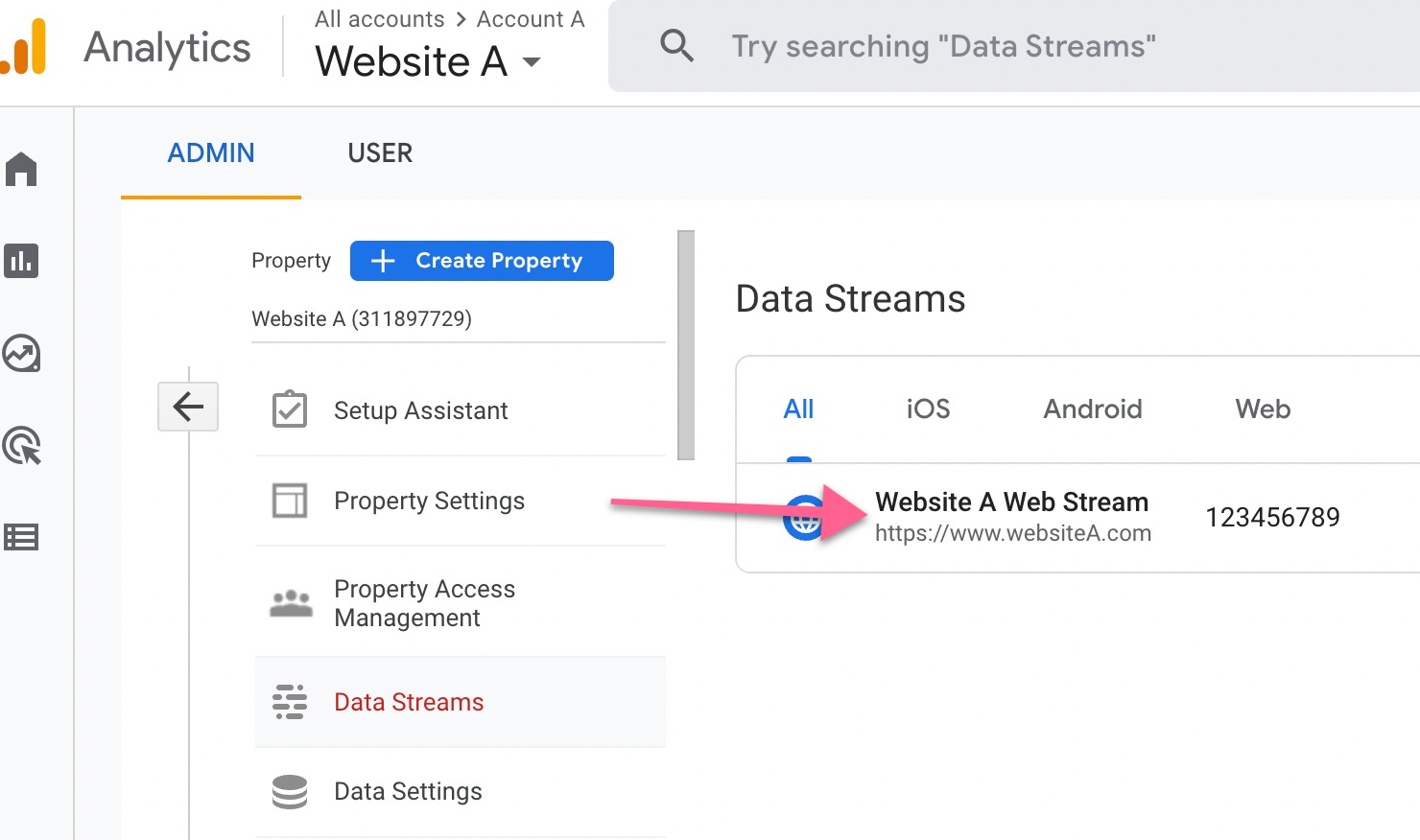
Select your website that you want to implement Google Analytics 4.
Click on the measurement ID to copy it.
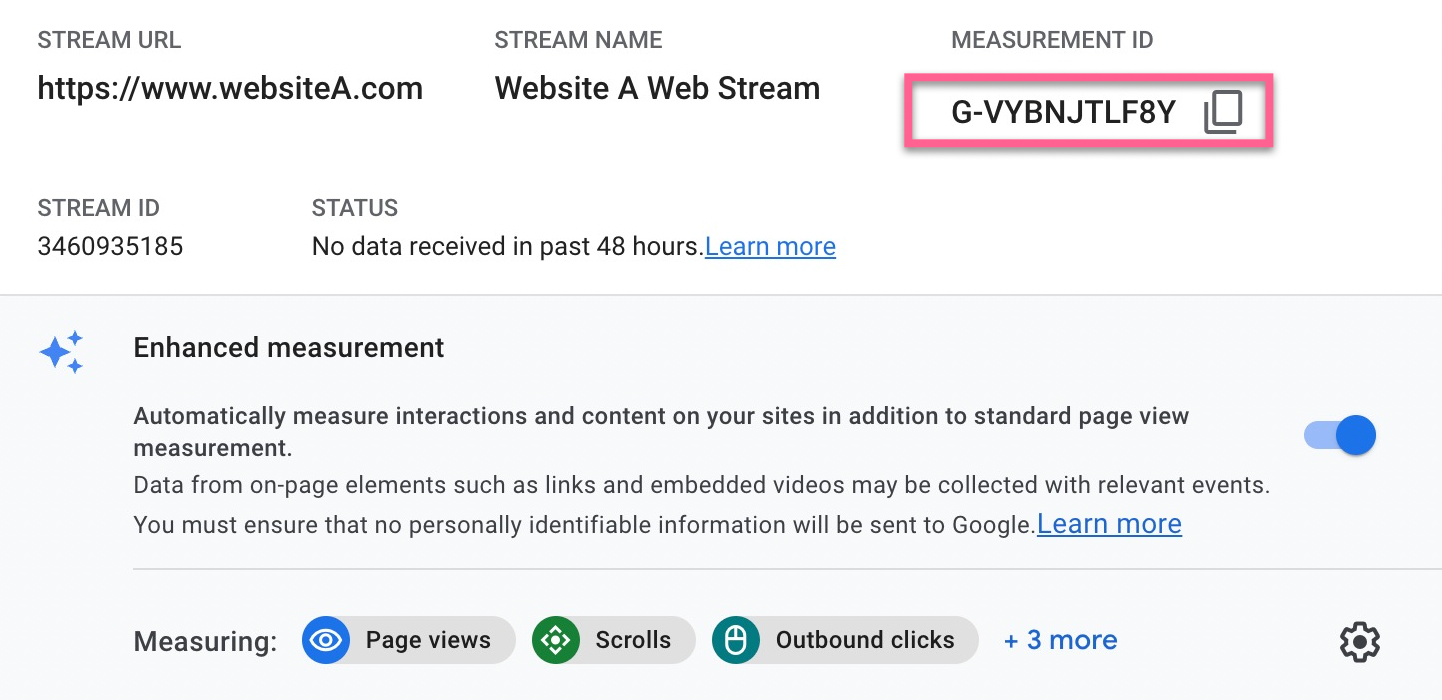
You can paste it into a text editor or notepad for now. You will need this later.
Add Google Analytics 4 tracking ID to Squarespace
Log in to your Squarespace account and select a site to edit.
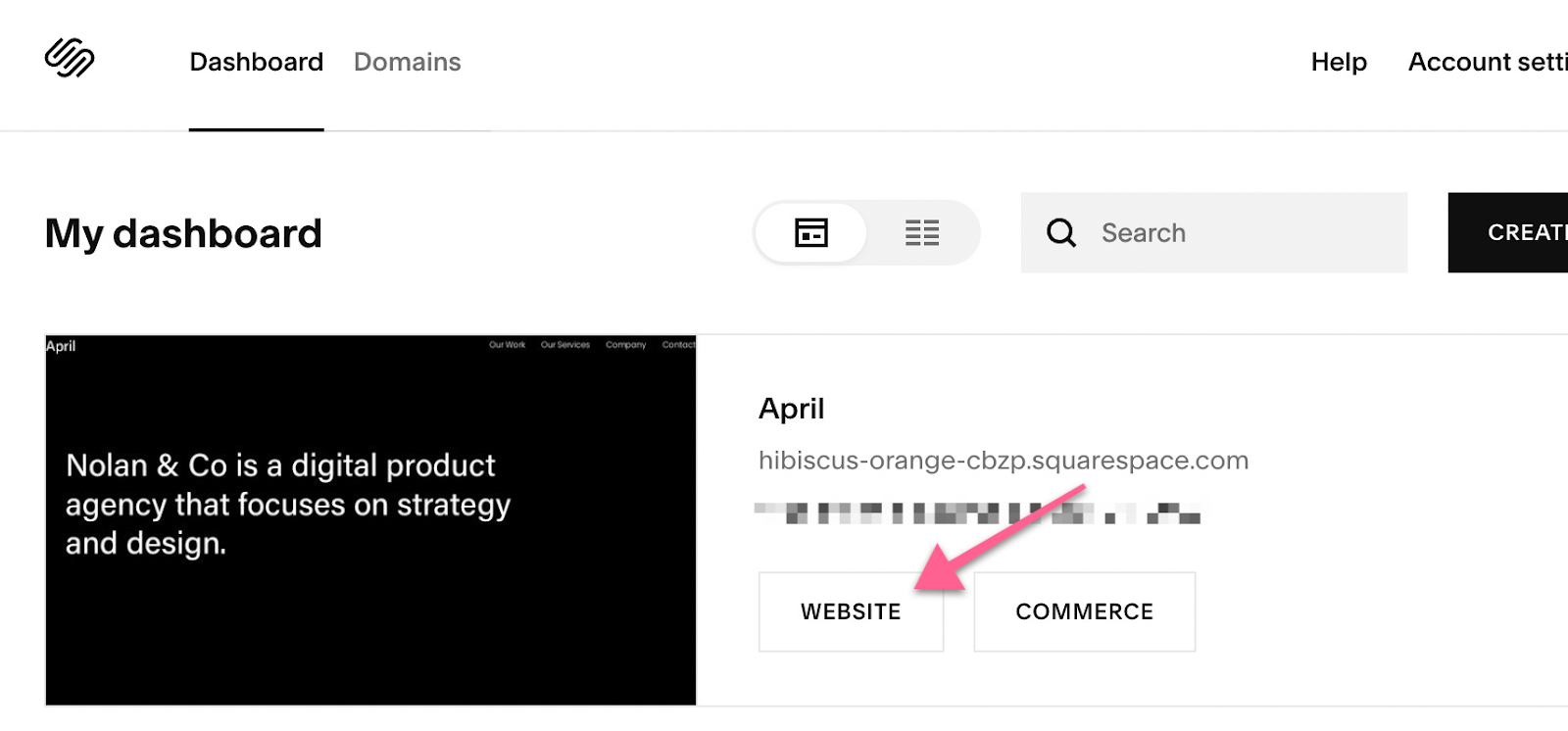
In your site dashboard, select “Settings”.

Then, in the site settings, select “Advanced” ➞ “External API Keys”.


Paste the Google Analytics tracking ID that you copied earlier into GOOGLE ANALYTICS and hit Save.
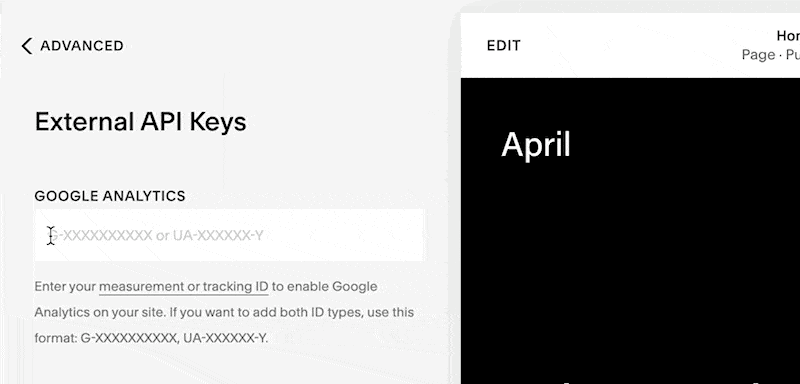
You've now added Google Analytics 4 to Squarespace!
Verify your setup inside Google Analytics
To test if the tracking code works, login to your Google Analytics 4 account.
You will be taken to your account dashboard.
Head to the real-time report under Report ➞ Real-time
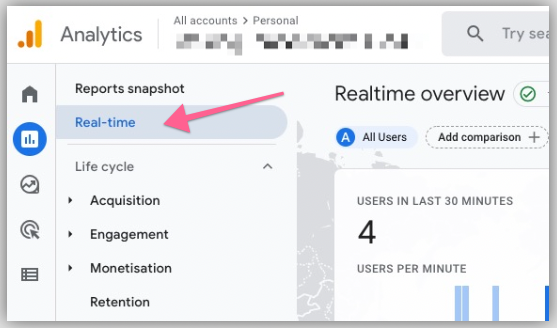
You should see (at least) 1 active user on the website.
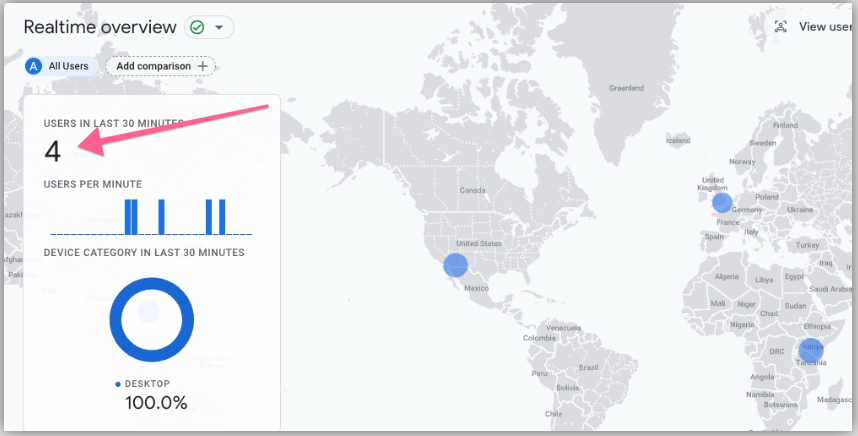
Verify the country where the user is from (it should be where you are currently located).
If you see user activities on your real-time report, then you can confirm the Analytics 4 has been implemented successfully.