Goal: To migrate Facebook assets (e.g. Facebook Pages and Ad Accounts) from a personal Facebook profile to Facebook Business Manager.
Ideal Outcome: You can now manage all your Facebook assets under a Facebook Business Manager account.
Pre-requisites or requirements:
You need a Business Manager Account;
Why this is important: So you can manage Facebook Pages, Ad Accounts, and the people who work on them — all in one place
Where this is done: Inside Facebook Business Manager.
When this is done: The earlier the better, there’s no downside to this method.
Who does this: The person that owns the asset and the person that has admin access to the Business Manager.
Migrating Facebook Pages and Ad Accounts from a personal Facebook profile to Facebook Business Manager
Note: Always use Facebook Business Manager to manage your Facebook assets regardless of whether you’re an agency managing campaigns for clients or company granting access to employees or agencies.
Important: Claiming Facebook Pages and Ad Accounts should only be performed if you want to be the actual owner of those assets. If you are an agency, freelancer, or employee working on another company/person’s assets (Pages, Ad Accounts, etc) do not claim those assets. Instead, you can simply be assigned the role that you need.
Access required: Admin
Typical scenario: In the early stages of your business, you or an employee created an Ad Account or a Facebook Page using their own personal profile. Your business should now use Business Manager to manage your assets. This will also allow you to easily control grant and revoke access to your assets to your employees or when working with freelancers, agencies, or consultants.
Who performs this action: The Admin of the Business Manager account who wants to claim the assets. (This could be the business owner, a CEO, or other stable member of the organization)
Migrating Facebook Pages to your Business Manager:
Log in to your Business Manager Settings here
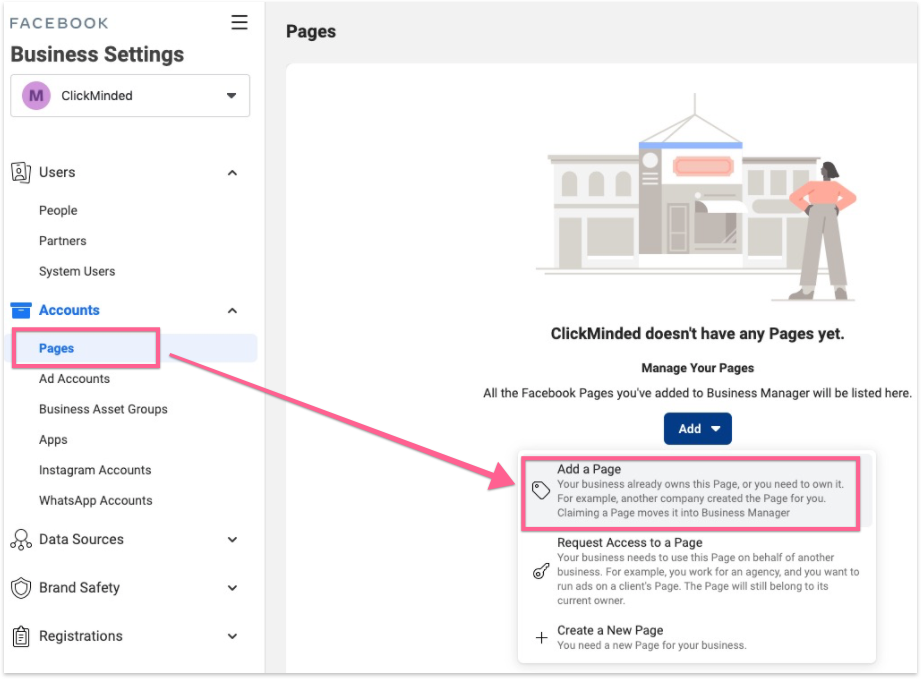
On the sidebar click “Pages” → “Add” → “Add a Page”
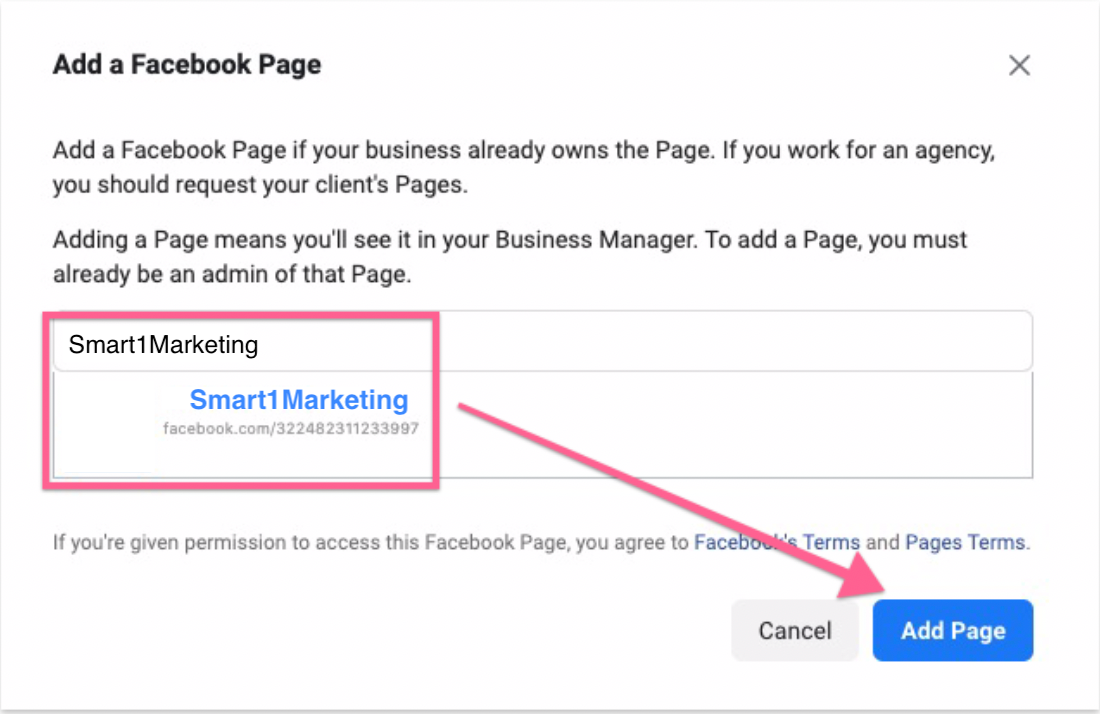
Search for your Page’s name, or alternatively paste your page URL → Click “Add Page”:
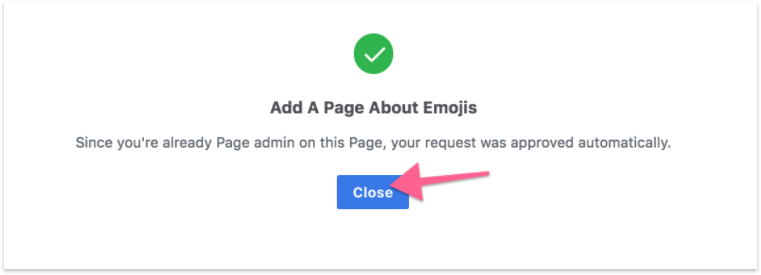
That’s it! You’ve added your page to your Business Manager. If you were already an Admin of the page your request will be approved immediately and you will be added as a Page Admin for that page inside your Business Manager.
Migrating Ad Accounts to your Business Manager:
Log in to your Business Manager here.
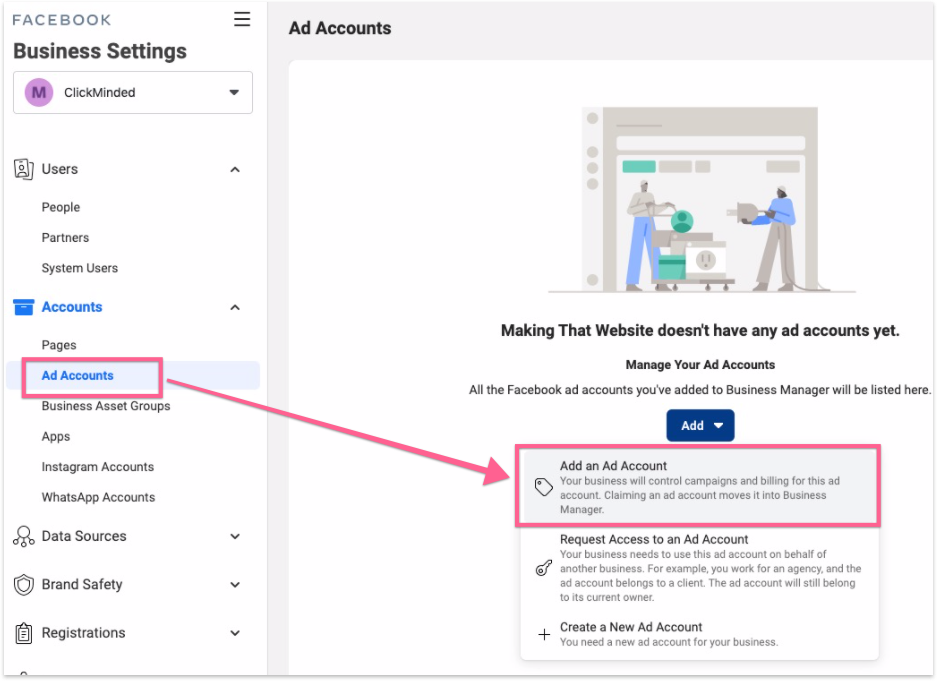
On the sidebar click “Ad Accounts” → “Add” → “Add an Ad Account”.
You’ll find a field prompting you to enter your “Ad account ID”, you can find your Ad Account ID by opening “Ads Manager” and clicking on the top-left dropdown. Copy that Ad Account ID over to that field, when you’re done click “Add Ad Account”:
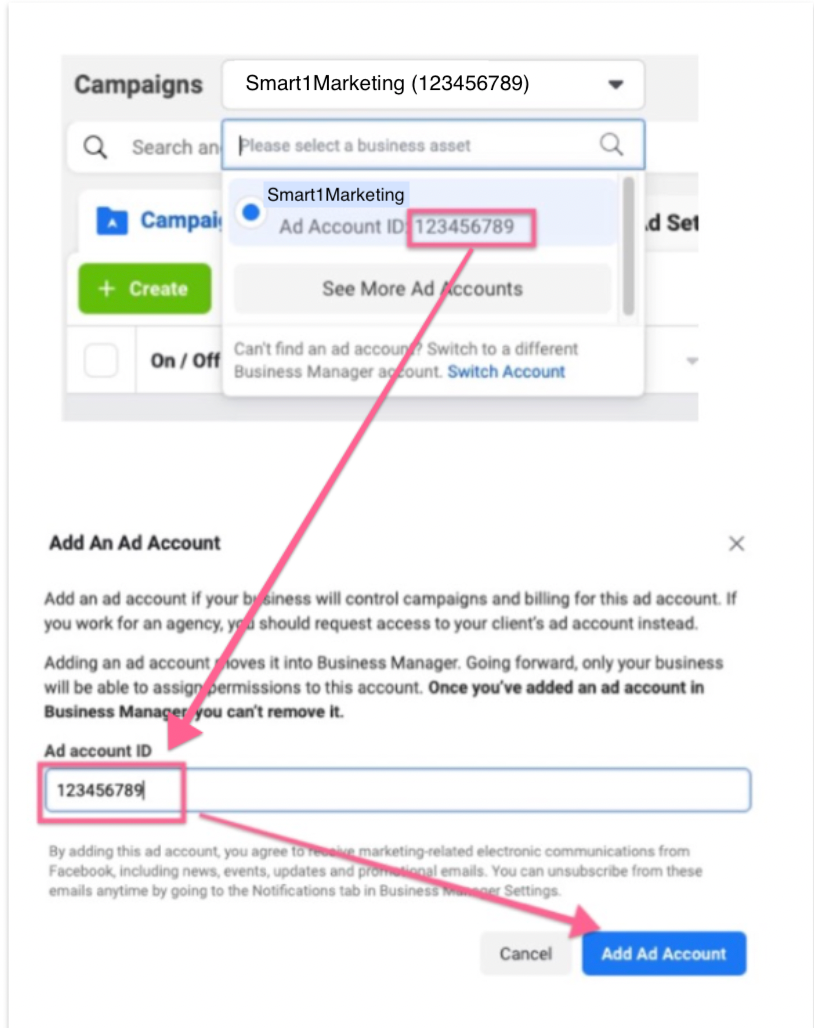
That’s it, you’ve claimed your Ad Account and if you were an Admin before, you now have Admin access to that Ad Account as well.