Goal: To disavow a list of links and domains in Google Search Console.
Ideal Outcome: You have created an accurate disavow file and disavowed the intended links in Google Search Console.
Pre-requisites or requirements: You need to have access to Google Search Console, you should also have determined which links and domains you want to disavow prior to executing this task.
Why this is important: In some cases, the only way to recover from (or avoid) a penalty might be to disavow specific links that are hurting your domain.
Where this is done: In Google Search Console.
When this is done: When there is a considerable number of spammy, artificial, or low-quality links across your link profile, that have caused a manual penalty or are likely to cause one in the future.
Who does this: The person responsible for SEO.
Included resource on this Document
Disavow File Generator
The ultimate, most efficient way to perfectly generate customized disavow files for your website.
Environment setup
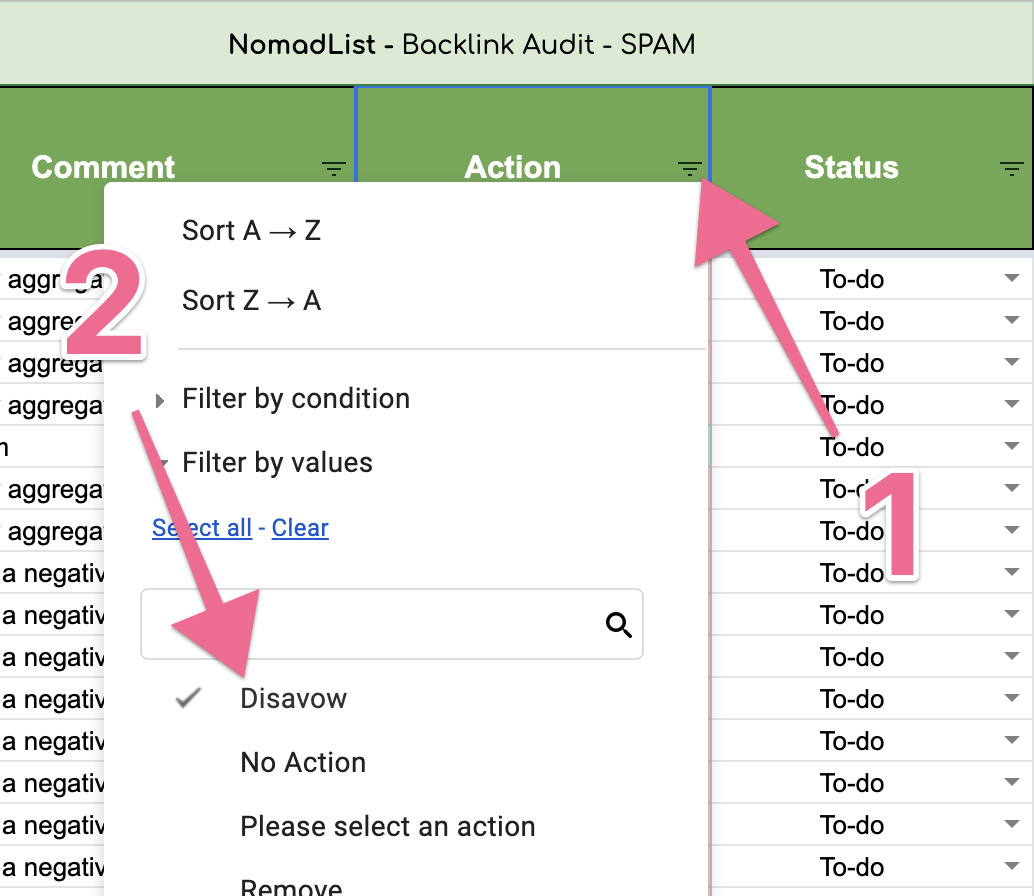
Collect the list of pages, domains, and subdomains that you will want to disavow. If you are following this document as a result of a backlink audit (recommended), and you are using Backlink Audit Template you will be able to filter the links that have been selected to be disavowed by filtering the ‘Action’ column:
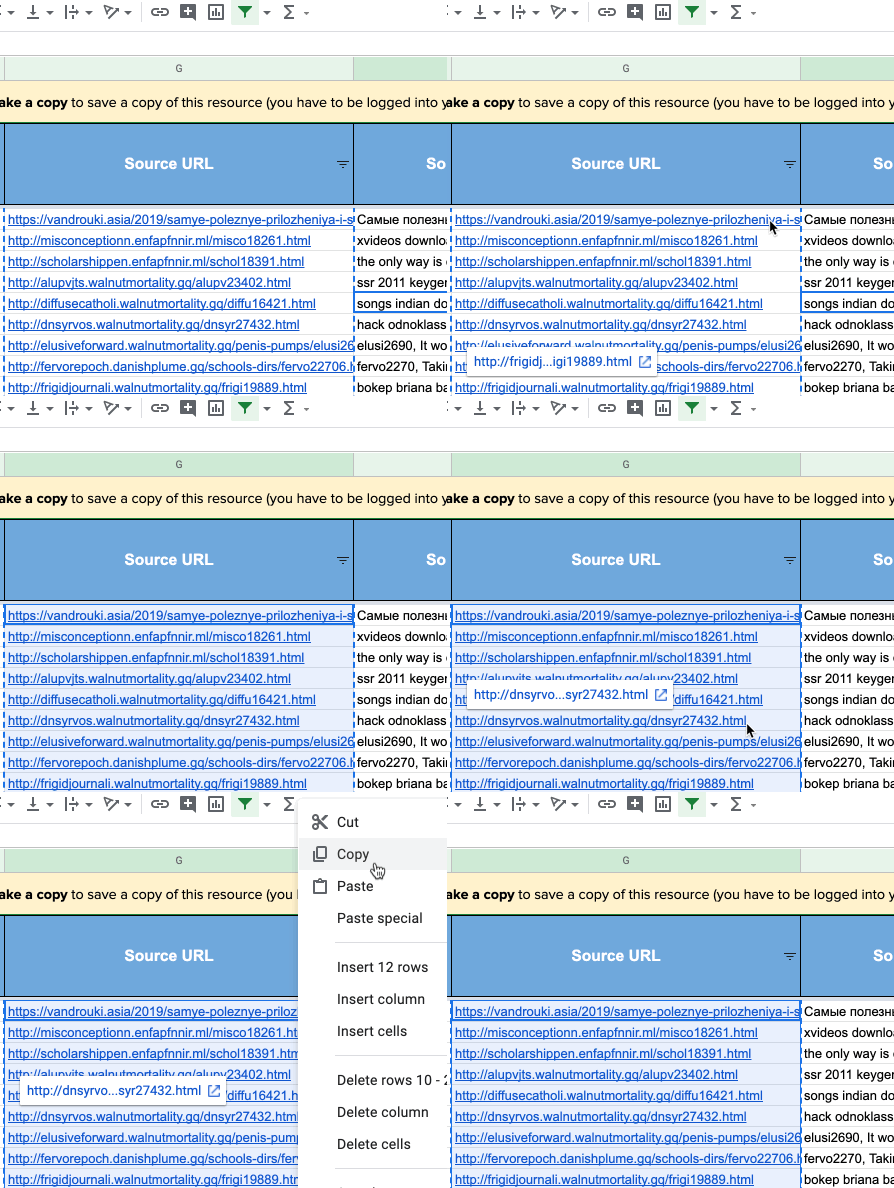
Copy the list of the links that you want to disavow:
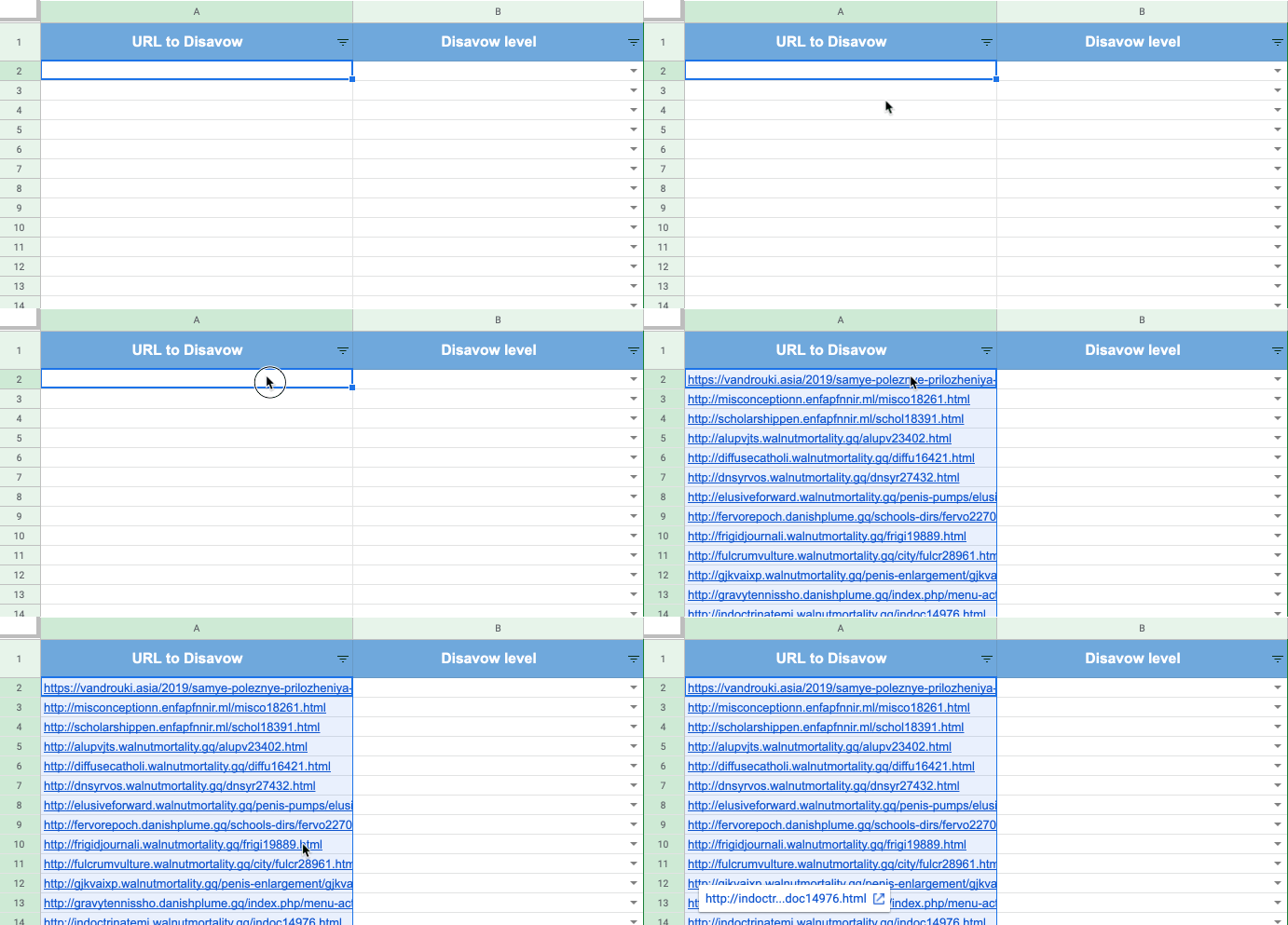
Open the Disavow File Generator, make a copy of that spreadsheet, and paste your list of links in column A:
Prepare your disavow file
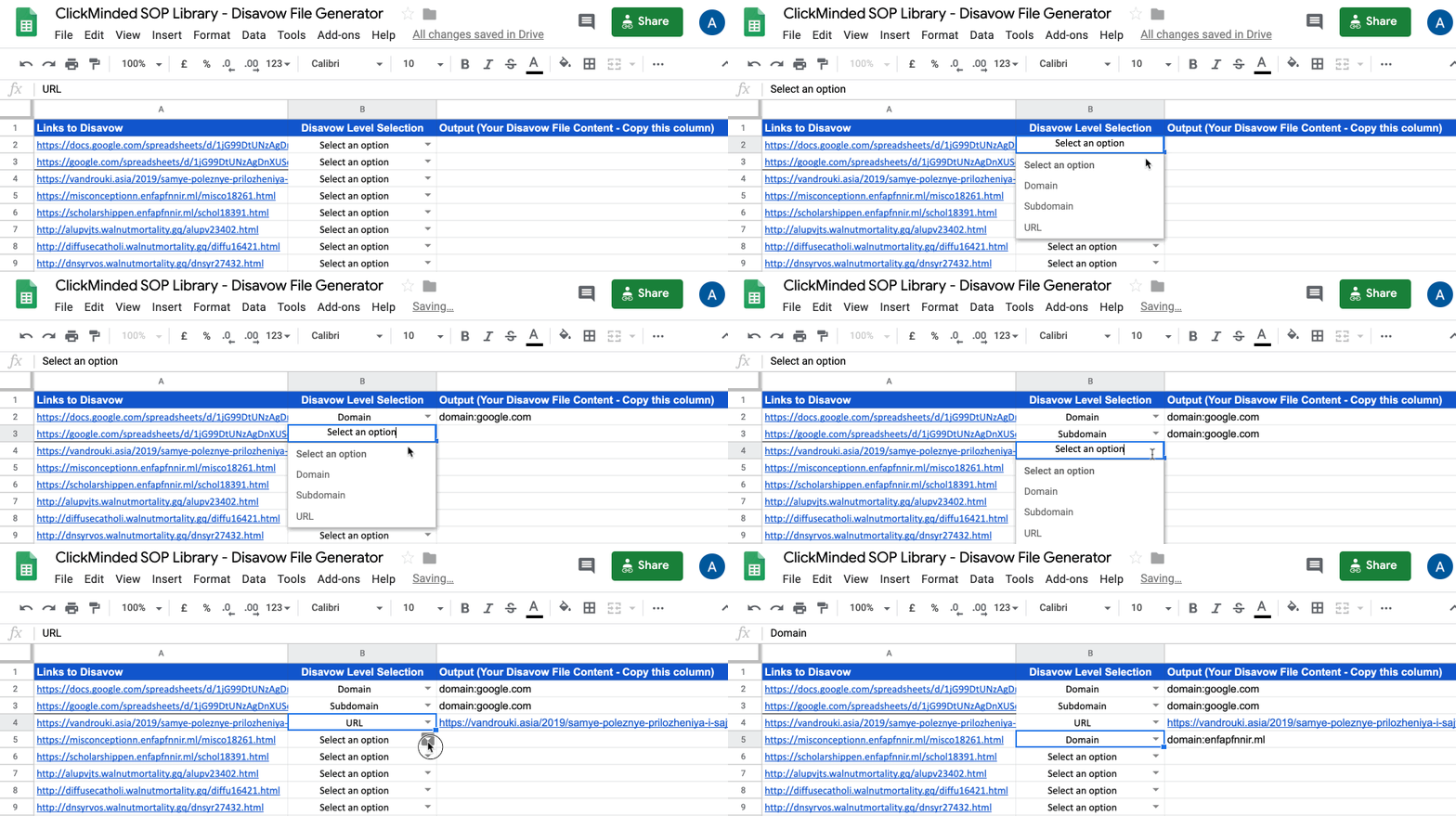
Using Disavow File Generator, you will see a dropdown in Column B next to each of your links. For each link select if you want to disavow:
Domain: All the links from that domain will be disavowed, be careful with this option since that means that future links from that domain (whether spammy or not) will be automatically disavowed. If that domain is and will always be spammy then this would be a valid option.
Subdomain: All the links from that subdomain will be disavowed, be careful with this option since that means that future links from that subdomain (whether spammy or not) will be automatically disavowed. If that subdomain is and will always be spammy then this would be a valid option.
Exact URL: That specific link will be disavowed, any future link coming from the same domain/subdomain can still be counted.
Note: If you are not sure, select ‘Exact URL’.
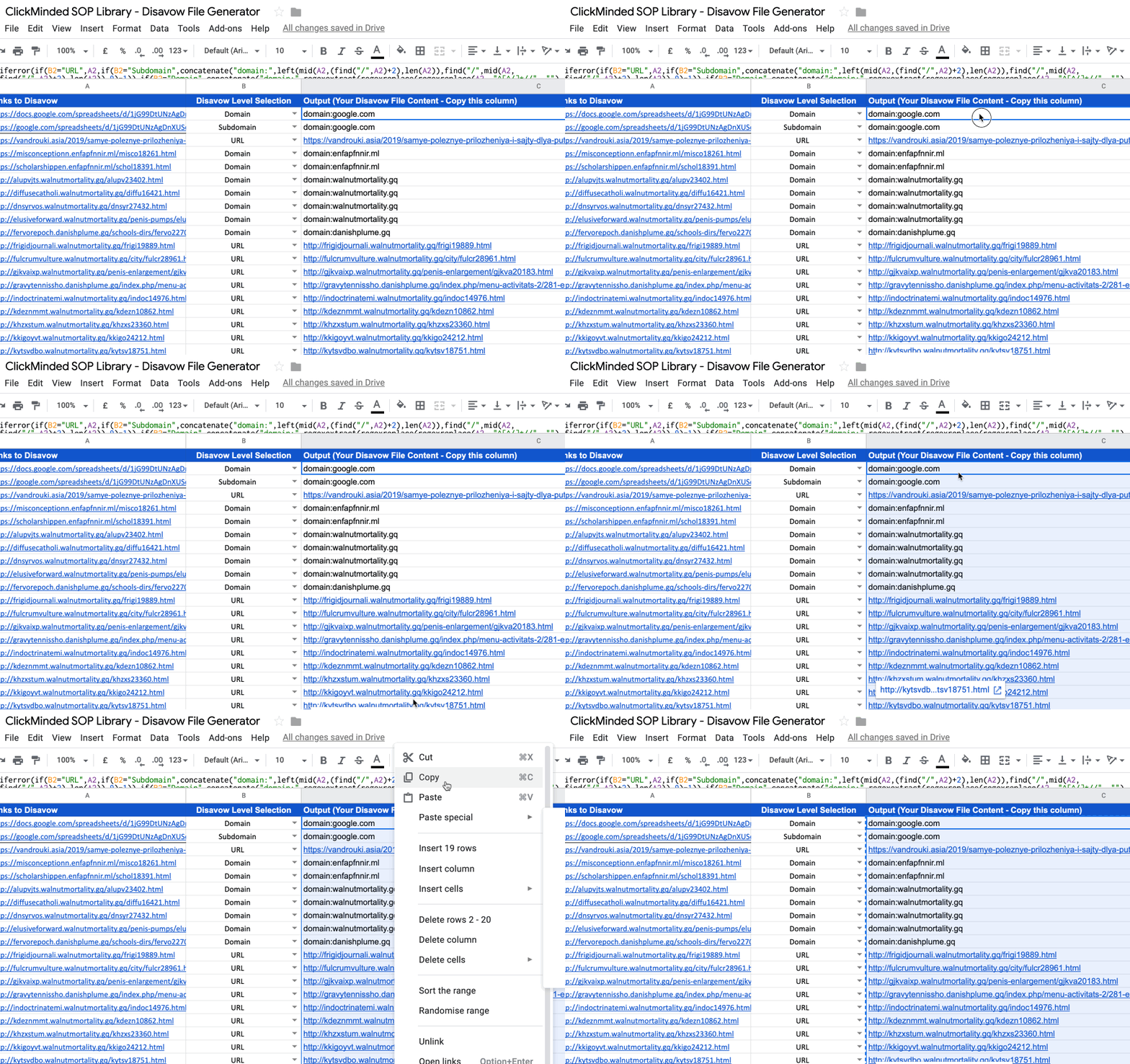
Once you’ve done that for all your links, select and copy Column C’s content (Output):
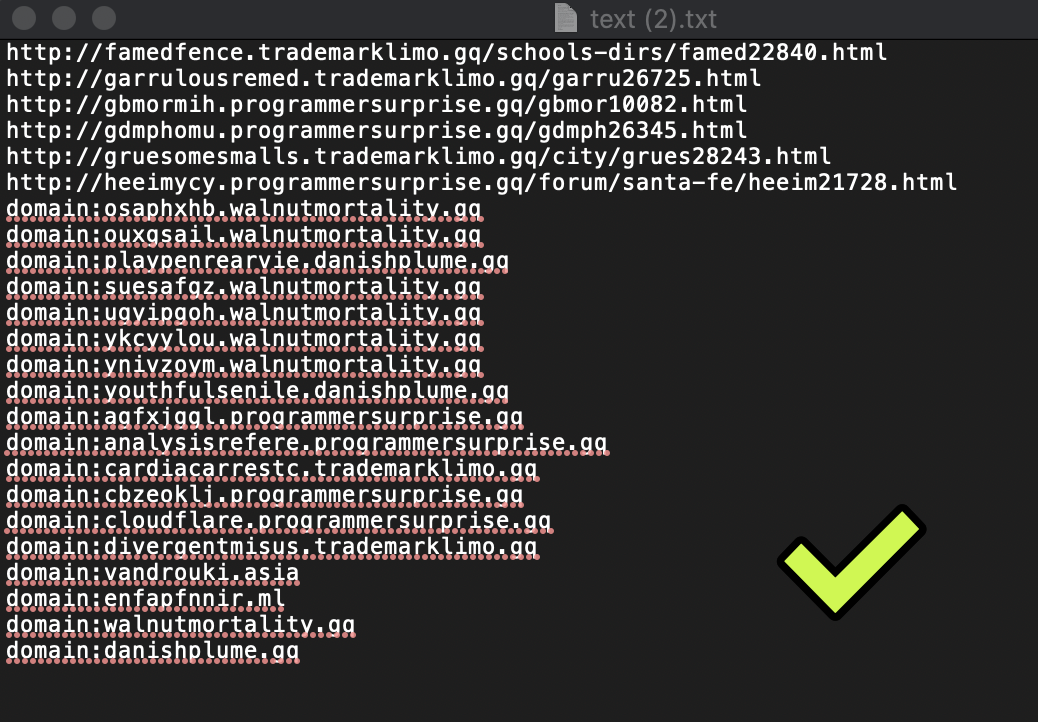
Paste the generated list to your existing document on Edit Pad (editpad.org) and click ‘Download & Save’:

Your browser will automatically download a .txt file, this will contain the file you need to upload to Google Search Console:
Upload your disavow file to Google Search Console
Head over to this URL: https://www.google.com/webmasters/tools/disavow-links-main
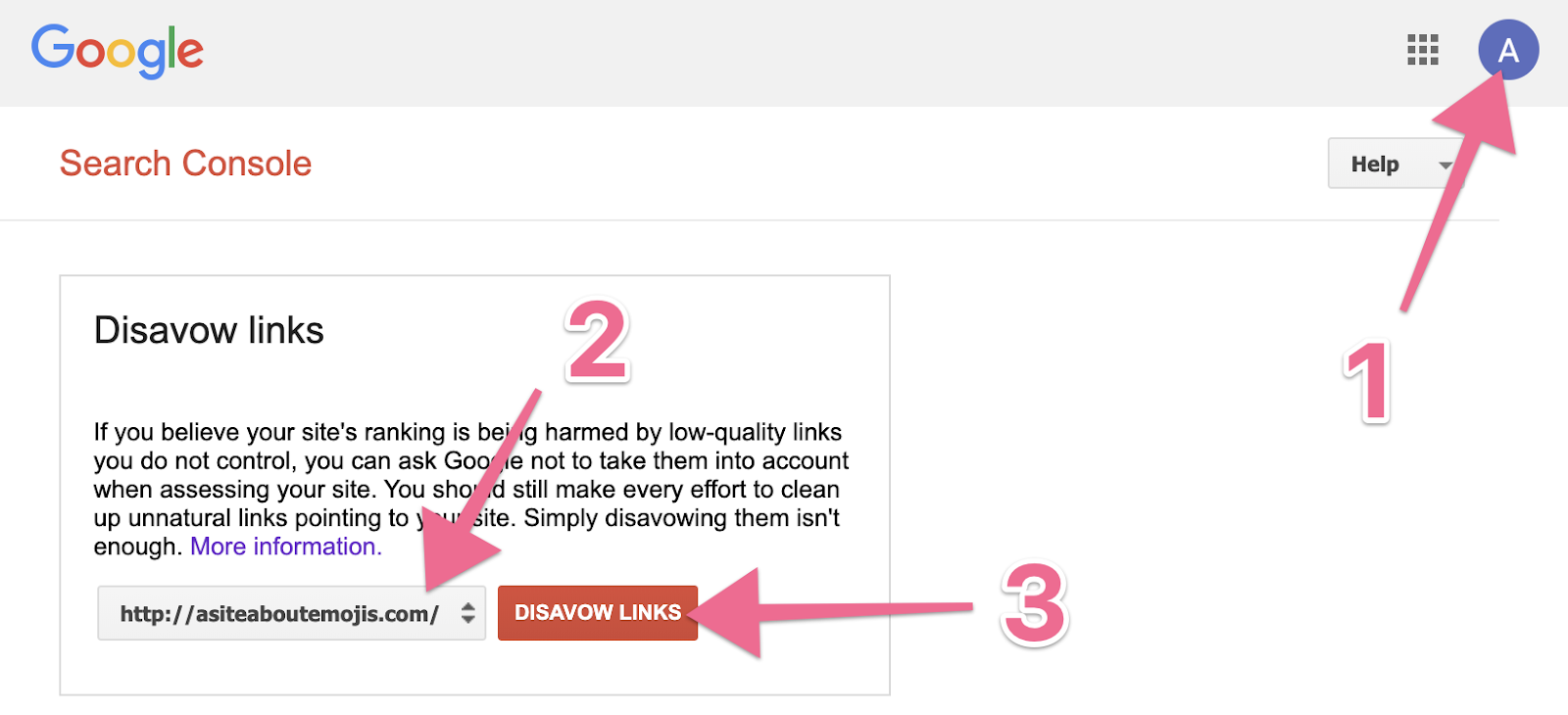
Make sure you are logged in with the right user, and you have selected the correct website property, then click ‘Disavow Links’ :
Click ‘Disavow Links’ once again:
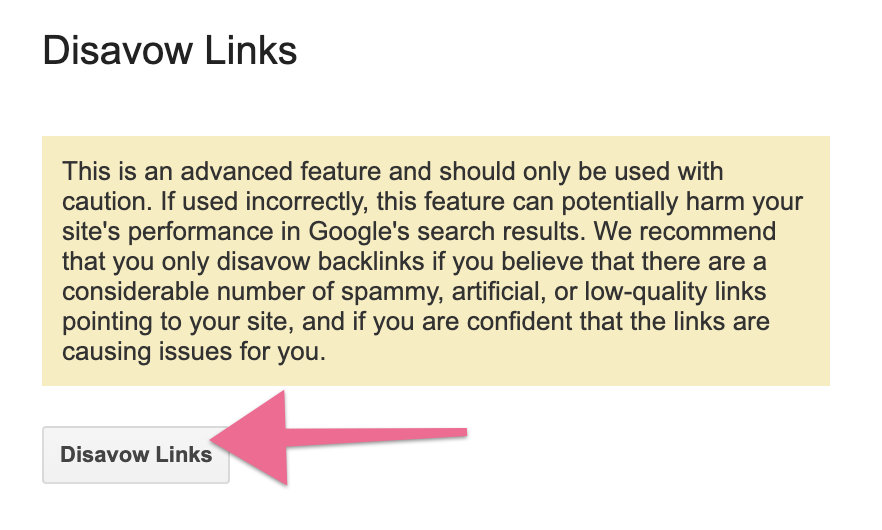
On the next step:
If you (or someone else) already uploaded a previous Disavow File at some point in the past you will that information as such:
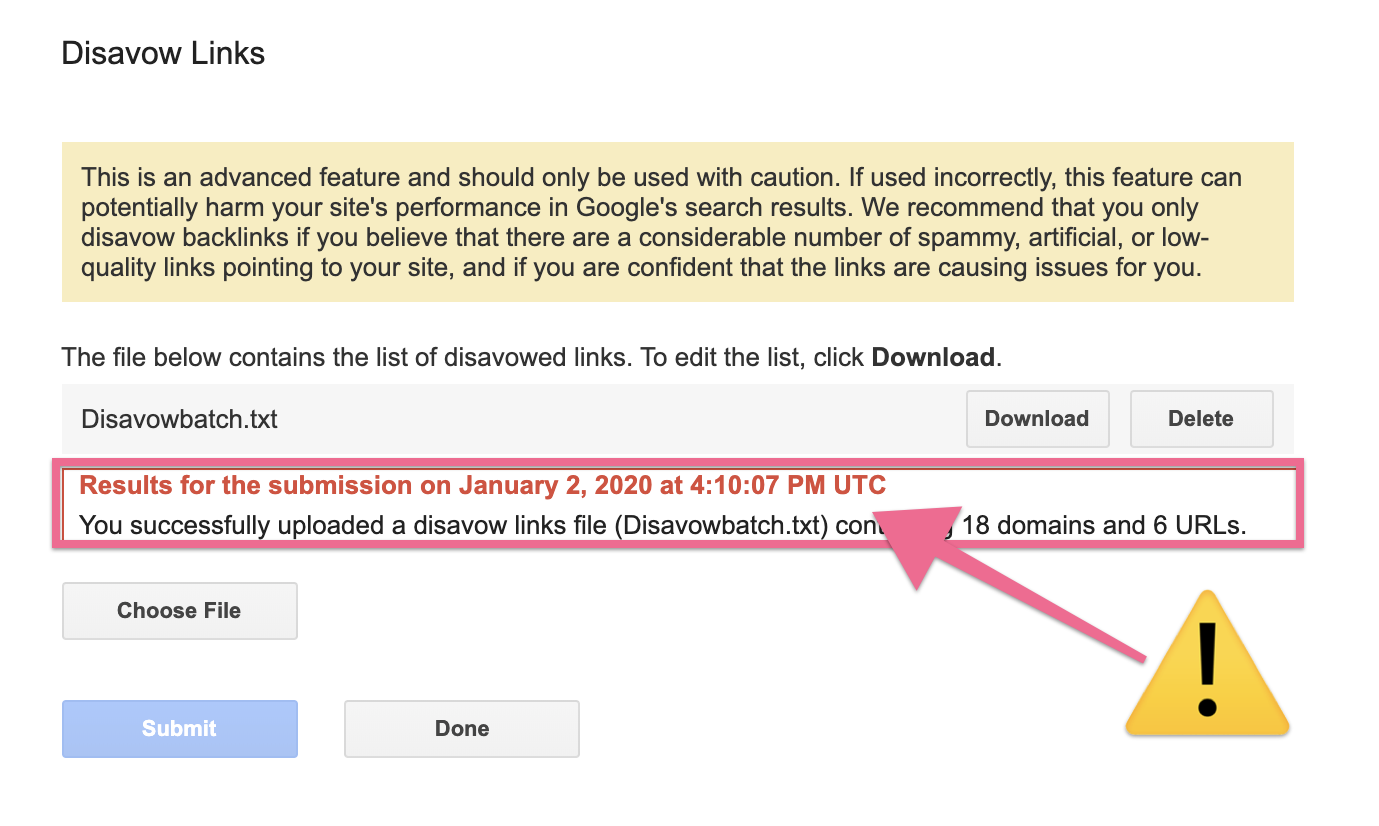
If you don’t see such notification, just move ahead to Step 5).
If you do see a notification, click ‘Download’, it will download a .csv file, open that file and copy its content.
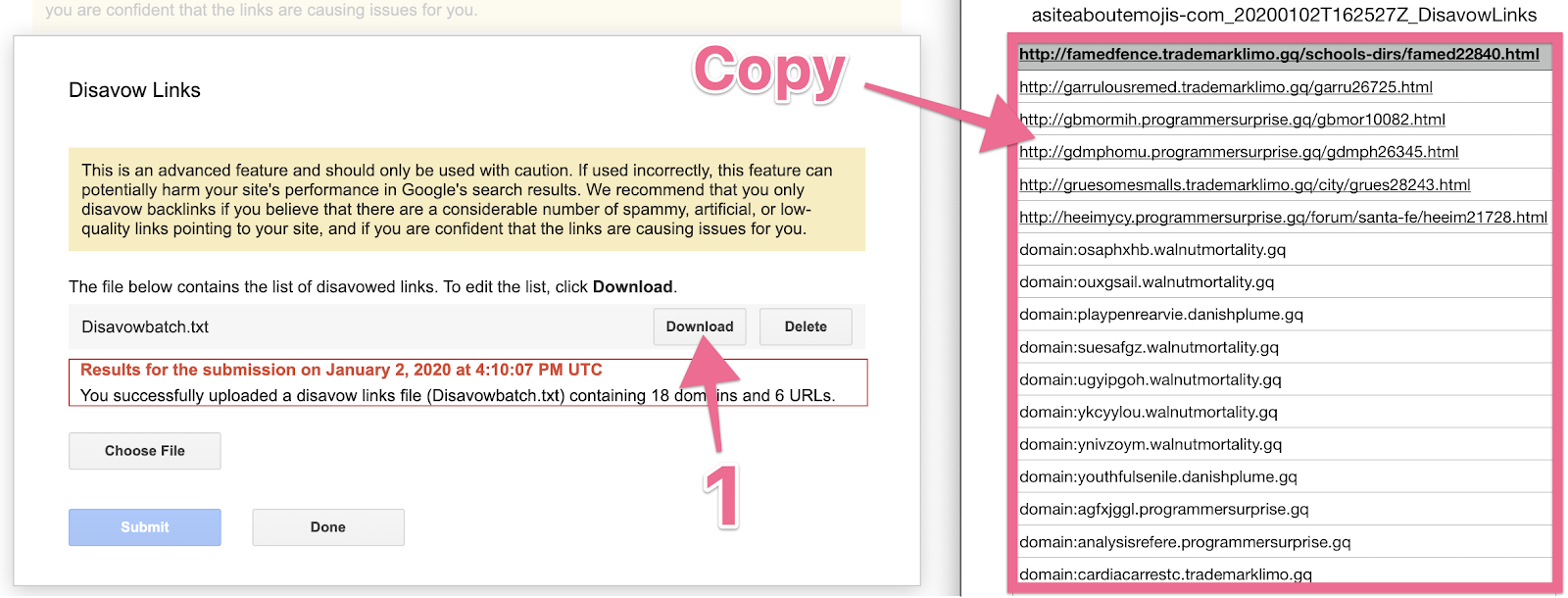
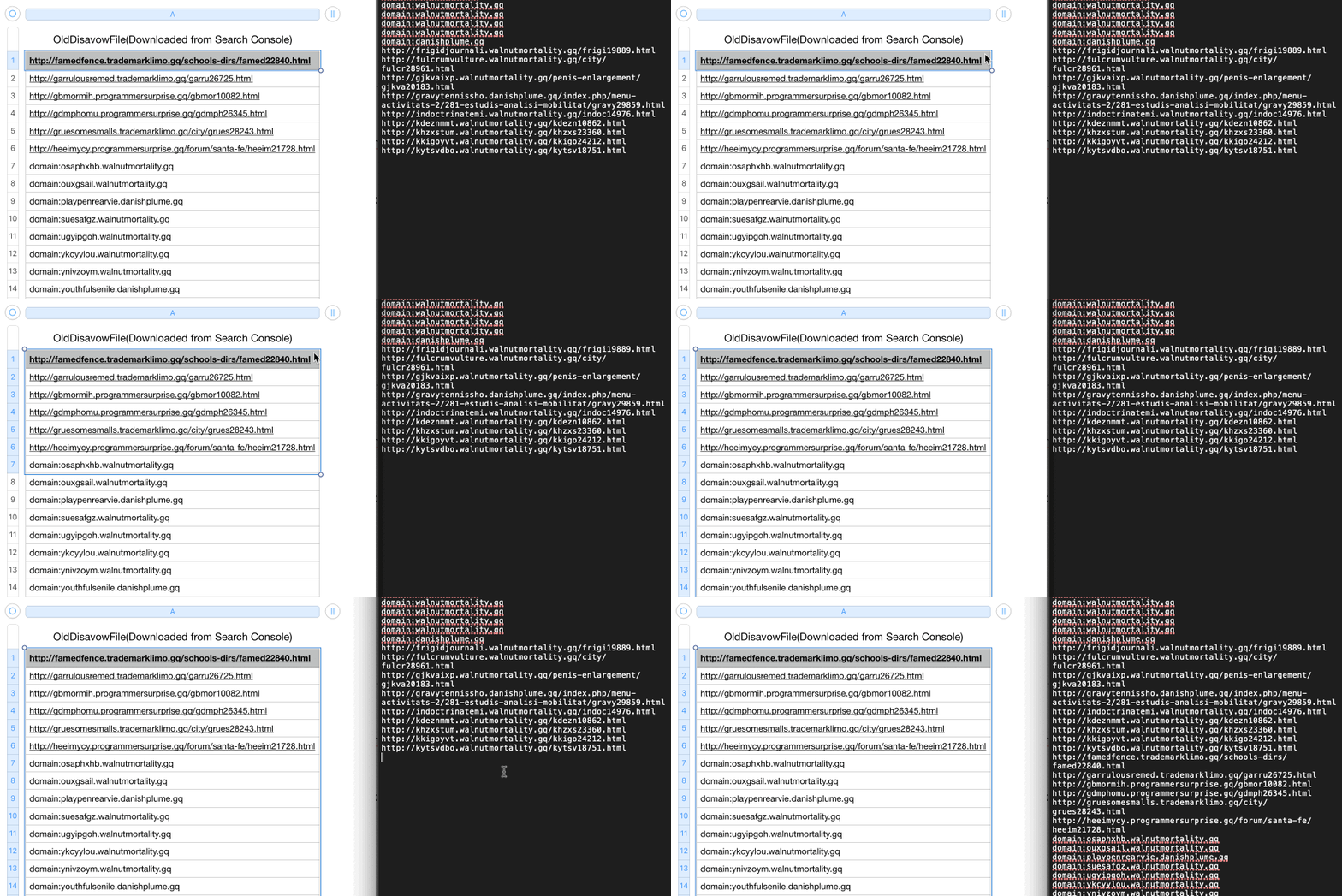
Now you will need to merge the content of the old disavow file (that you’ve just downloaded from Google Search Console), with the new file (that you have just generated using this document in the last chapter).
To do that, open the .txt file that you got in the previous chapter, paste the content of the old disavow file (from Google Search Console) at the end of the .txt file and save it. This is the file you will now use in the next step.
Click ‘Choose File’ and select the .txt file that contains your disavowed links, then click ‘Submit’:
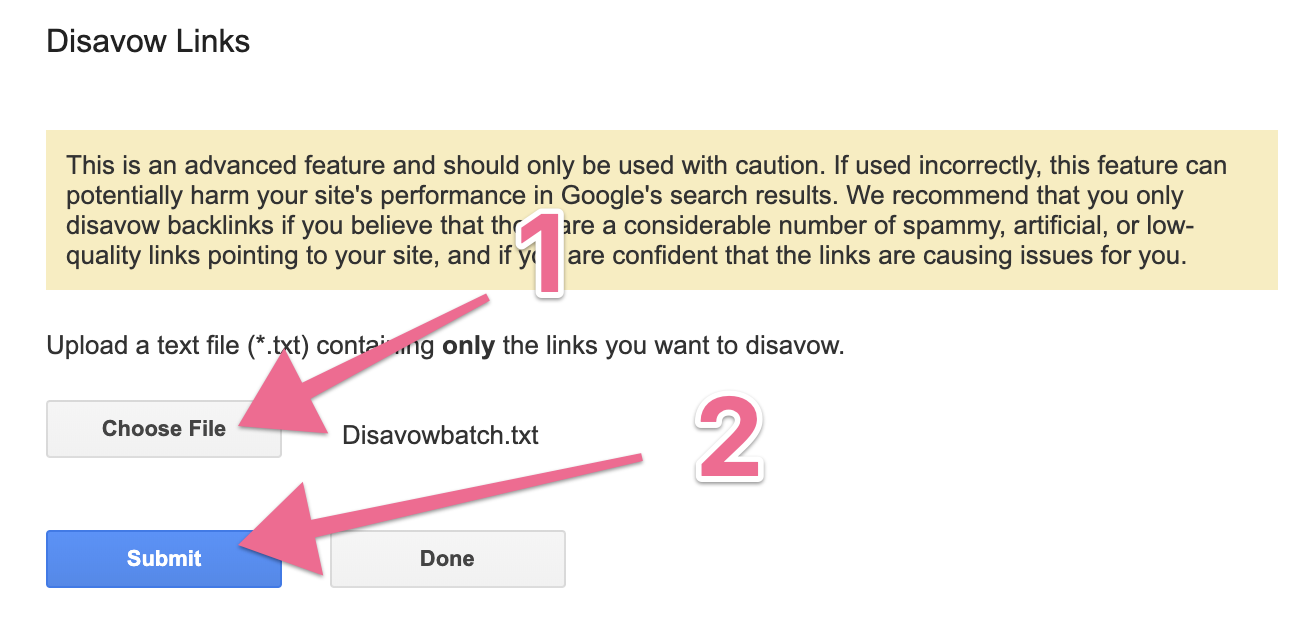
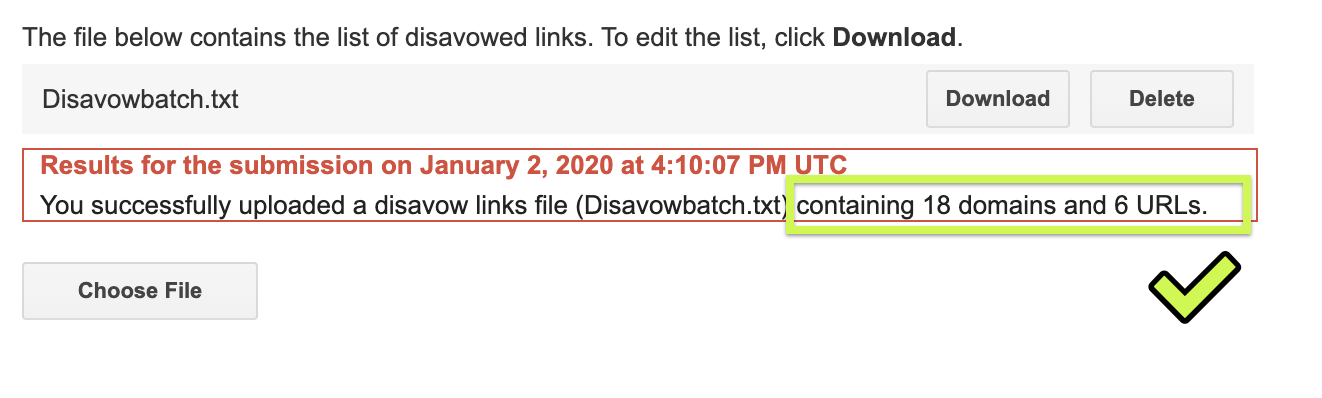
That’s it! You will get a success message letting you know how many domains and URLs have been disavowed.
Note: Google counts both domains and subdomains as domains.