Goal: To add an annotation to your Google Analytics view.
Ideal Outcome: An annotation is logged into Google Analytics and accessible by your other Google Analytics users.
Pre-requisites or requirements: You need to have Google Analytics set up on your website.
The specific steps in this document apply only to Universal Google Analytics (not Google Analytics 4).
Why this is important: Analyzing Google Analytics data without proper context might lead you to draw inaccurate conclusions.
Events that affect your business (like a sale, a launch, a competitor sale), your website (like a redesign), your marketing campaigns, or your Analytics implementation should all be taken into consideration while analyzing data.
Annotating your Google Analytics ensures that you have a solid logbook of what happened in your business and when allowing you to better interpret the data.
Where this is done: In Google Analytics.
When this is done: Every time there is an event that might impact your data on Google Analytics.
Who does this: Everyone in the organization should be responsible for logging events in their respective business areas.
Google Analytics 4
💡 Note: Google has released a new version of Google Analytics in October 2020, this new version can be set as a property alongside standard version “Universal Analytics”.
The “Universal Analytics” properties will likely be supported by Google for years to come.
To make sure you can follow these step-by-step instructions make sure you have selected the Universal Analytics property once your Google Analytics account has been created.
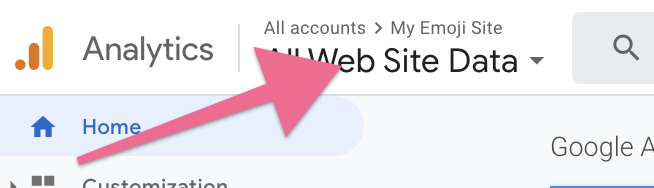
On the top left corner click on the Account Dropdown and select a view within your Universal Analytics property (Not the GA4 property):
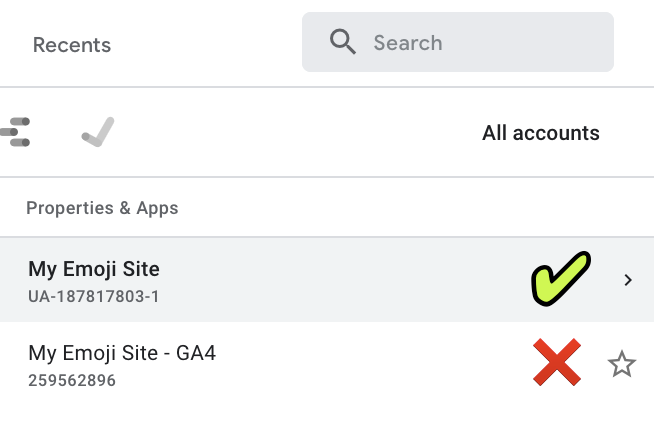
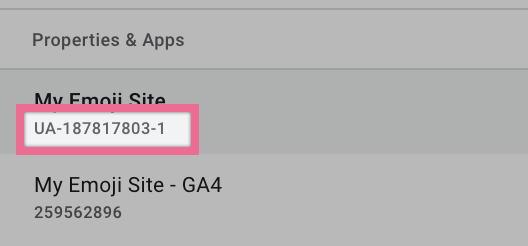
💡 Note: You can identify your Universal Analytics property by noticing the ‘UA-’ prefix in the Property ID below its name:
Adding an annotation
Log in to your Google Analytics account by going to https://analytics.google.com/.
On the top left corner click on the Google Analytics view name:
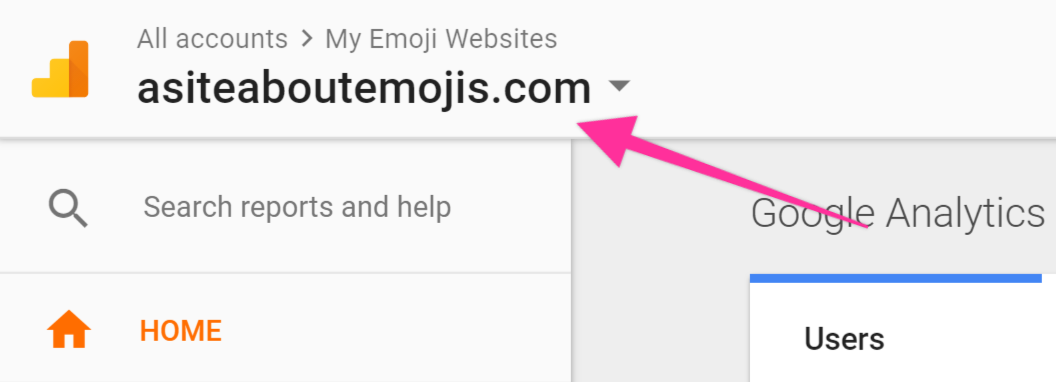
Select the view to which you want to add your annotation.
Note: Usually you will want to add your annotations on your “Main” view.
Note 2: If you have not yet added any additional views or renamed the current one, your view is named “All Web Site Data”.
Note 3: Make sure you are selecting a view that belongs to a Universal Analytics property.
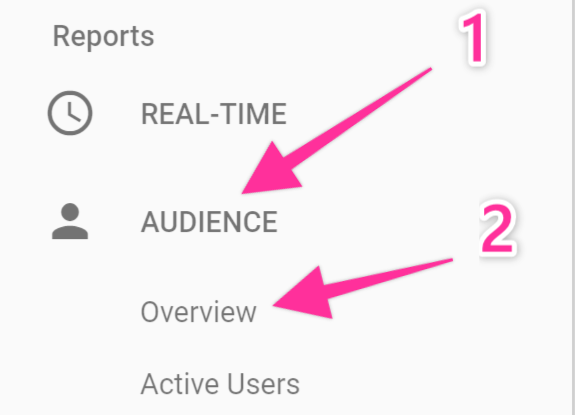
On the sidebar, under reports, click “Audience” → “Overview”:
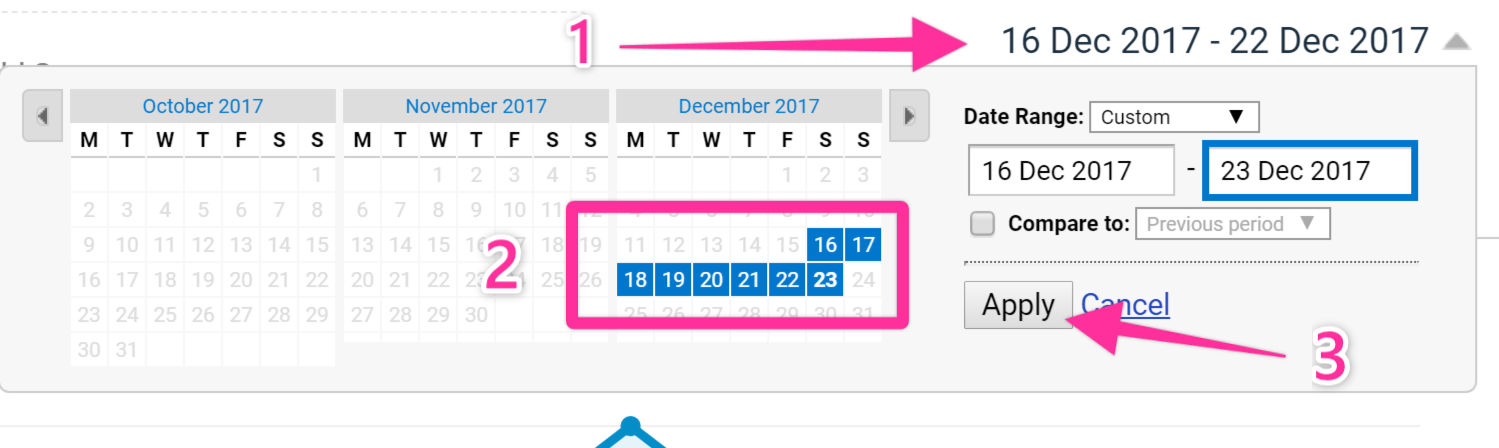
On the top right corner, select a period of time that includes the day when you want to include your annotation → Click “Apply”.
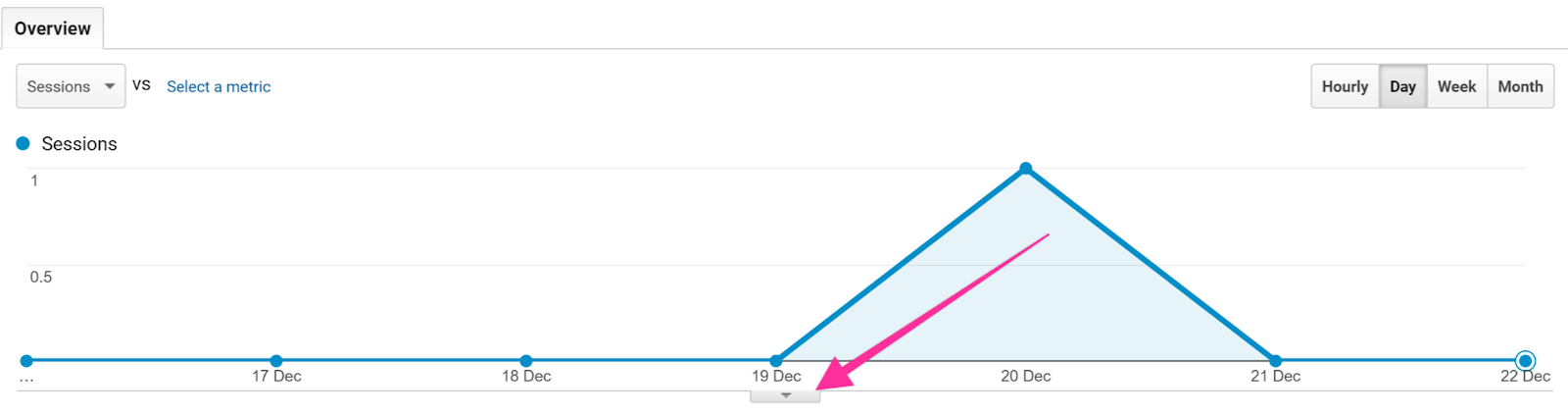
Below the chart, click the down arrow icon:
Click “Create new annotation” → Select the day you want your annotation to be logged in → Enter the text of your annotation → Click “Save”:
Note: If you choose to create a “Private” annotation it will only be visible to your Google Analytics account, your teammates will not be able to read it. A “Shared” annotation is available to anyone with permission to access your Google Analytics view.
Note 2: You need to have at least “Collaborate” permissions to be able to create annotations.

That’s it! You’ve added your annotation. All annotations are displayed on the chart with a “Speech Bubble” icon and simply clicking on them will allow you to read them.