Goal: Have all your conversions set up and send the conversions data to the Facebook ad platform.
Ideal Outcome: The conversions are properly set up, and you can now use them inside your Ad campaigns.
Prerequisites or Requirements: To follow this task to add Standard Events, you need:
Google Tag Manager installed on your site.
You should have created a Business Manager account for your site
You also need to have the Meta (Facebook) pixel on your website.
Finally, you’ll need to have verified your domain inside Meta Business Manager.
Why this is important: When you finish this task, you should then be able to see how many conversions and how much revenue each ad is bringing you, allowing you to start optimizing your campaigns for the best results.
Where this is done: In your Google Tag Manager account and Meta Ads platform.
When this is done: Every time, a new conversion needs to be measured.
Who does this: The person responsible for IT, analytics, or paid advertising.
Environment Setup
Important:
On April 27th, 2021, Facebook rolled out new ad measurement protocols to conform with iOS14 that introduced the App Tracking Transparency (ATT) prompt. Apple’s immediate requirement will also prohibit certain data collection and sharing by businesses unless Apple device users who updated to iOS14 opt into data tracking.
When Apple users opt out of data tracking, tracking accuracy, and the remarketing audiences' size will decrease.
Deciding which conversion tracking method is better for you.
Note: If you are already familiar with Facebook Conversion tracking and prefer one method over the other, you can skip these instructions and go straight to the tracking method you prefer. In some cases, choosing one over the other can be a personal preference. For the purpose of this task, a decision diagram was created to simplify the decision process.
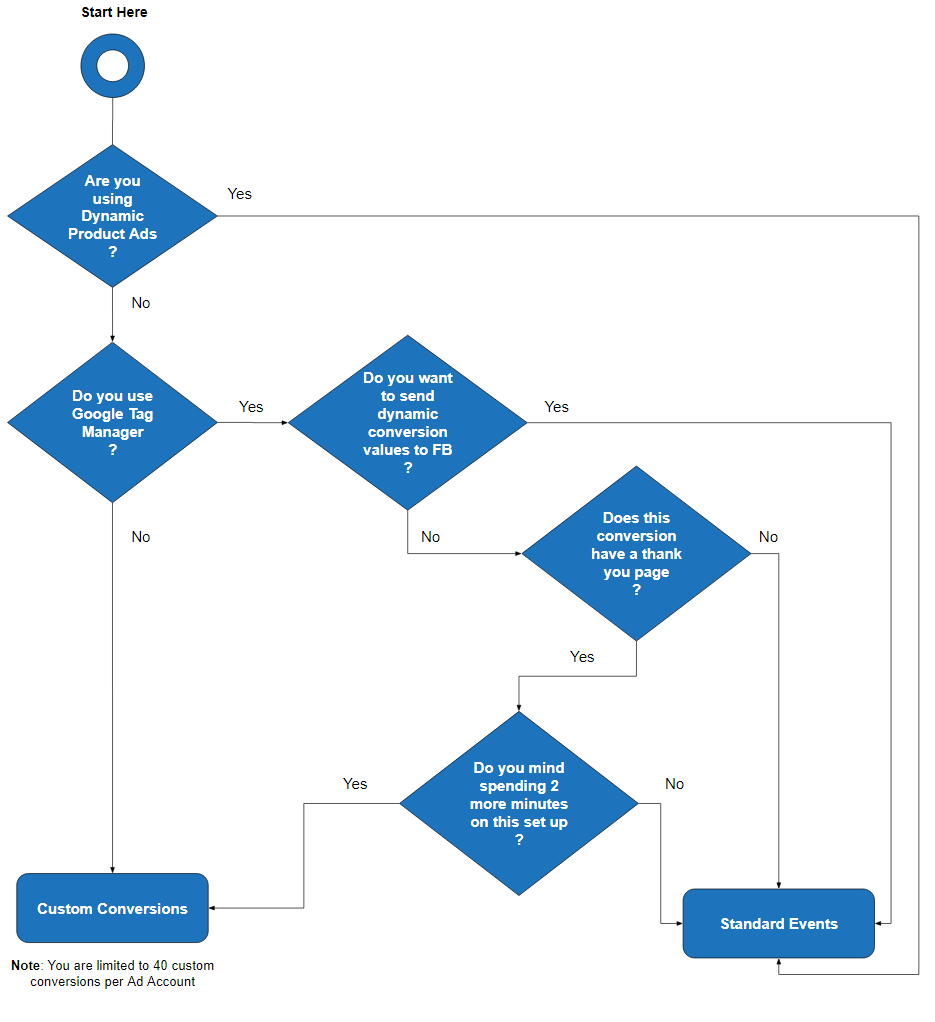
This task will cover both methods, and you can jump to the one you prefer by clicking here:
Tracking conversions using Facebook’s Standard Events for page views
Tracking conversions using Facebook’s Standard Events for button clicks
Setting up conversion tracking for page views using Facebook’s Standard Events with Google Tag Manager
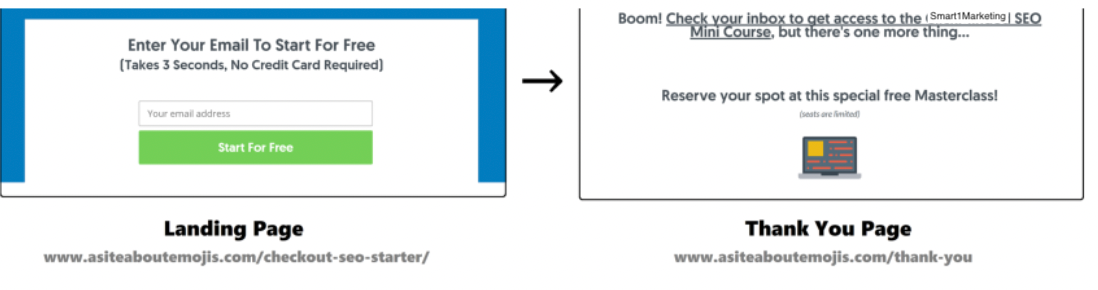
Note: These steps will cover the process to track any conversion that ends in a redirection to a “Thank You” page. In most cases, you will have a page where the user needs to perform an action (e.g., insert contact details or purchase a product), and after the user performs that action, he will be on a final page. This is the page where you will be setting up your conversion event.
E.g.,
Open Meta’s Business Manager on your browser by going to: https://business.facebook.com.
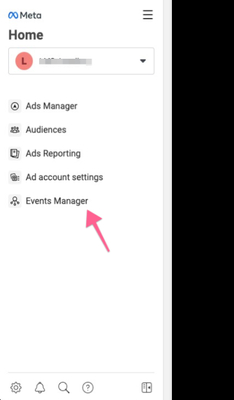
On the sidebar, choose “Events Manager”:
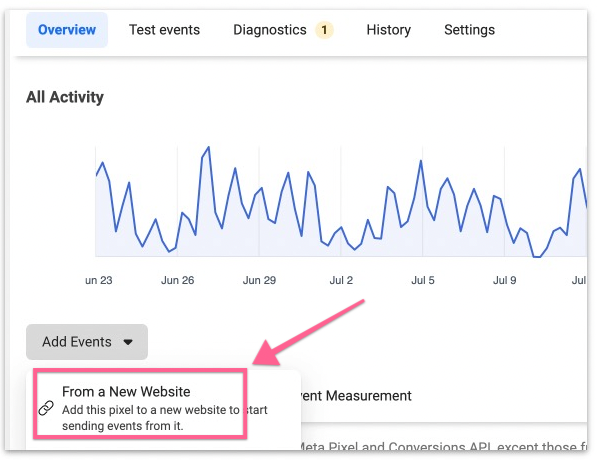
In the Event Manager dashboard, select “Add Events” ➝ “From a new Website”:
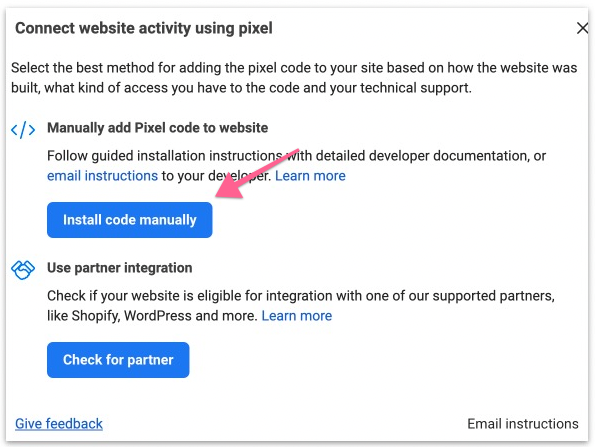
Then select “Install code manually.”
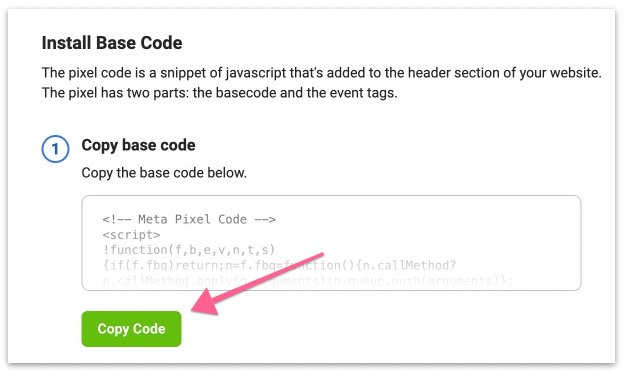
Copy the pixel code and paste it into an editor or notepad. You will need this code later on.
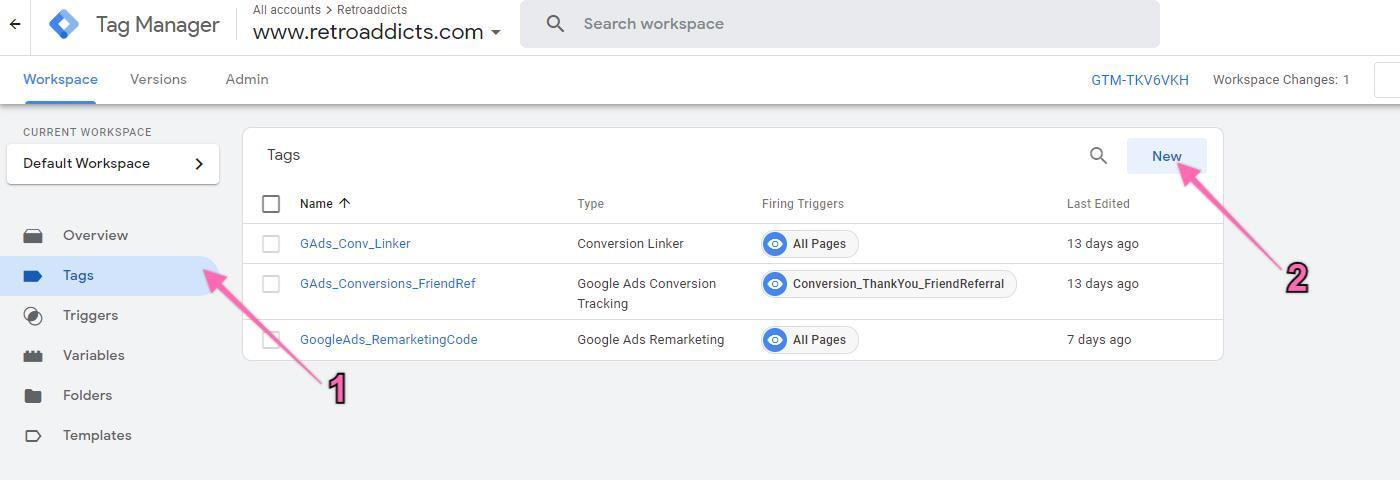
Now open tagmanager.google.com in a new tab, click on ‘Tags’ in the left sidebar, then click ‘New’:
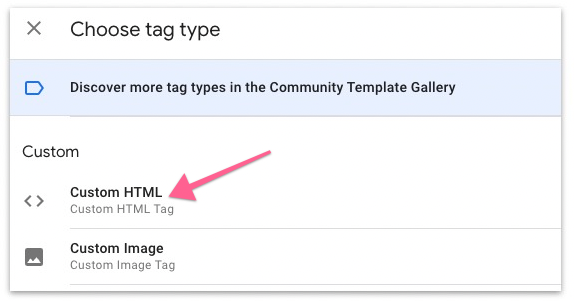
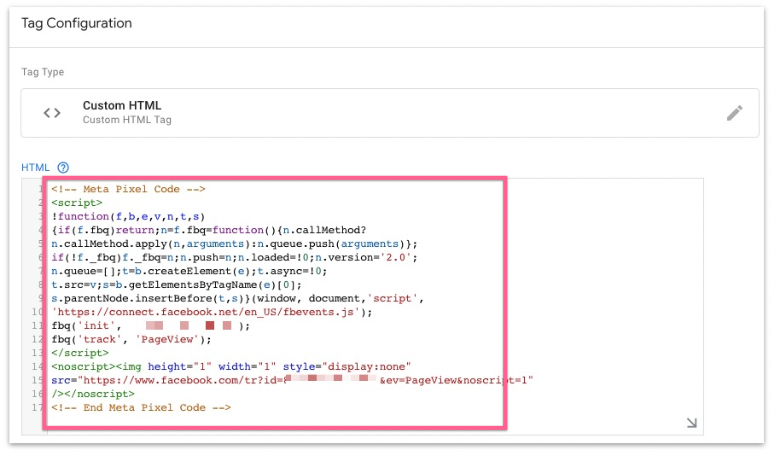
Click on the tag icon above ‘Choose a tag type to begin setup’ and then click on ‘Custom HTML’.
Paste the pixel code that you copied just then.
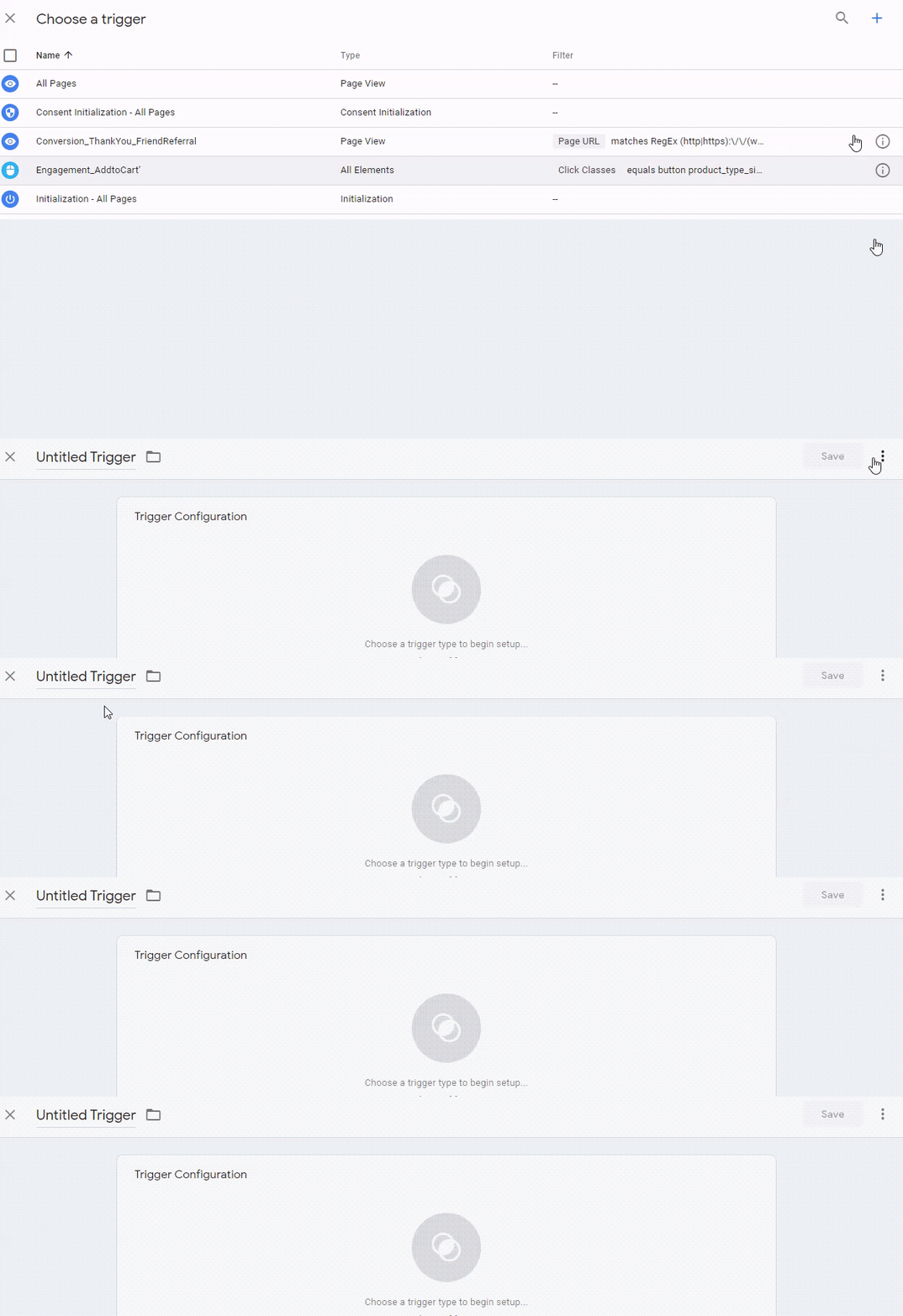
Scroll down to ‘Triggering,’ click the interlocking circles icon above ‘Choose a trigger to make this tag fire…’, then click the ‘+’ icon to add a new trigger:
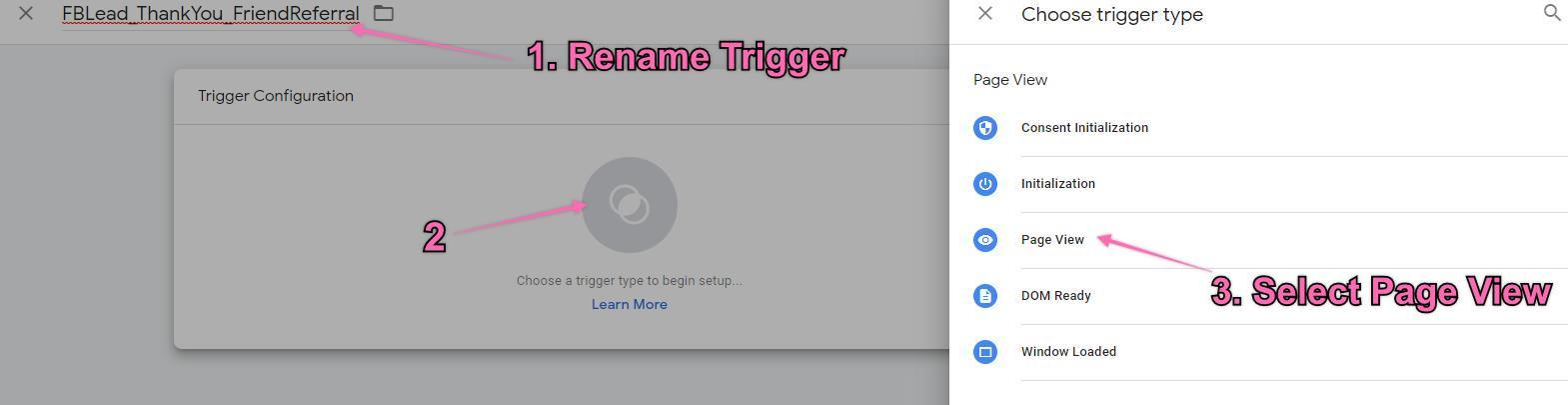
Rename your Trigger → Click the icon above ‘Choose a trigger to begin setup’ → Select ‘Page View’:
Note: When naming your trigger, we recommend defining your naming convention. It should be clear and fast to guess what each trigger is doing based solely on its name. For this task, we will use: “FBLead_ThankYou_FriendReferral” since this trigger will be used to track conversion, using a thank you page for referring a friend to get a $20 coupon.
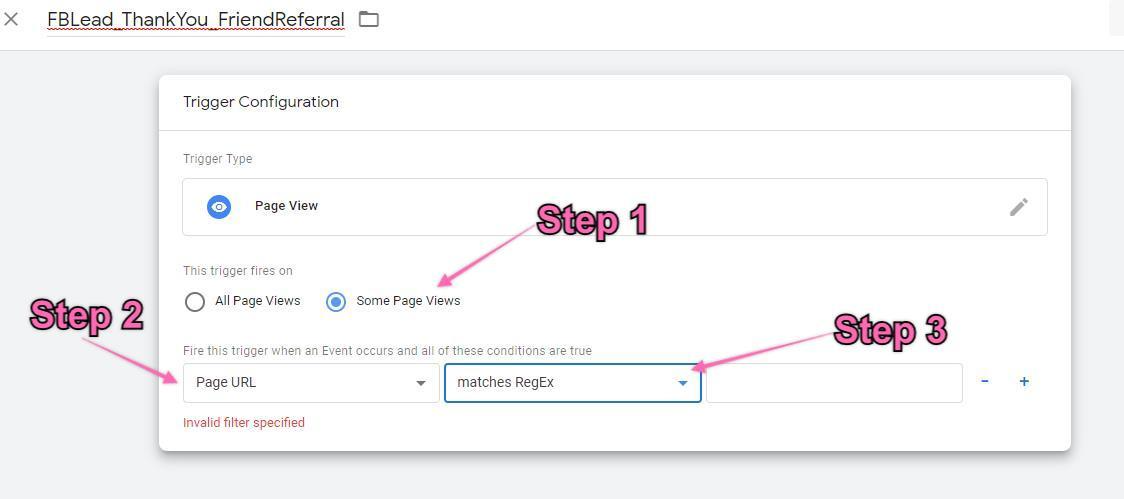
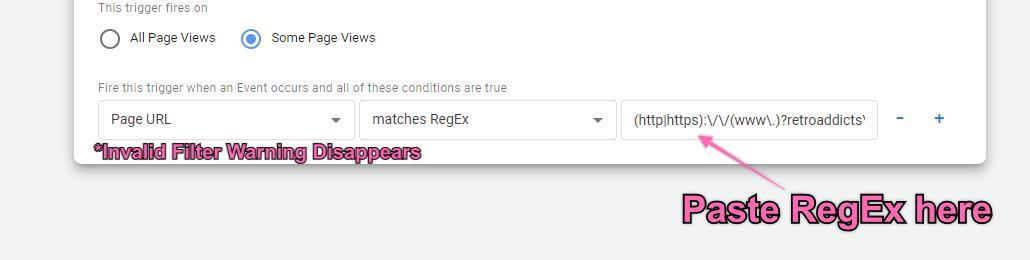
After selecting ‘Page View,’ tick ‘Some Page Views.’ Under the trigger firing rules, select: ‘Page URL’ → ‘matches RegEx.’
You will now need to build a RegEx (Regular Expression) that matches the URL where we want our Facebook Ads to fire.
Note: If you are comfortable with GTM and your website structure, you might not need to use a RegEx condition at this point, or you might want to tweak the RegEx to fit your needs. Otherwise, you can follow this procedure.
Note 2: In the following steps, you’ll create a RegEx that will match your URL whether:
It starts with http or https;
Are you using a trailing slash or not;
Are you adding parameters to your URL or not;
Do you have deeper URLs in your folder structure, or not;
Type the URL where you want your conversion to fire.
e.g., http://www.retroaddicts.com/thank-you-new-subscriber/
Remove the http:// (or https://), the www, and the last trailing slash from the URL:
e.g., retroaddicts.com/thank-you-new-subscriber
Add a \ right before every dot and every slash.
e.g., retroaddicts\.com\/thank-you-new-subscriber
Add this code after your URL: (?!\/.*\/)((\/?)$|.*.*=.*),
e.g., retroaddicts\.com\/thank-you-new-subscriber(?!\/.*\/)((\/?)$|.*.*=.*)
Add this code in the beginning of your URL: (http|https):\/\/(www\.)?
e.g.: (http|https):\/\/(www\.)?retroaddicts\.com\/thank-you-new-subscriber(?!\/.*\/)((\/?)$|.*.*=.*)
That’s it. You just built your RegEx. Take note of that expression.
Insert your RegEx in the last field. It should look like this:
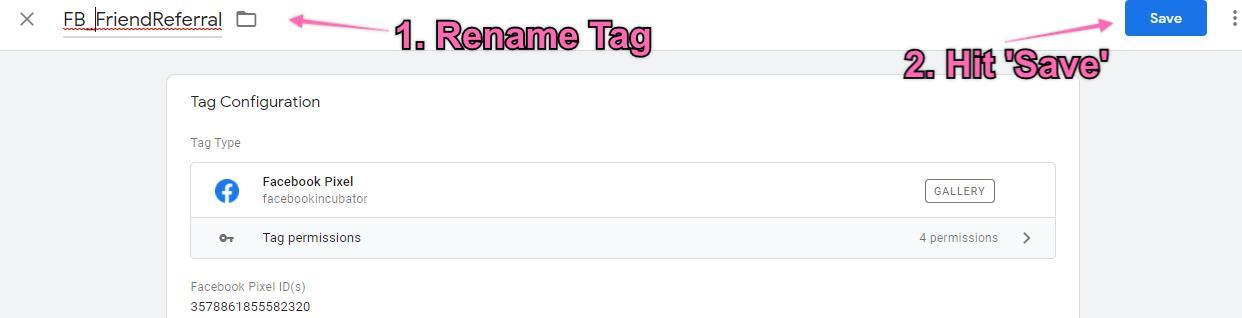
Click the blue ‘Save’ button at the top right side of your screen.
Rename your tag:
Note: When creating new tags, we recommend defining a naming convention from the beginning, this keeps your Google Tag Manager set up neatly organized and easy to maintain for many years.
[Abbreviated Name Of Tool]_[Use for this tag] is a good start.
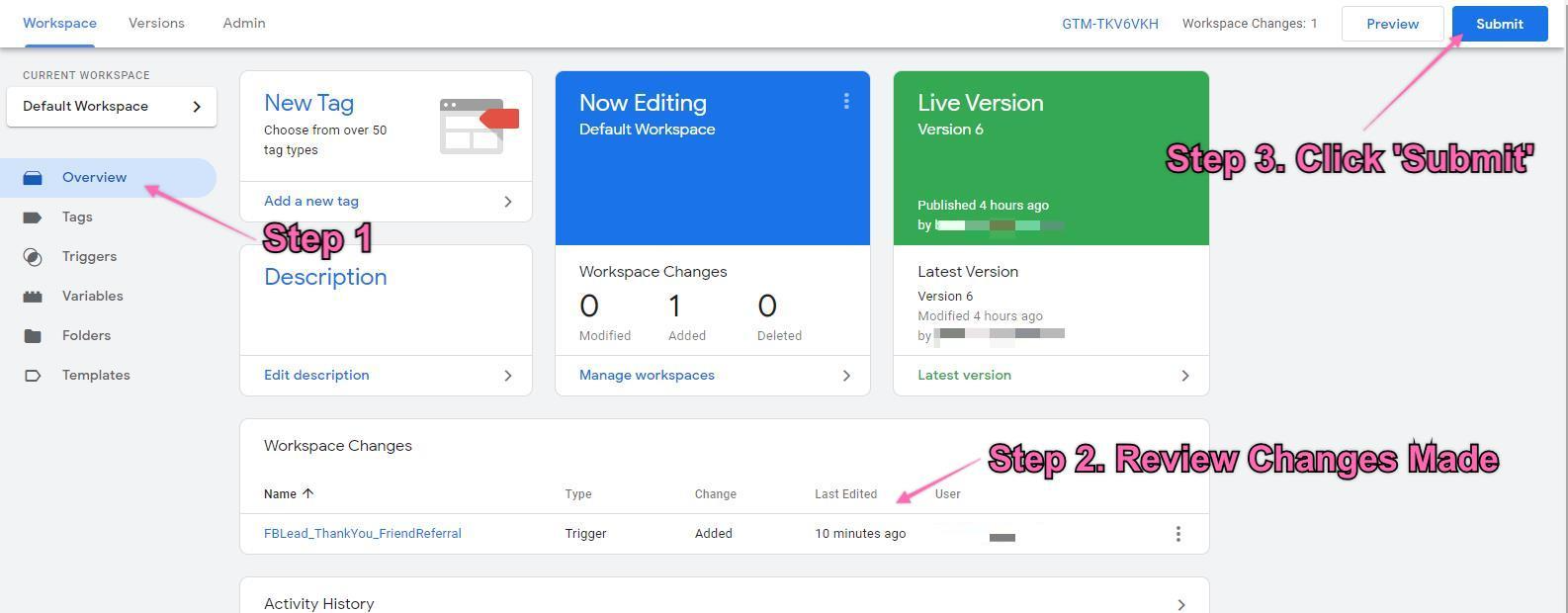
Click on “Overview” on the sidebar to see a summary of the changes you’ve made.
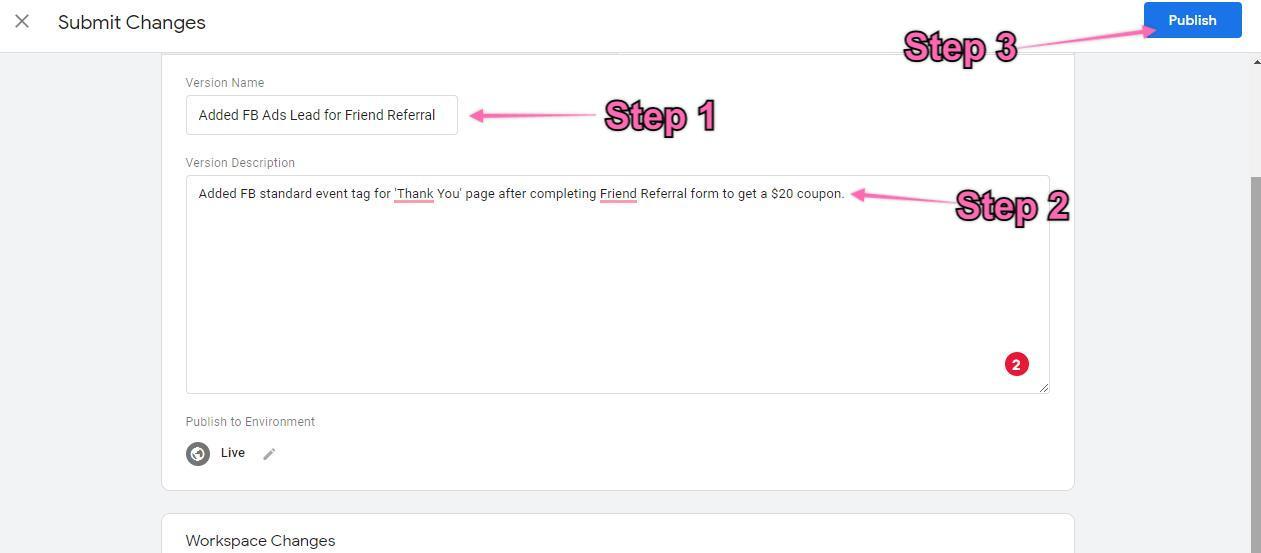
Hit the ‘Submit’ button. You will be required to enter a Version Name and Description.
Note: Adding a name and description is optional but recommended. You should enter the information here to track the changes.
After you’re done, jump to “Check if conversions are being tracked properly”
Setting up conversion tracking for a button click using Facebook’s Standard Events with Google Tag Manager
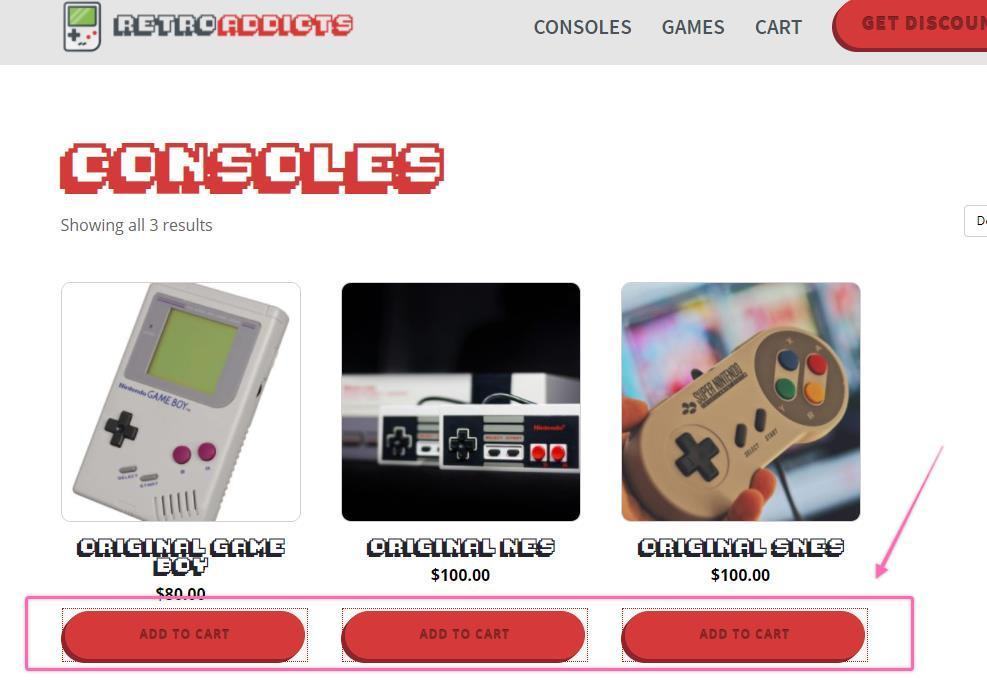
Note: These steps will cover the process to track any button click conversion. This is especially useful when tracking “Add to Cart” events. This allows you to later create custom audiences based on this interaction with the store. e.g.,
Open tagmanager.google.com in a new tab.
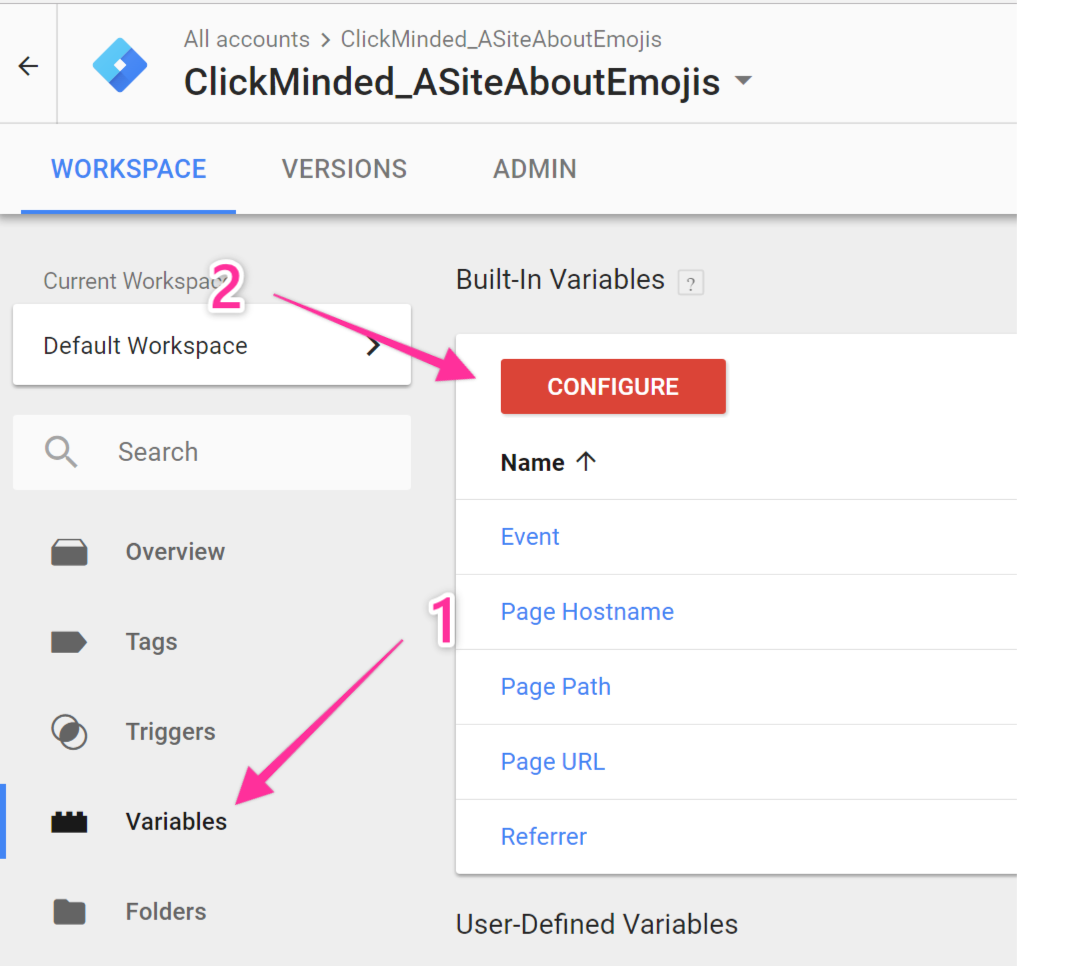
Click “Variables” → “Configure.”
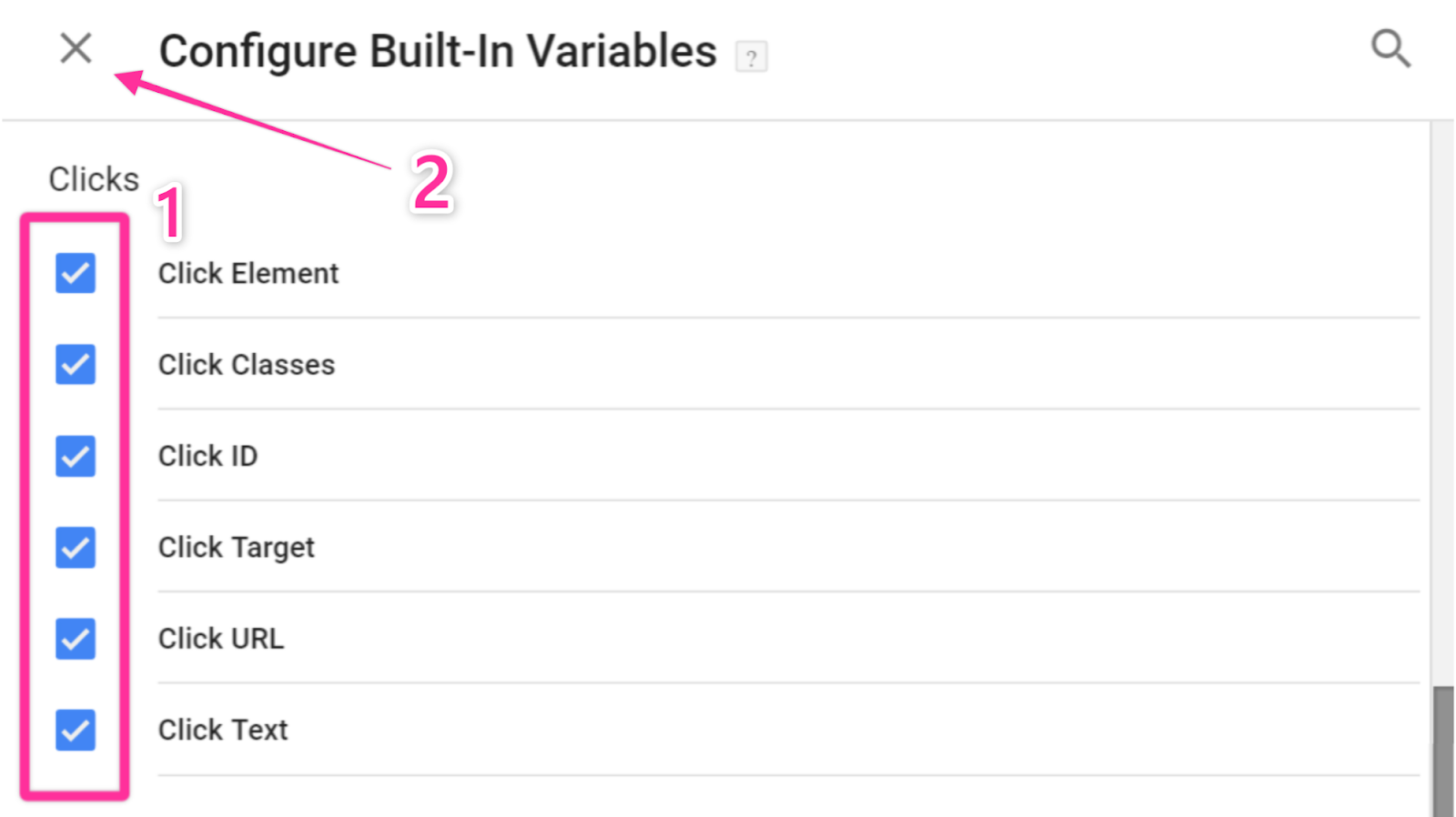
A list of variables will be available to you. Select all the variables under “Clicks,” and when that is done, close the list.
Note: If you already know which variables you will need. You can simply select the specific variable you will be using for this event.
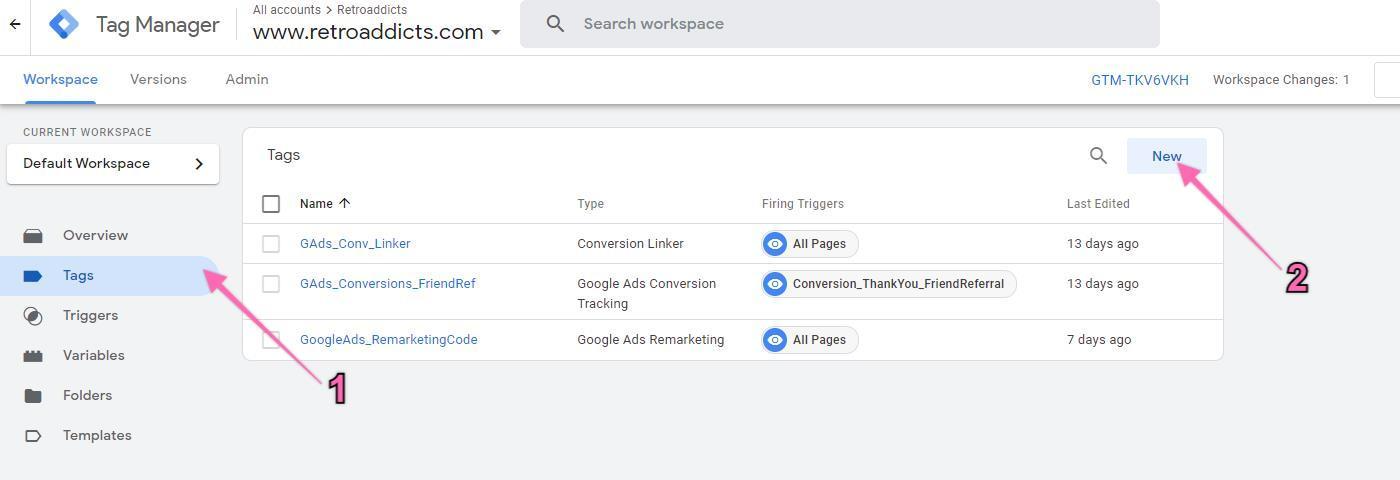
Next, click on ‘Tags’ in the left sidebar, then click ‘New’:
Click on the tag icon above ‘Choose a tag type to begin setup’ and click on ‘Discover more tag types in the Community Template Gallery.’
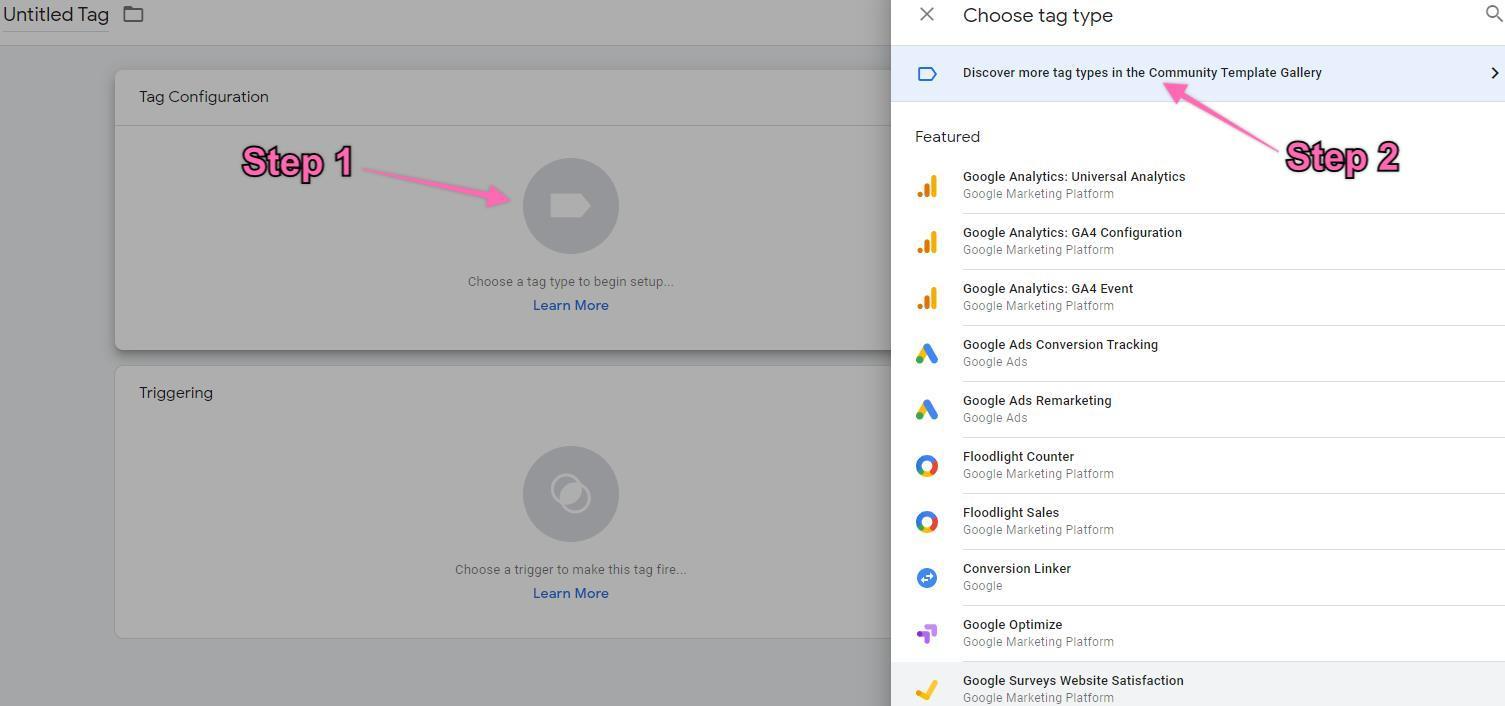
The “Facebook Pixel” should appear in your Custom List after scrolling down because it was added before. Click on “Facebook pixel”
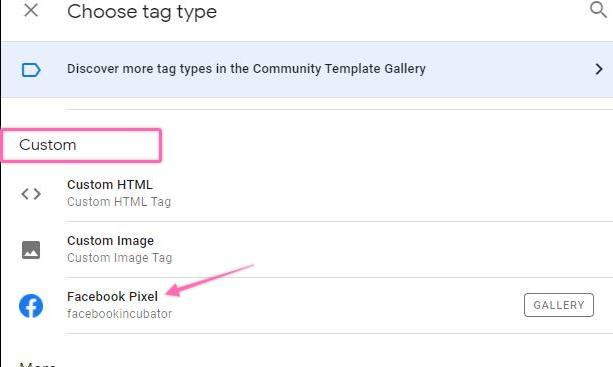
Rename the tag, go back to your Facebook Events Manager tab, copy your Pixel ID, and paste it into the “Facebook Pixel ID” field in Google Tag Manager. Note: When creating new tags, we recommend defining a naming convention from the beginning, this keeps your Google Tag Manager set up neatly organized and easy to maintain for many years.
[Abbreviated Name Of Tool]_[Use for this tag] is a good start.
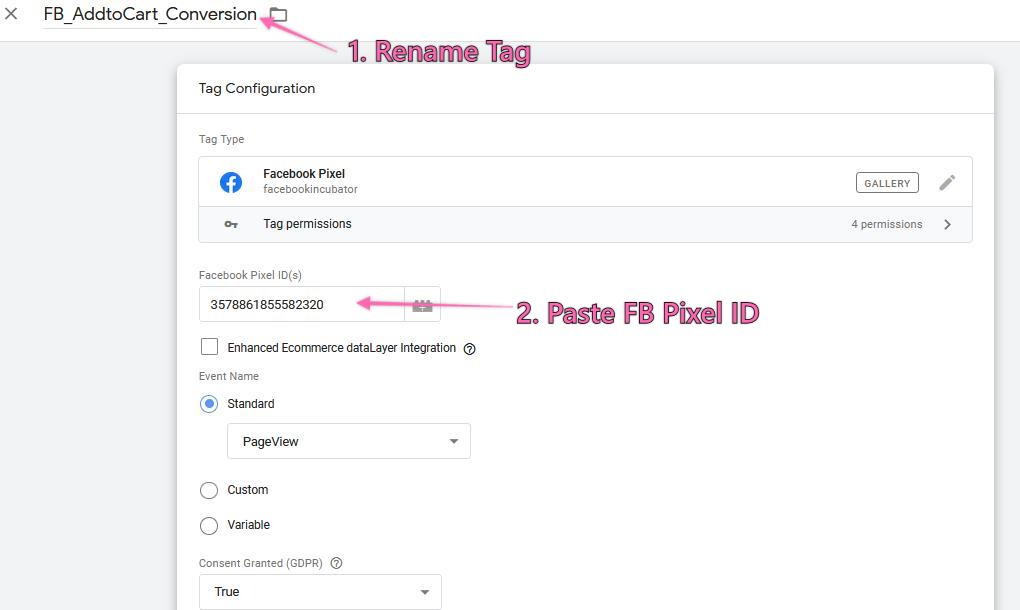
Scroll down to ‘Triggering,’ click the interlocking circle's icon above ‘Choose a trigger to make this tag fire…’, then choose ‘All Elements’:
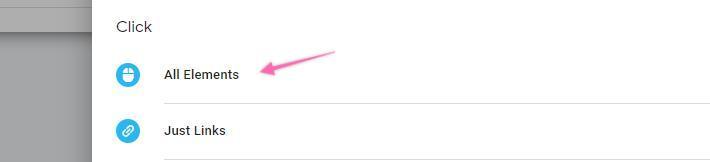
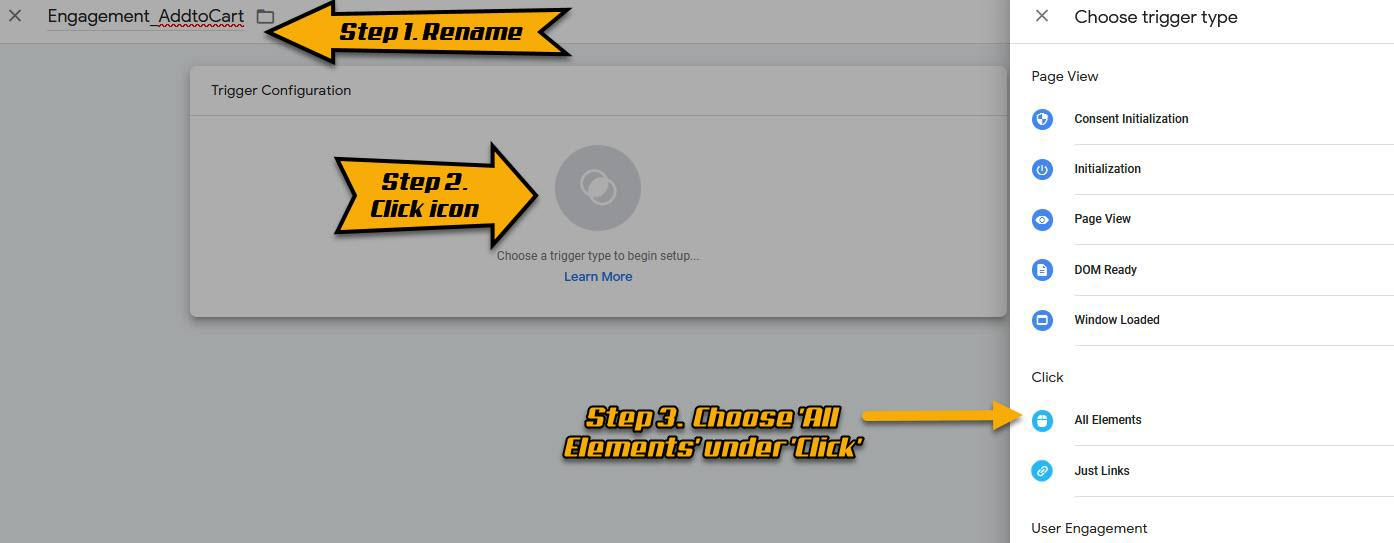
Rename your Trigger → Click “Choose a trigger to begin setup >> Select ‘All Elements’ under Clicks:
Note: When naming your trigger, it is recommended that you define your naming convention. It should be clear and fast to guess what each trigger is doing based solely on its name. For this task we will be using: ‘Engagement_AddtoCart‘ since this trigger is going to be used to track an AddtoCart click and we only have one button on this store.
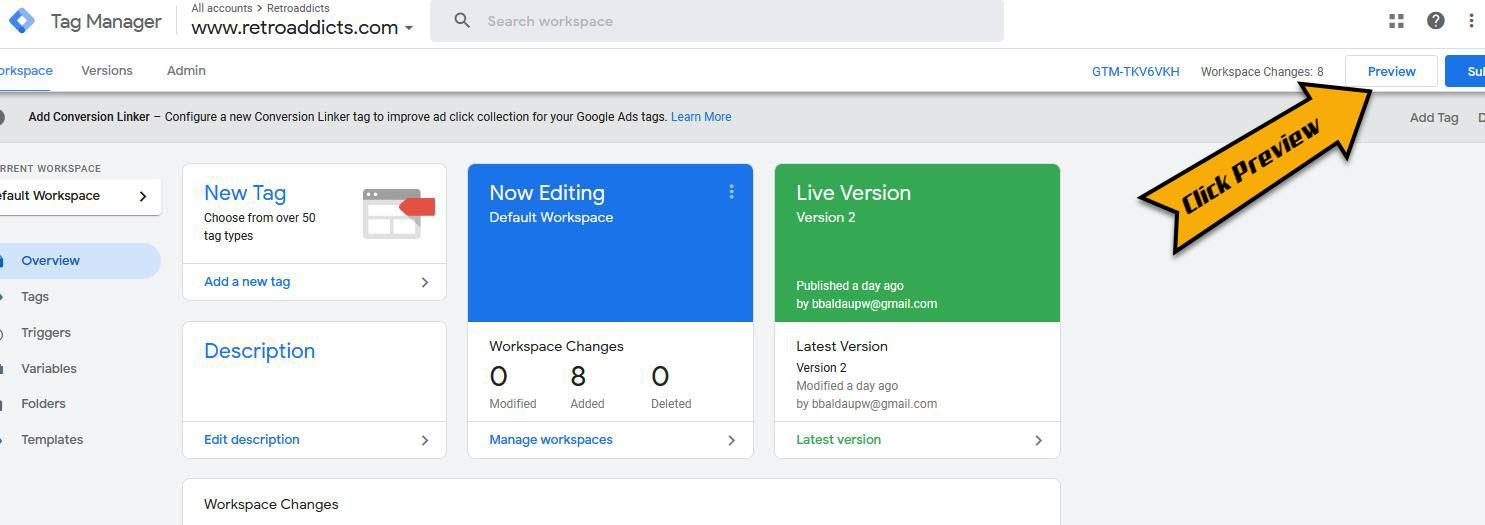
You need to determine which variables to use for your tracking. To do that, open another tab to access the Google Tag Manager workspace panel and click “Preview” on the top right of the page:
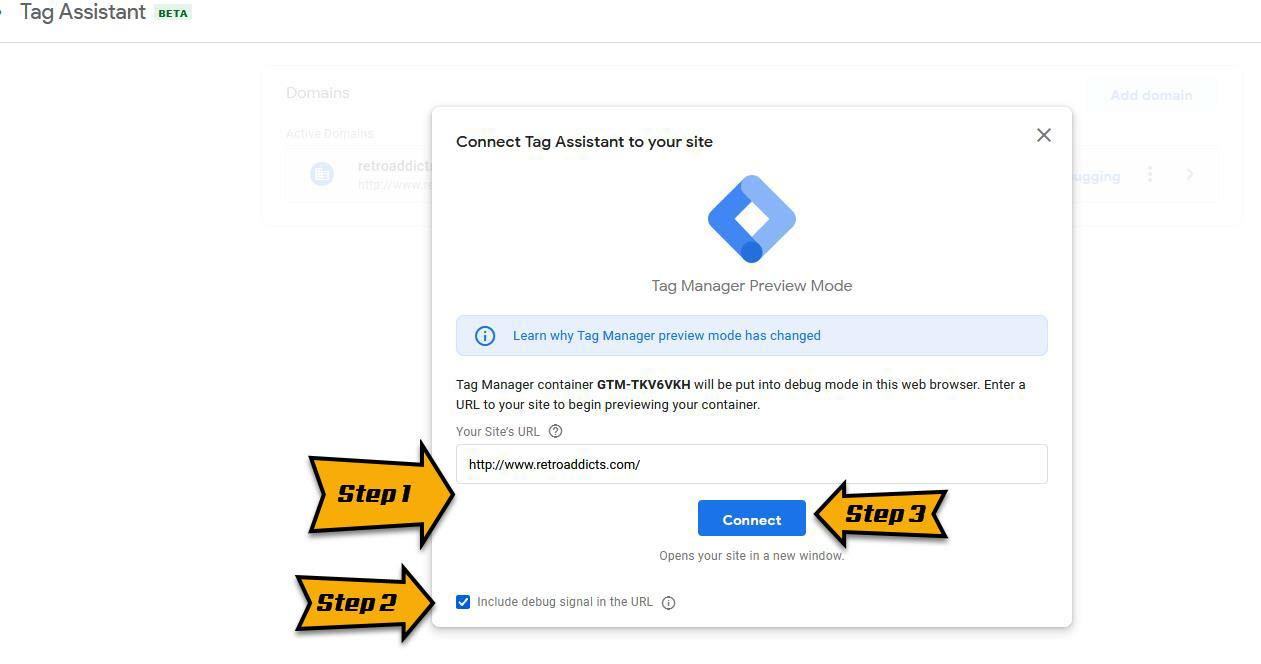
Enter the URL of your website → Click ‘Connect:’
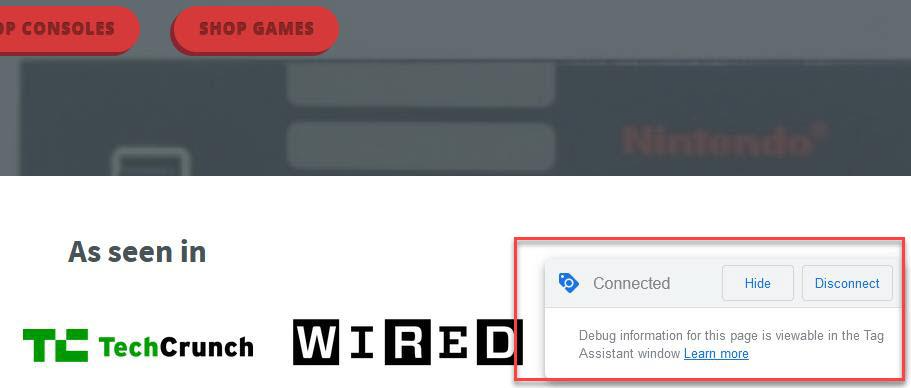
This will open your website’s URL on a new tab. Navigate to the page where the button you want to track is. You should be able to see a message on the bottom right corner letting you know that the debugger has connected successfully:
On your keyboard, hold down the “Ctrl” (or “Cmd ⌘” key If you’re using a Mac) and click on the button that you want to track.
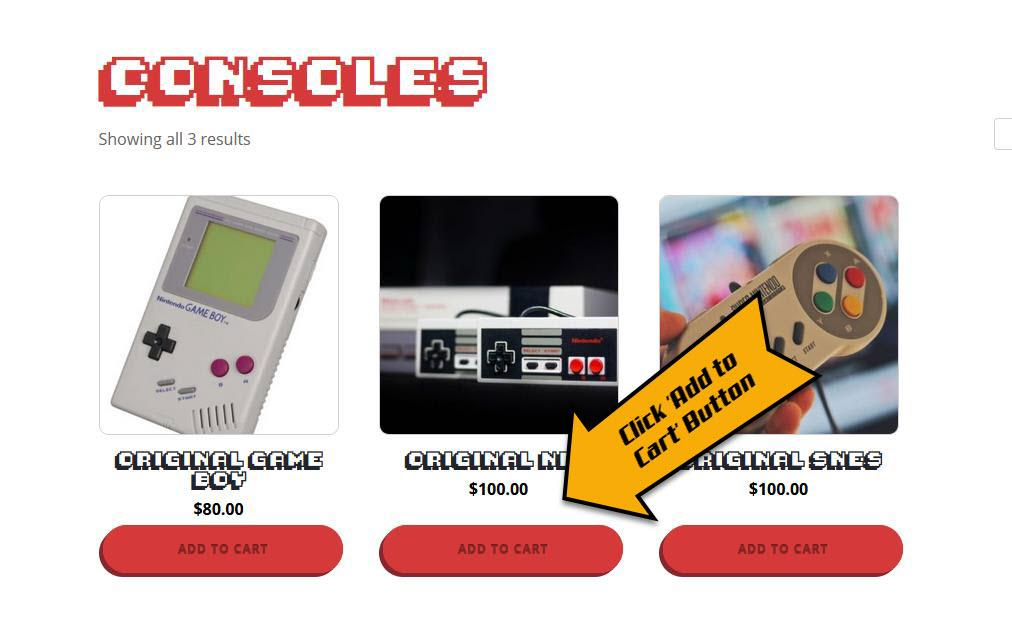
Google Tag Assistant (https://tagassistant.google.com/) will list all your actions. In this list, Google Tag Manager lists all the information that was returned from that click.
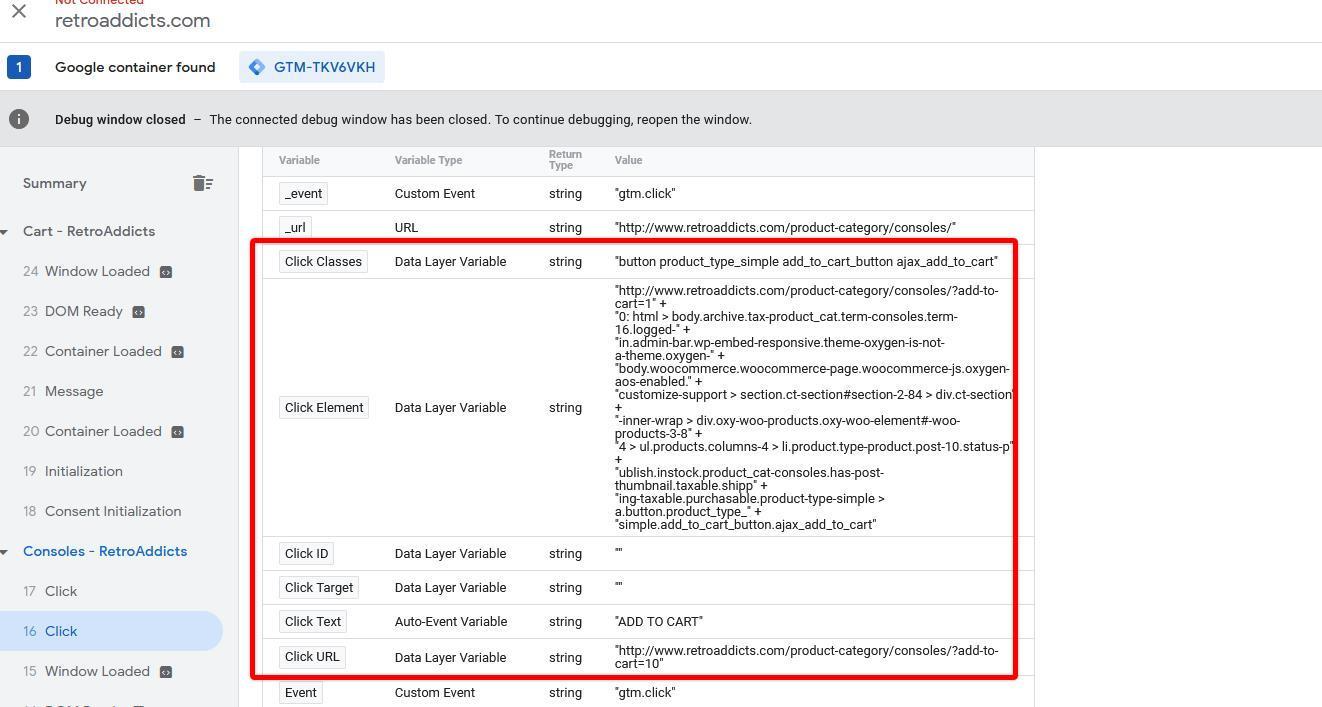
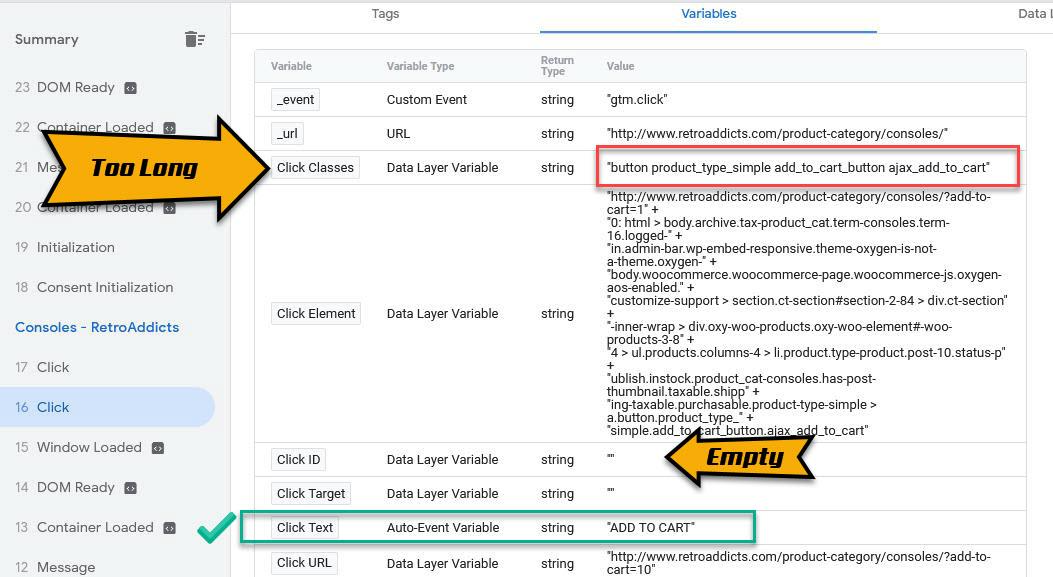
If your “Click ID” field has been filled with a text string (e.g., 'link_text-6-20') take note of the combination. (e.g., Click ID | link_text-6-20)
Note: Usually, HTML IDs are unique within the page. In rare cases, your web designer might have used the same ID for different elements. If that is the case, you will want to select options b. or c.
You can use that if you don’t have a “Click ID” and are sure your HTML Class is not shared with any other button you don’t want to track. Take note of that combination (e.g., Click Classes | add_to_cart_button). If you are unsure, go with the next option (c.).
If none of those two options apply to you, you should use the “Click Text” variable. Take note of that combination (e.g., Click Text | ADD TO CART)
Note: Make sure this specific text is not used elsewhere in another link. Otherwise, clicks on that link will count as conversions as well.
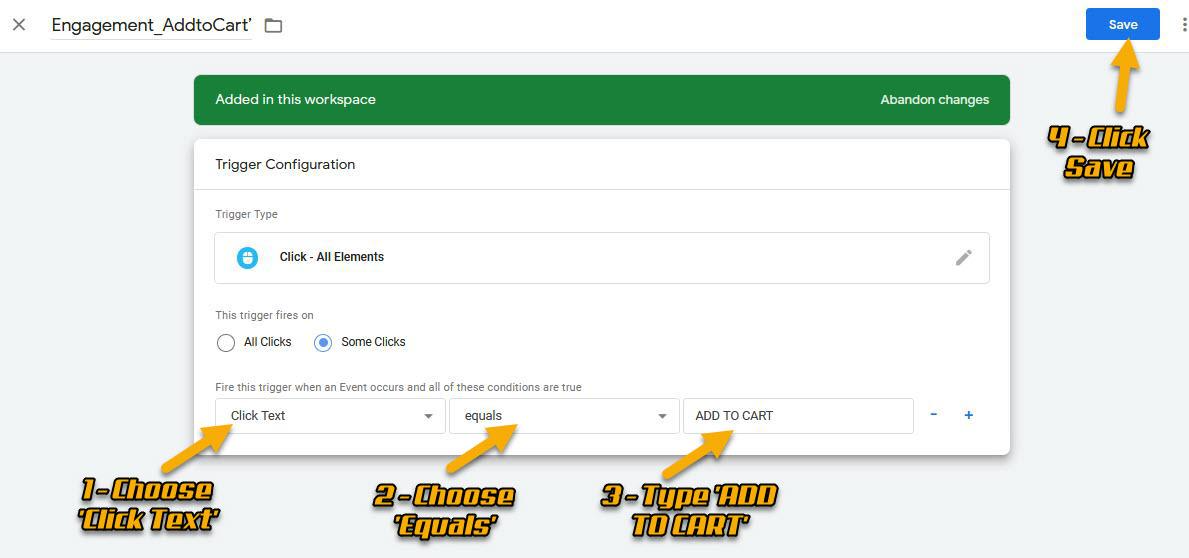
15. Go back to Google Tag Manager, and edit the trigger you previously created (in our example, the ‘Engagement_AddtoCart’ trigger).
Click “Trigger Configuration” → Under “This trigger fires on” select ‘Some Clicks’ → Select the combination you took note of in Step #8, then Hit “Save.”
(e.g.: Click text | equals | ADD TO CART)
16. Click on “Overview” on the sidebar to see a summary of the changes you’ve made.
17. Hit the ‘Submit’ button. You will be required to enter a Version Name and Description.
Note: Adding a name and description is optional but recommended. The information you entered should help to track changes easily.
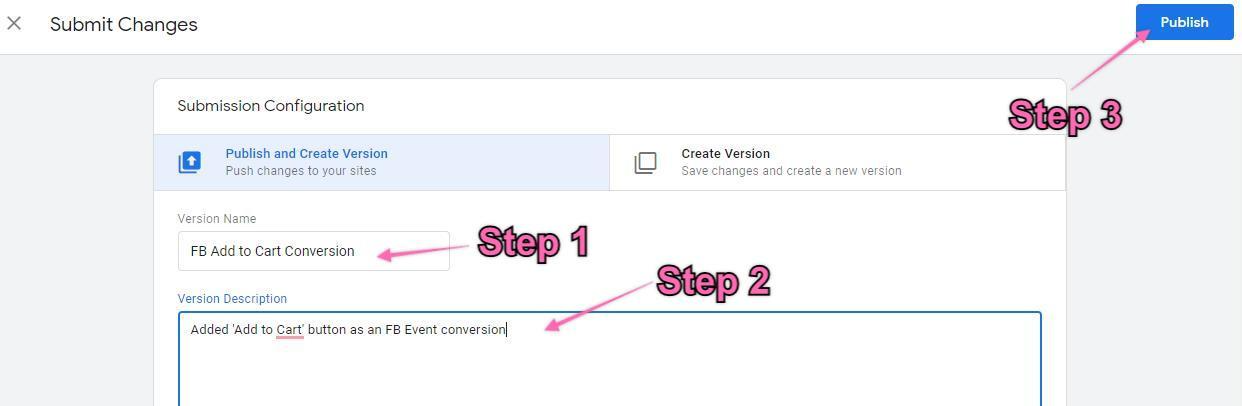
18. After you’re done, jump to “Check if conversions are being tracked properly”
Check if conversions are being tracked properly
Note: This step requires the Meta Pixel Helper Chrome Extension to be installed on Google Chrome.
Open your website using Chrome.
Perform the action you want to check if it is being tracked. (e.g., submitting a form, adding a product to a cart, etc.)
Click on the Meta Pixel Helper Chrome extension.
You should be able to see the name of the conversion that you are tracking appear on the list. Clicking on it will show the conversion parameters. These will be set if they were configured when setting up the event.
Note: If you’re tracking a button click, you might need to press and hold the Ctrl key (or Cmd ⌘ If you use a Mac) when you click on it. This will ensure the link is opened in a new tab; therefore, the page will not refresh, making you potentially miss the opportunity to see the event being tracked.
Example for a Button Click:
Go to the page where the button is.
Press and hold the Ctrl key (or Cmd ⌘ If you use a Mac) and click the button you want to test.
Click the Meta Pixel Helper Extension, and you should see the event you chose to fire when that button is clicked.
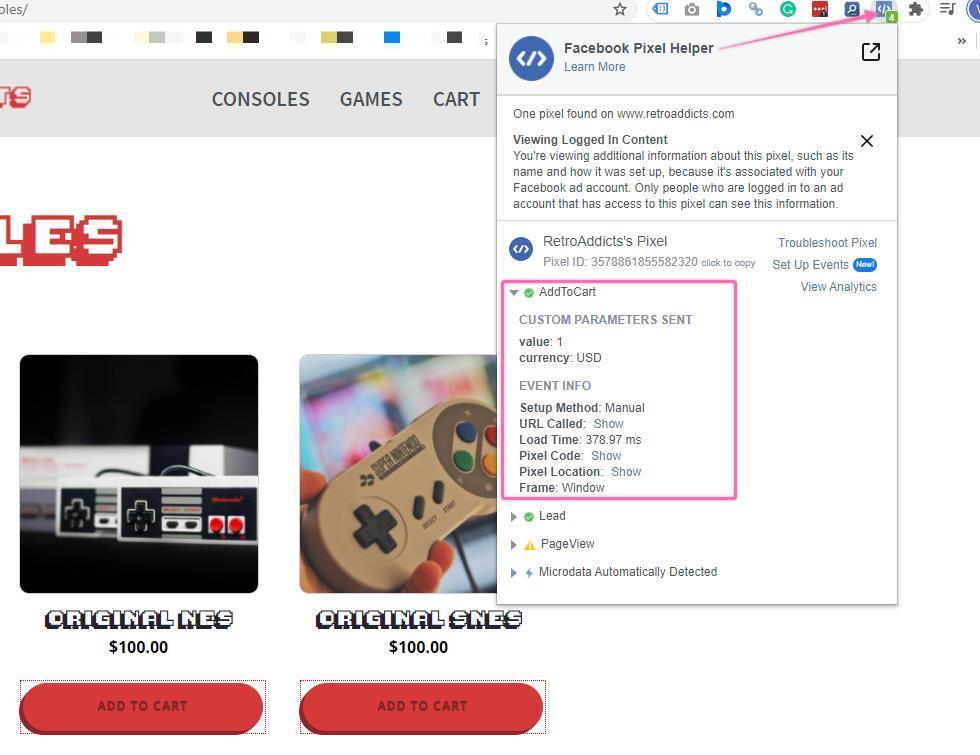
After you’ve verified that your conversion is tracked successfully, you’ll need to configure it in Business Manager.
Using Facebook Custom Conversions to track a Lead Signup.
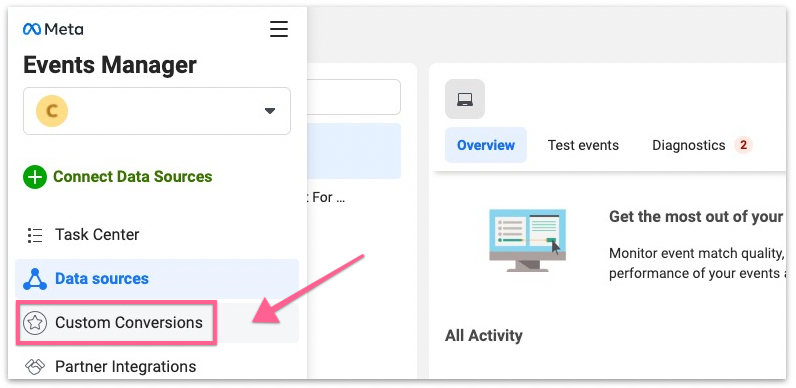
In Meta’s Event Manager panel, click on Custom Conversions in the left sidebar:
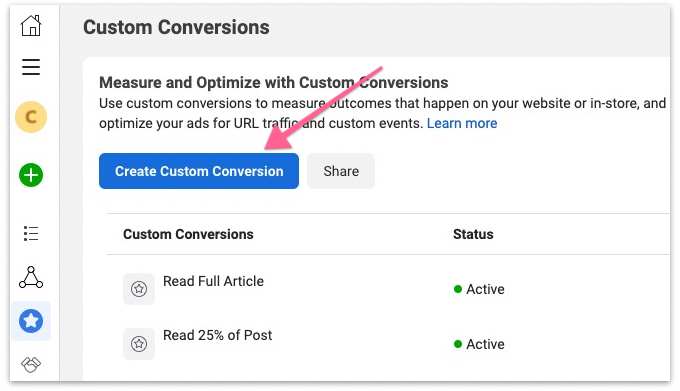
Click the “Create Custom Conversion” button.
You should be able to set up all the information regarding what you want to track now. Make sure you have selected the correct pixel to work with. The options to be configured here will depend on what you want to track:
Name: Try not to make this too long. It should be evident what this conversion is about. (e.g., Trial Lead)
Description (optional): Add more information about this conversion if it is unclear in the name.
Remember: You will want anyone to understand what the conversions are about. You might want to assign the ad account management to an employee or an agency. They should not be guessing what each conversion is.
Conversion Event: Select the one that better fits your purpose. If It is not a Lead, or an Add to Cart, pick “All URL Traffic”. We’ll select “Lead” for this task to track Lead Signups.
Rule 1: Select [URL][contains] and type here a specific part of your URL that will not be in any other of your page URLs.
E.g., If your URL is: retroaddicts.com, and your “Thank you” page is: retroaddicts.com/thank-you-new-subscriber, you can use:
retroaddicts.com/thank-you-new-subscriber, or
/thank-you-new-subscriber
But, if you have other URLs on your site that may contain that same text, do not use that, for example:
‘Thank you’ page: retroaddicts.com/thank-you-new-subscriber
Another unrelated page for a different conversion: retroaddicts.com/thank-you-new-subscriber/unrelated_offer
If you used [URL][contains][thank-you] for your rule, the second page will also count as a conversion since it also contains “/thank-you-new-subscriber.”
If this is the case, consider:
Using another part of the URL to create the rule.
Editing the URL slug of your ‘thank you’ page so that it is absolutely unique , e.g.: retroaddicts.com/thank-you-new-subscriber-199282jsn | in this case you can use: [URL][contains][199282jsn]
Using [URL][equals] instead of [URL][contains].
Note: If your website or any of your tools use dynamic parameters in the URL your conversions will not be tracked.
Not using Facebook Custom Conversions and using Standard Events through Google Tag Manager instead.
Value (optional): How much is this conversion worth to you? If you choose to input this field, you will be able to see it when analyzing campaigns and more efficiently optimize your campaigns.
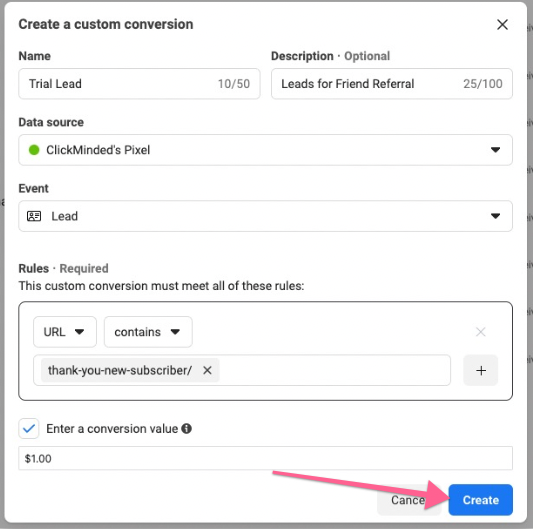
Click “Create,” and your custom conversion has been created successfully.
You will see your new custom conversion on the list.
Seeing a green light and an “Active” status means someone browsing your website has already triggered the rule you created. If that is the case, your custom conversion should be correctly configured.
But in most cases, you will see an inactive status:
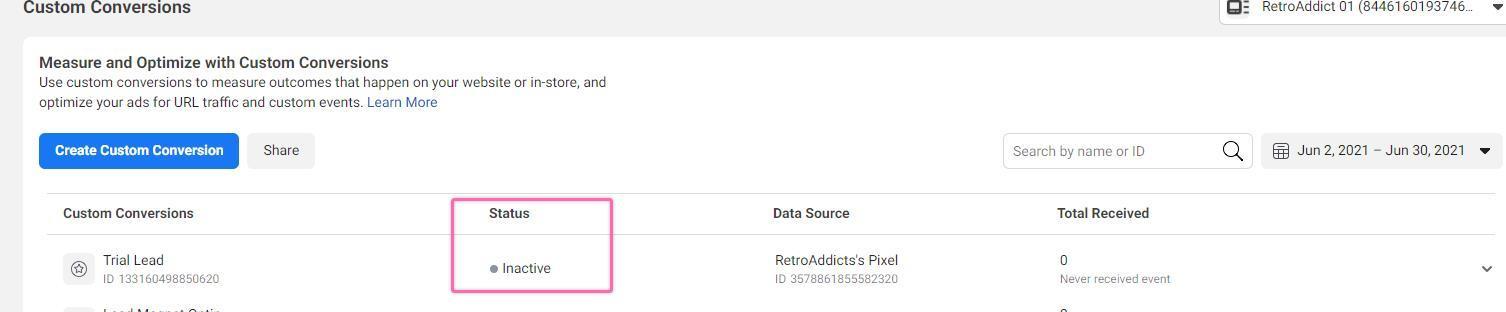
If that is the case, simply open a new tab on your browser and open your “Thank you” page (or the conversion page you set up before)
Wait 30 seconds. Go back to the Facebook Custom Conversion tab, refresh the page, and re-check. You should now be able to see this message:
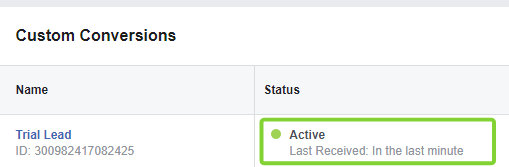
Once you’ve verified that your conversion is being tracked successfully, you’ll need to configure it in Business Manager.
Configuring your conversion events in Meta Business Manager
After you’ve set up conversion tracking, you’ll need to configure these conversions in Meta Business Manager before you can use them in your campaigns.