Goal: To add the Facebook pixel to your site.
Ideal Outcome: The Facebook pixel is properly installed without any technical issues.
Prerequisites or requirements: You can only do this once you have installed Google Tag Manager on your site. You should have also already set up a Facebook Ads Account using Business Manager.
Why this is important: Facebook Pixel is essential if you want to use Facebook advertising. With this pixel, you can create remarketing audiences and set up conversions for your campaigns.
Note: If you are using Shopify do not follow these instructions.
Where this is done: In Google Tag Manager and your Facebook Ads manager.
When this is done: Only once—the first time you install the Facebook pixel.
Who does this: The person responsible for website management, analytics, or paid advertising.
Environment Setup
Important:
These instructions describe the process of installing the Facebook Pixel using Google Tag Manager (the tool we recommend for adding and managing tracking codes to your website.)
If you are using Shopify do not follow these instructions
You should have created or gotten access to your company’s Facebook Business Manager account before following this process.
Before you start:
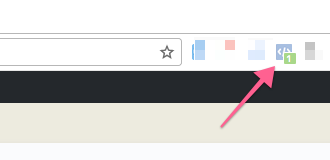
Install the Facebook Pixel Helper Chrome Extension.
Installing the Facebook Pixel
Log in to Facebook.
Go to your Facebook Business Manager.
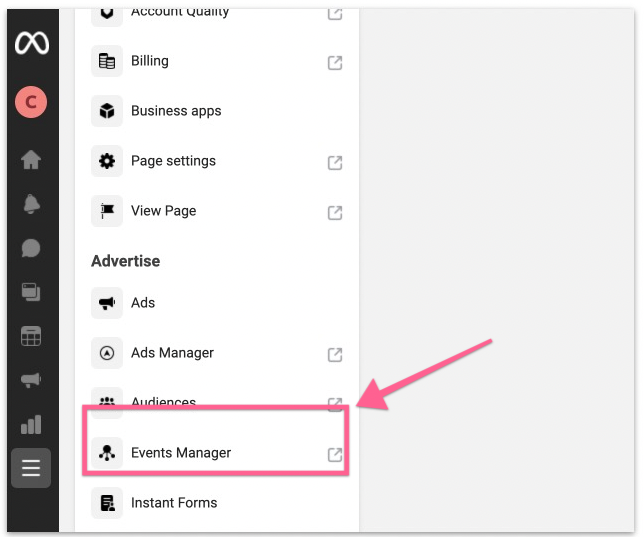
From the sidebar, click “All tools” ➝ “Events Manager”
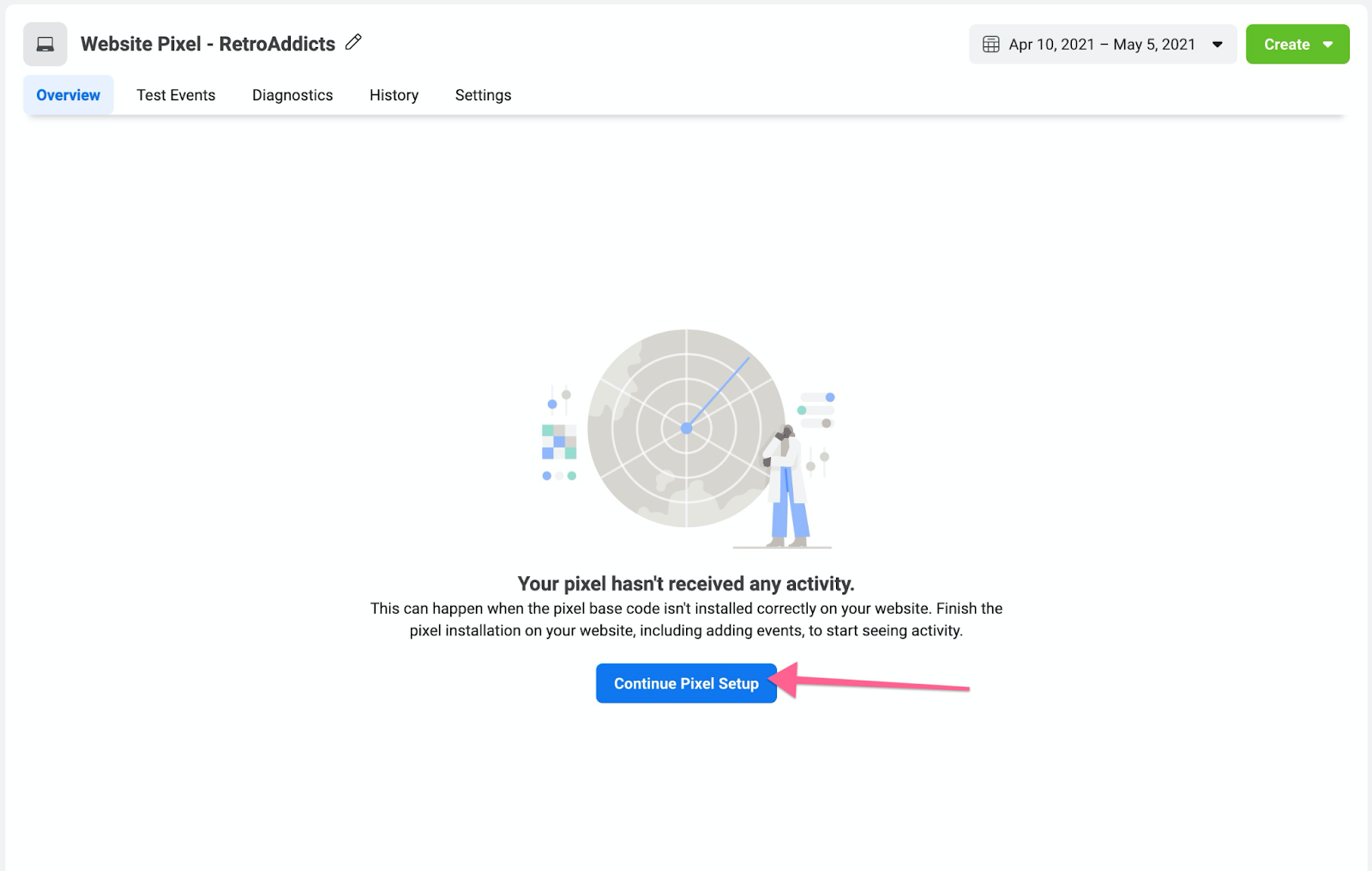
If a Pixel has already been created but hasn’t been installed yet, select it from the list on the left and click “Continue Pixel Setup” (then follow jump to step 6)
If this is the first time creating a Pixel for this business:
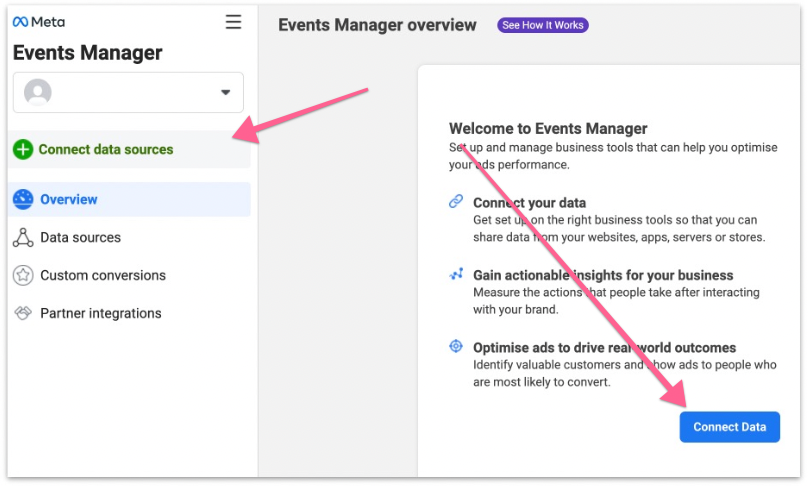
Click on “Connect Data Sources” or Connect Data
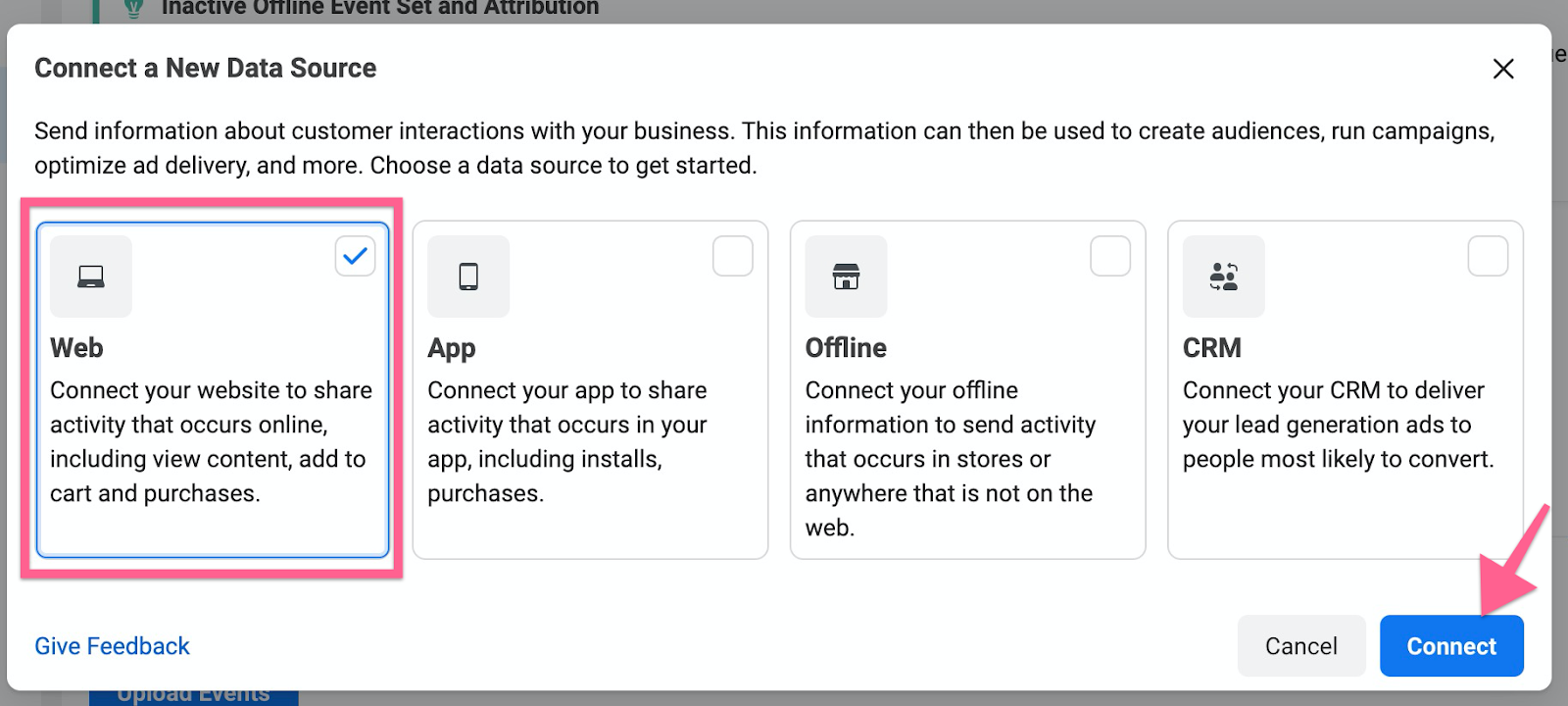
Select “Web” from the list, and click “Connect”
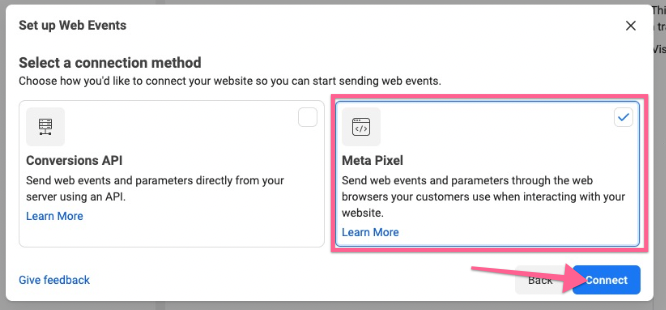
Select “Meta Pixel” from the list, and click “Connect”. If you don’t see Meta Pixel your UI probably isn’t updated yet, select Facebook Pixel instead.
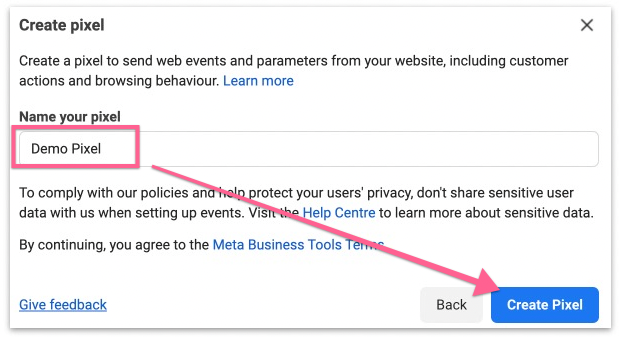
Name your pixel and click “Create Pixel”.
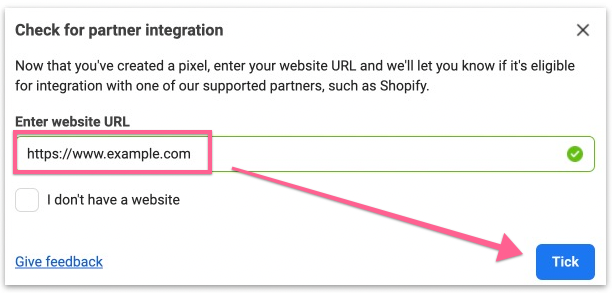
Add your website URL and click “Tick”.
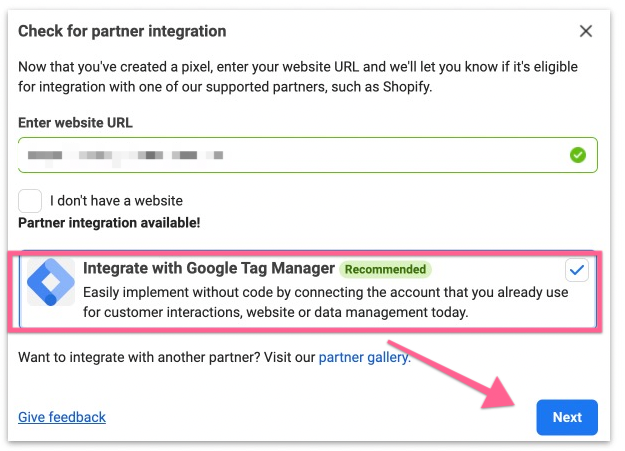
If you have set up Google Tag Manager on your site you will be able to see the integration available to you. Select the Google Tag Manager option and click “Next”.
On the next screen. Click “Continue” as it’s just a confirmation that your pixel has been set up.
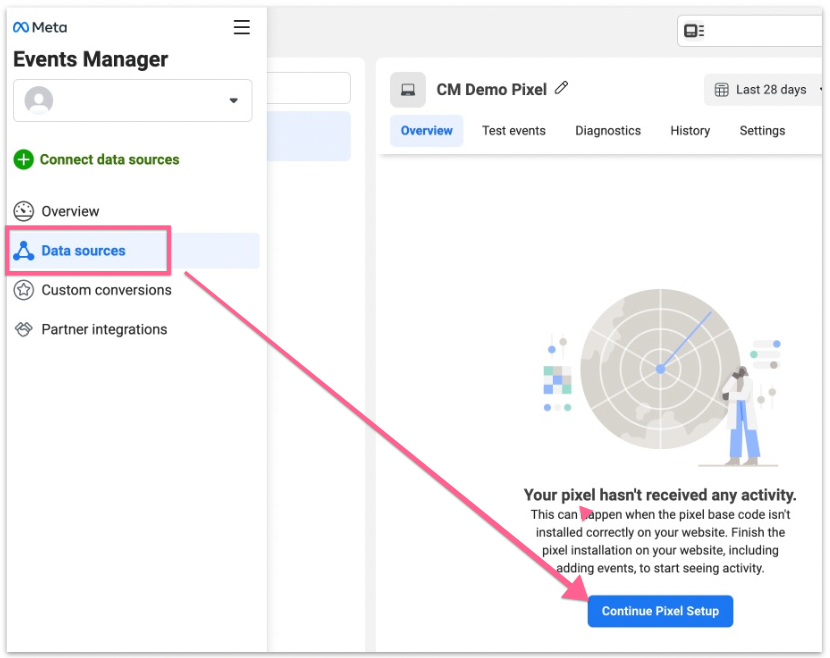
Next, select “Data sources” from the sidebar and click “Continue Pixel Setup”.
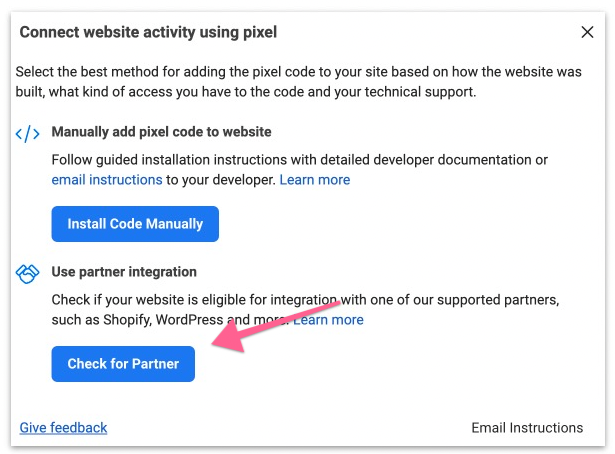
You will be presented with two options. 1) Manually add pixel code to the website or 2) Use partner integration. Select “Check for Partner”.
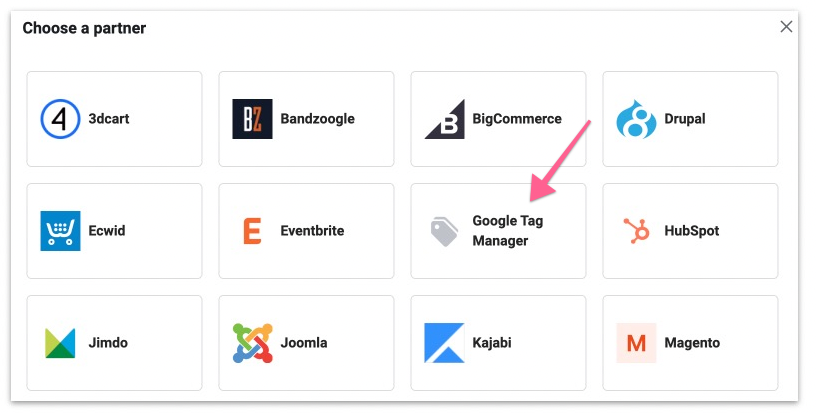
Select “Google Tag Manager” from the partner list
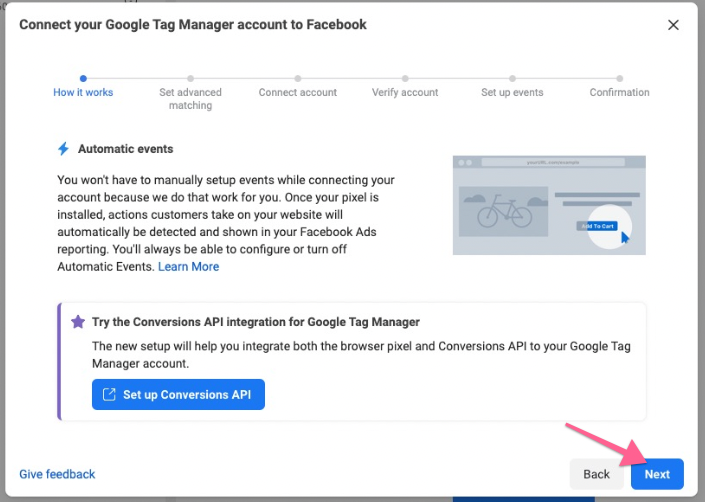
You will be taken on the onboarding workflow to connect your Google Tag Manager account to Facebook. In the first screen, click “Next”.
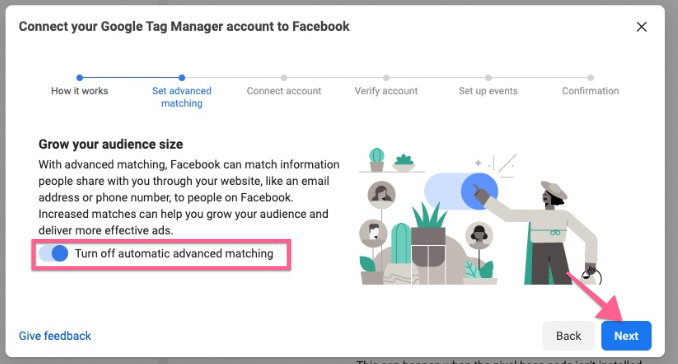
You will be asked If you want to turn on “Advanced Matching”. If you are an advanced Google Tag Manager user you might want to configure it now. If not, leave it “Off” and click “Next”:
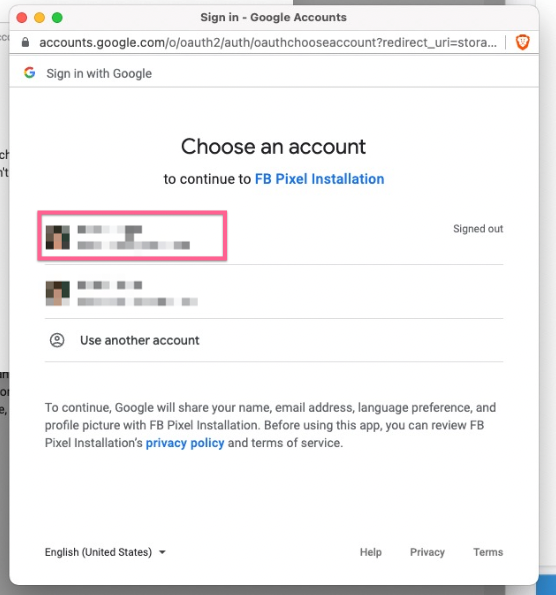
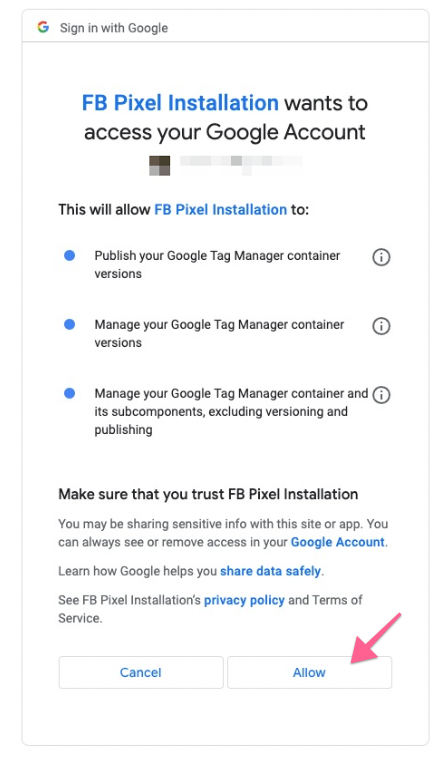
Next, you will be prompted to sign in to the Google Account you use for Google Tag Manager and will need to allow Facebook to make changes.
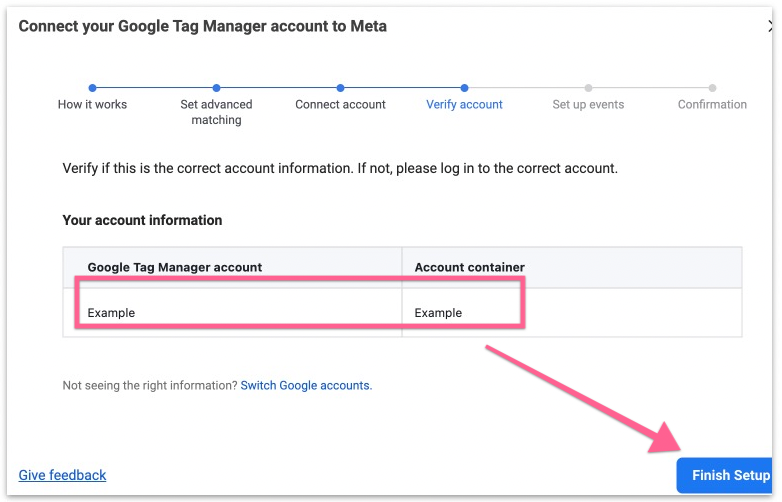
Verify that the Google Tag Manager account and container info is correct. Once confirmed, click “Finish Setup”.
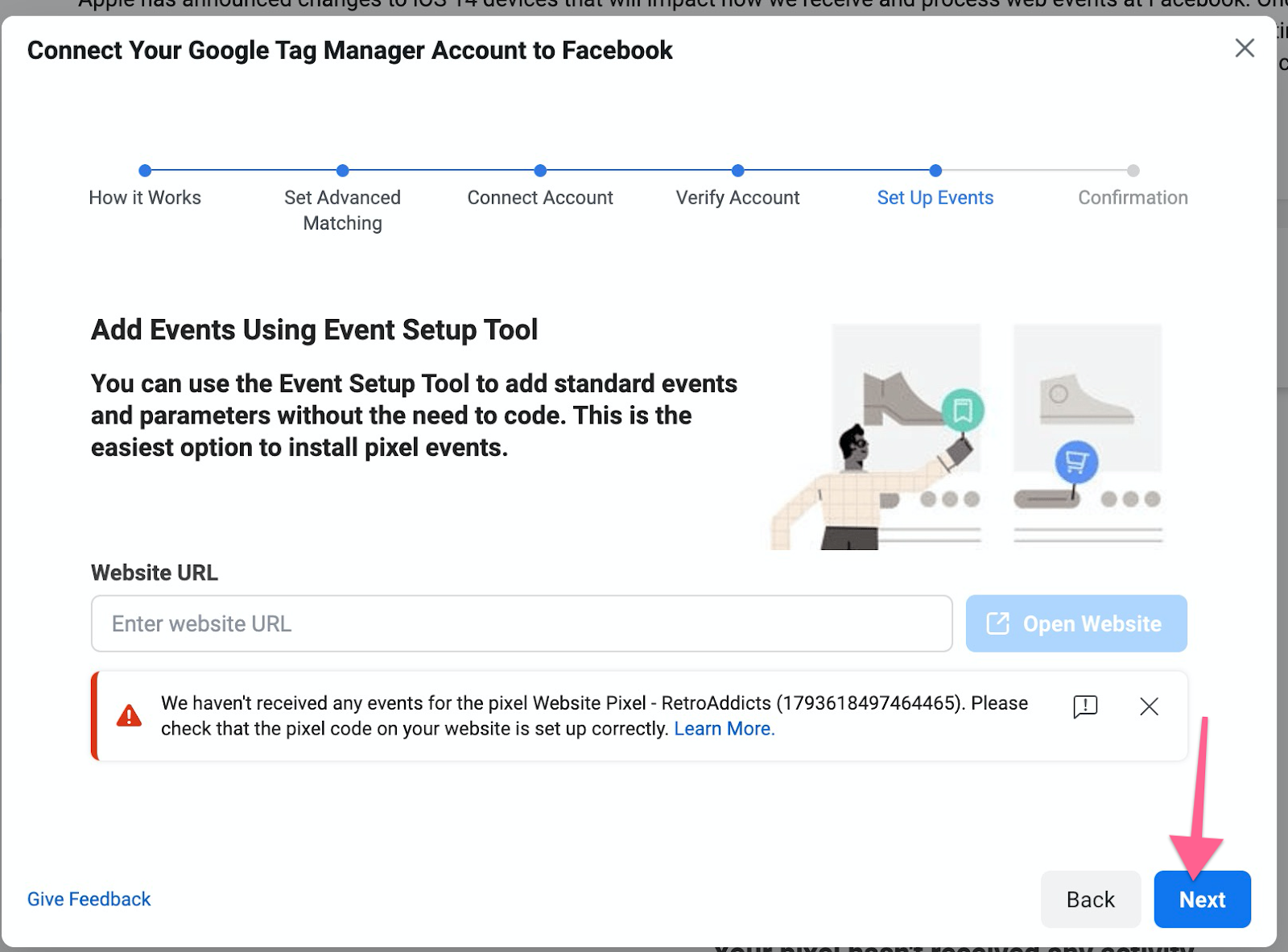
Next, you can choose to add events using the Event Setup Tool. Since you just want to add the Pixel Base Code, for now, you will just need to click “Next”.
You might see a warning that mentions that the pixel hasn’t received any events. This is normal since you’ve just installed it.
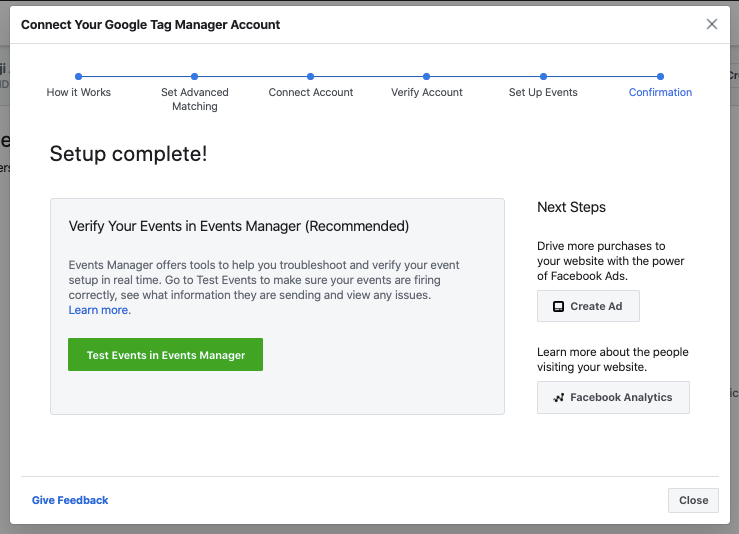
Finally, you’ll see a screen confirming that the setup is complete.
QA the Facebook Pixel
Open your website using Chrome.
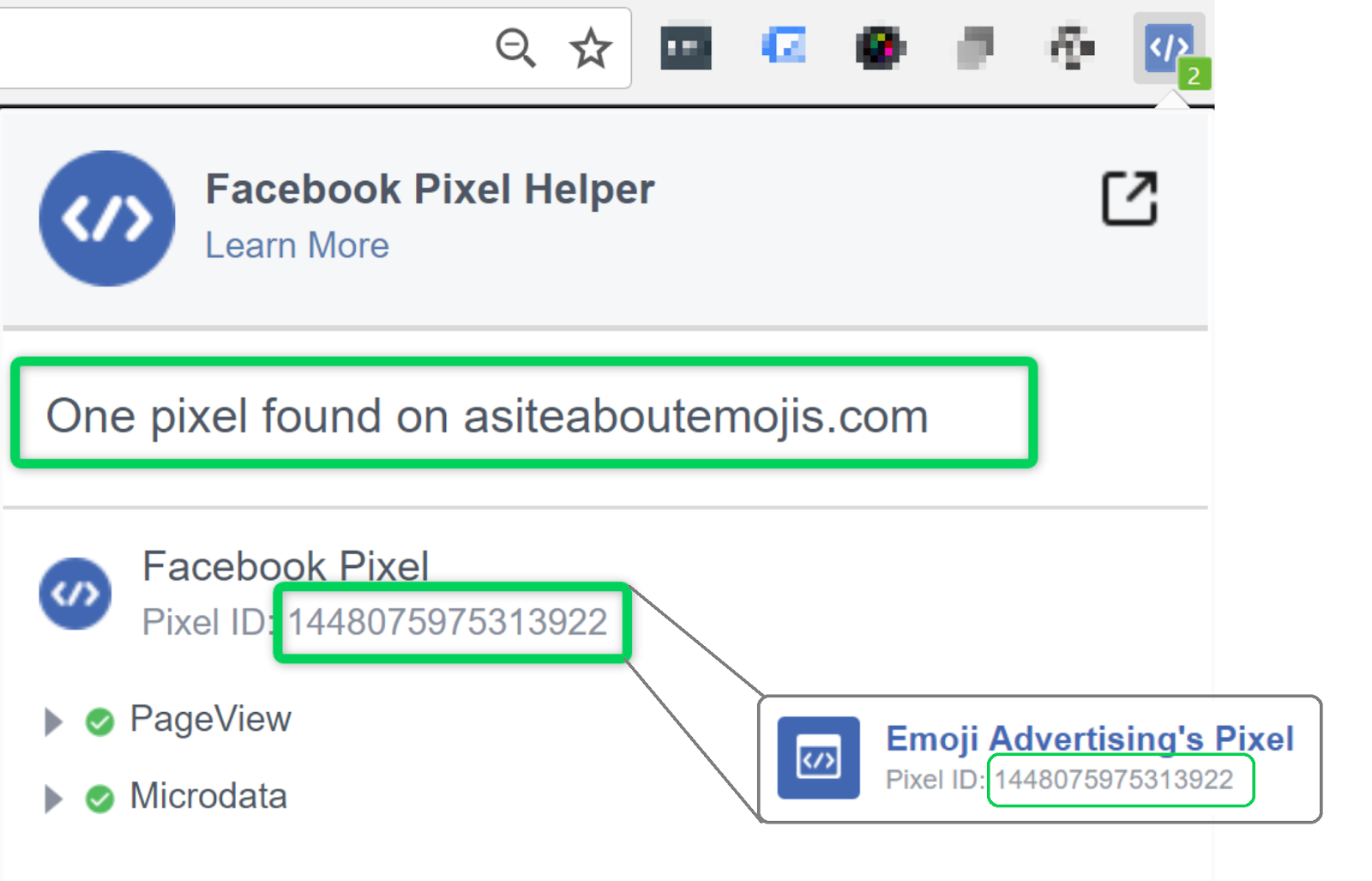
Click on the Facebook Pixel Helper Chrome extension.
You should be able to see your Facebook Pixel installed. The extension should be able to find at least one pixel, and it should match the Pixel ID on your Facebook Business Manager.